
In this Guide, you’ll add your first planting and watch as Tend auto-generates tasks—getting you officially up and running with crop planning.
Expected hours this week: 1 hr
The Fun Stuff (Crop Plan → Tasks)
Goal: Start growing with Tend.
Watch Adding a Planting intro video HERE.
Add your first Planting in the Crop Plan.
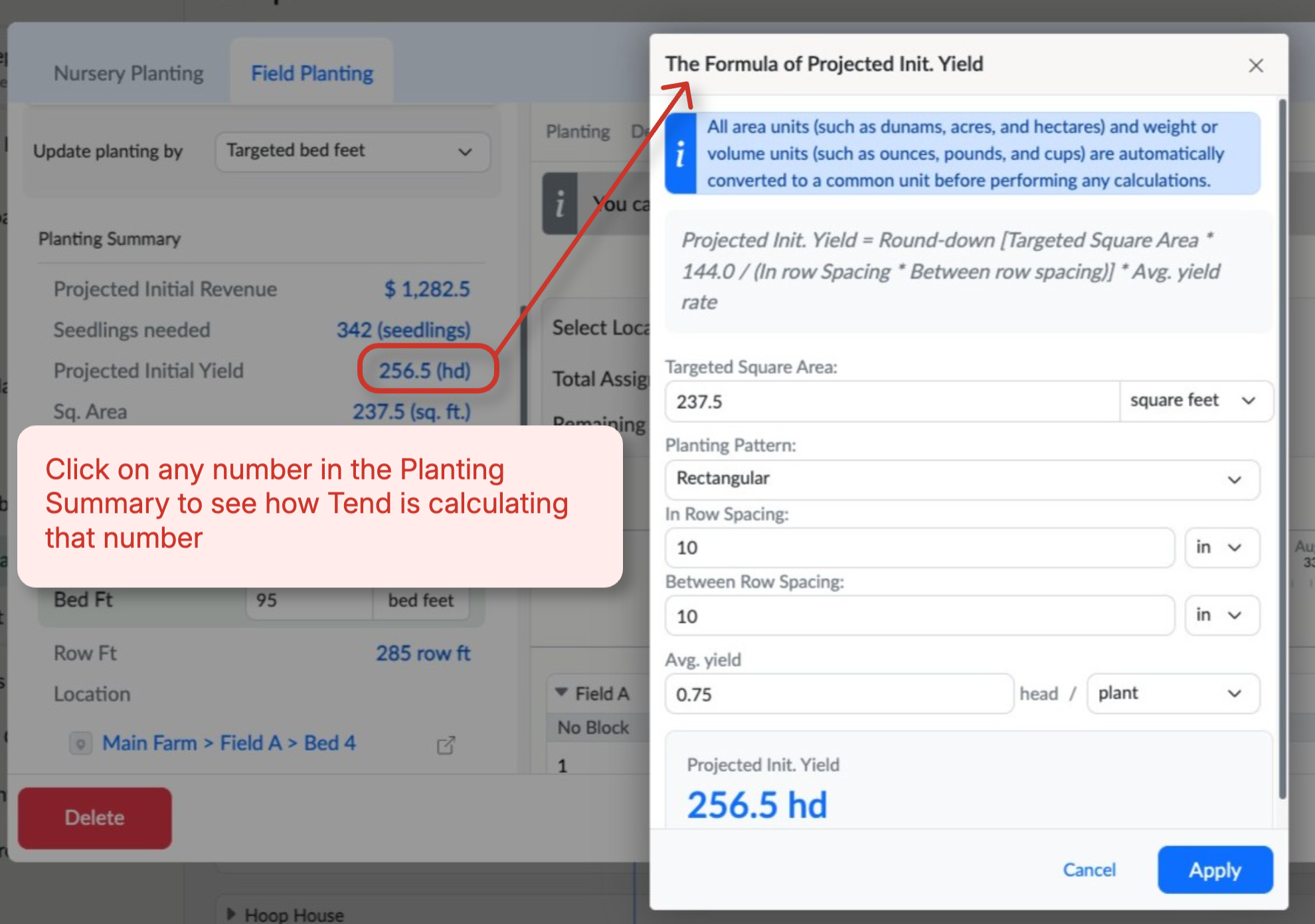
Tip: Once you select your crop and harvest stage, add your information for generating the planting (bed feet, number of plants, targeted yield, etc), then look in the left section of the planting pop up and scroll to see your Projected Revenue, Projected Yield, and planting details update in real time.
Note: You can assign your planting to a location here, while creating the planting, or leave it unassigned, then when you go to view your Crop Plan in Location View, you can drag and drop unassigned plantings into your beds.
New Feature: In Crop Plan > Location View, select an unassigned planting and see all of your beds’ available space, making easier and more informed decisions to optimize your growing area.
Tip: Once you’ve created your first planting, we recommend clicking on the planting to go through each tab and make sure all of the data looks right- is it the correct number of rows? Do the yield and revenue projections look correct to you? Do the tasks look good? The sooner you can identify any missed steps now, the better, as you can fix any issues before you’re too deep into your crop plan.
Watch Tend auto-generate Tasks → assign/edit as needed.
Watch Task intro video HERE.
Mark Tasks Completed as you go.
Critical Connection: Once you create a planting, go check out the Tasks feature to see all of your tasks for that planting appear in your task calendar- you’ll never miss a tomato pruning again!
Tip: In the Tasks feature, take advantage of all of the filters to sort through your workload, and print out task lists for your team to take with them to the greenhouse or field.
Note: When you add or update a task in your growing templates it can be applied to past, present, and future plantings.
Quick Crop Planning tips:
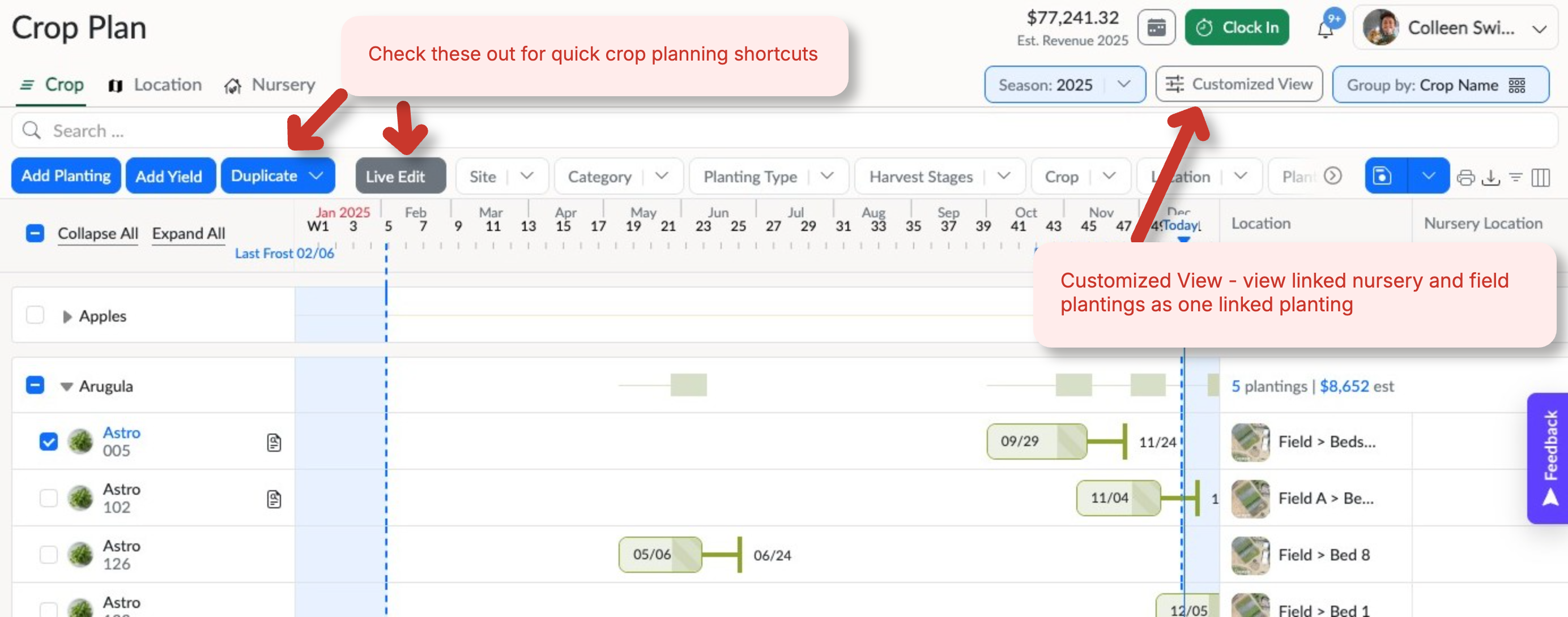
Use Duplicate tool to quick duplicate a planting within a season, or duplicate a planting OR your whole crop plan to a future season!
Live Edit will allow you to drag dates within a planting or move the whole planting across your timeline- great for setting up seamless successions, just create one planting, duplicate it and Live Edit so that the harvest windows perfectly overlap.
Use the Customized Views tool to show or remove the planting pop up, and use this to view your separate but linked nursery and field plantings as one linked planting.
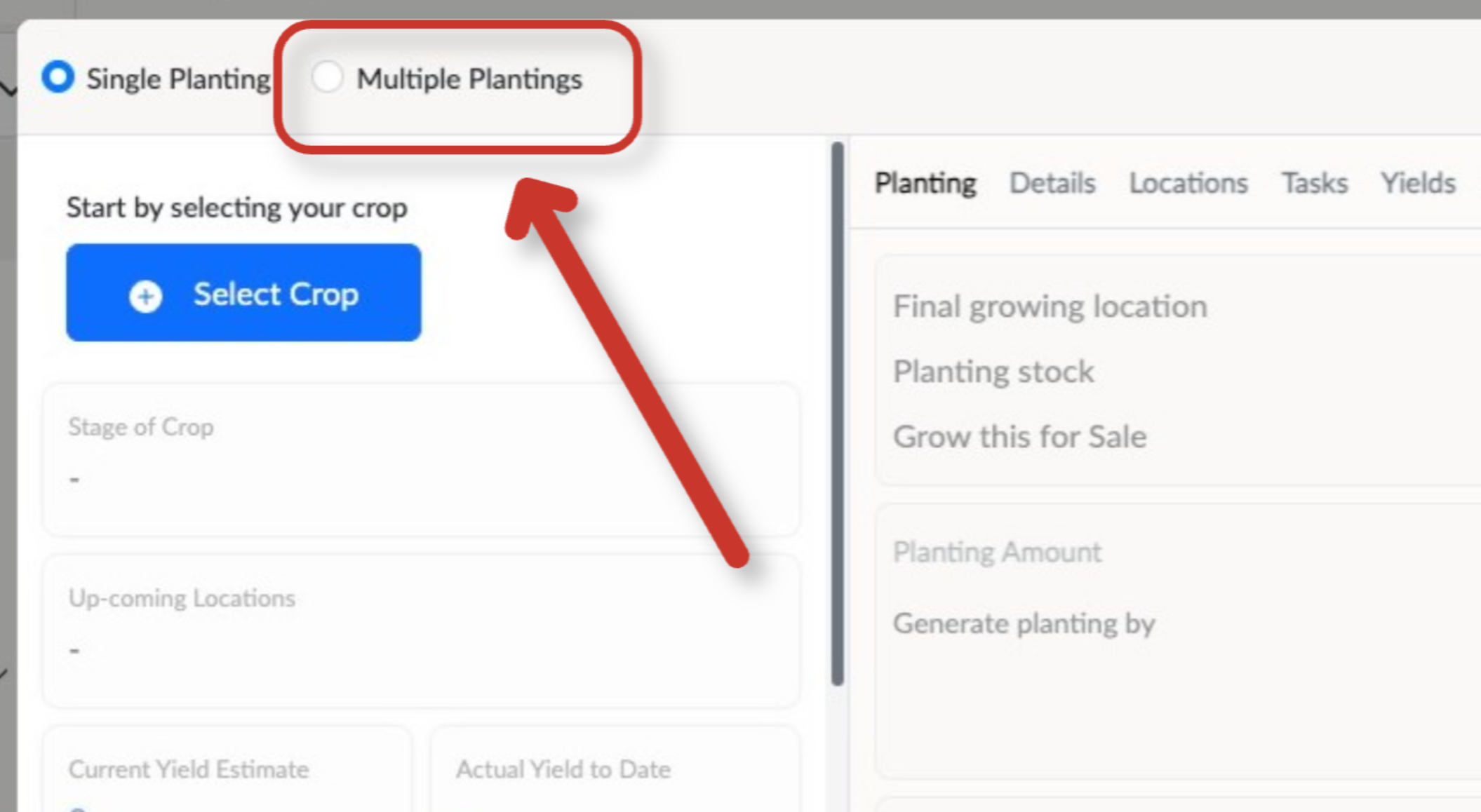
Another way to succession plant is when creating a planting, simply select “Multiple Plantings” at the top left of the planting pop up and set your succession interval and number of successions.
Small Win: You’re officially planning and running tasks in Tend 2.0!
After 4 Weeks…
You’ll have:
A farm profile with your team + settings
A mapped-out farm
Assets inventoried
Crops + tasks flowing into your next season
Copyright Tend. All Rights Reserved.