
Tasks in Tend help you plan daily work, coordinate your team, and keep accurate farm records. You can create tasks manually, generate them automatically from your Crop Plan, schedule recurring work, and organize tasks using List or Calendar View.
Completing tasks also records important information, including labor, equipment use, inputs, harvests, and expenses. This helps you maintain traceability and better understand your farm’s operations.
Access Tasks
In your Tend account, click on Tasks in the left side menu.
Task Views: List & Calendar
List View
List View provides an overview of tasks created manually and tasks generated from your Crop Plan. You can filter and group tasks to create a view that works best for your farm.
For example, you can view all tasks for a specific crop throughout the season or focus only on this week’s harvest tasks. You can also save customized views so you can return to them without setting up the same filters again.
Using Filters
Use the filters at the top of List View to narrow down the tasks you want to see. Click the Filter icon to choose which filters are displayed.
To save a filtered view:
Apply the filters you want to use.
Click the blue Save icon near the upper-right corner.
Enter a name for the view.
Click Save.
To access a saved view, click the arrow next to the Save icon. Select a view from the dropdown menu or click Show Saved Views.
You can also use the Group By button to organize tasks by Assignee, Task Type, or Crop. Select No Grouping to display all tasks in a single list.
When tasks are grouped, click the blue Download & Print button of an individual group to export it as a CSV or XLSX file.
More Actions: How to Print a Harvest Sheet
You can print a Harvest Sheet to record information while you’re working in the field. Once it has been completed, you can upload it back into Tend to update the related tasks.
To download a Harvest Sheet:
Click More Actions in the upper-right corner of the Tasks page.
Select Harvest Sheet (Download).
Use the available filters to choose which harvest tasks to include.
Download and print the Harvest Sheet.
Use blue or black ink to record the Actual Harvest Amount, Actual Labor Time, and whether each task was completed.
To upload the completed Harvest Sheet:
Take a clear photo of the completed sheet.
Return to the Tasks page and click More Actions.
Select Upload Completed Harvest Sheet and follow the prompts.
Review the information captured by Tend.
Make any necessary corrections and confirm the upload.
Once confirmed, Tend will update the corresponding tasks with the information from the Harvest Sheet.
Download & Print Tasks
You can export tasks from List View as a CSV or XLSX file, which can then be opened in a spreadsheet and printed.
To download your tasks:
Open List View.
Set Group By to No Grouping.
Use the filters at the top of the page to choose which tasks to include.
Click the blue Download and Print button.
Choose All to include every available attribute or Custom to select specific attributes.
Click Export and select CSV or XLSX.
For example, to export Container Sow tasks for the current season, set the Task Type filter to Container Sow and the Date filter to This Season.
Calendar View
Calendar View allows you to view and manage tasks by day, week, or month. Use the calendar controls to adjust the timeframe and level of detail shown.
Day View
Day View provides an hourly breakdown of tasks scheduled for a specific day. Select the date you want to view along the bottom of the screen.
Turn on Display Expanded Task Info to see more information about each task. Use the time range dropdown to display an 8-hour, 12-hour, or 24-hour period, or select No Time Range.
From Day View, you can:
Drag and drop a task to move it to a different time.
Drag the arrows on either side of a task to adjust its duration. This only works if the task already has an estimated labor time.
Select the Assignee icon to assign a team member.
Select the three-dot menu to change the assignee, mark the task complete, or delete it.
Select a task to open it and edit its details.
Week View
Week View displays your tasks across a full week. You can drag and drop tasks to move them to a different day.
Harvest tasks can only be moved to different days within their current harvest window.
From Week View, you can also:
Select the Assignee icon to assign one or more team members.
Select the three-dot menu to change the assignee, mark the task complete, or delete it.
Select a task to open and edit its details.
Grouping Tasks in Calendar View
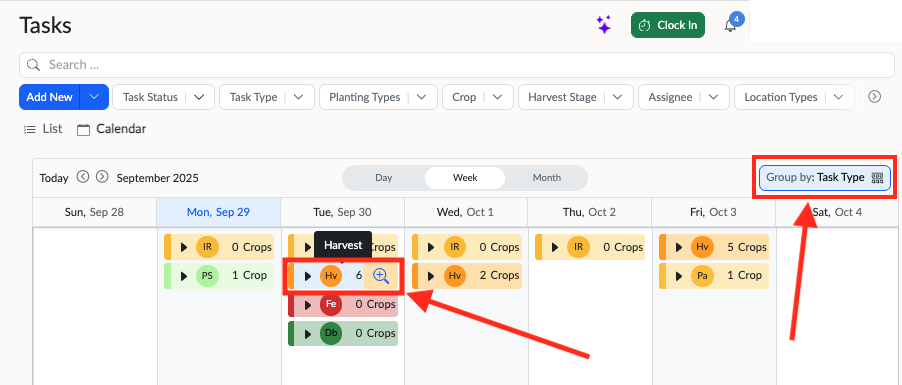
Use the Group By filter to organize your weekly task list by Task Type. Tasks of the same type will be combined into a single row.
Select the dropdown arrow to expand the group and view all of its tasks. You can also hover over the colored task bar and select the blue magnifying-glass icon to open the grouped tasks. From there, you can filter the tasks by Site.
Multi-Day Tasks
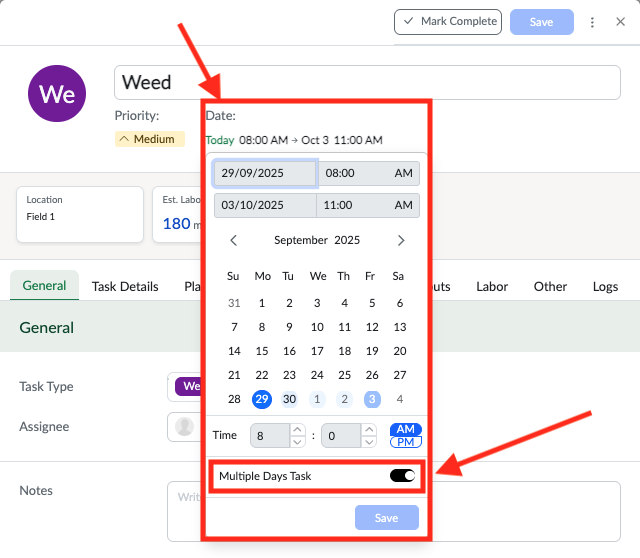
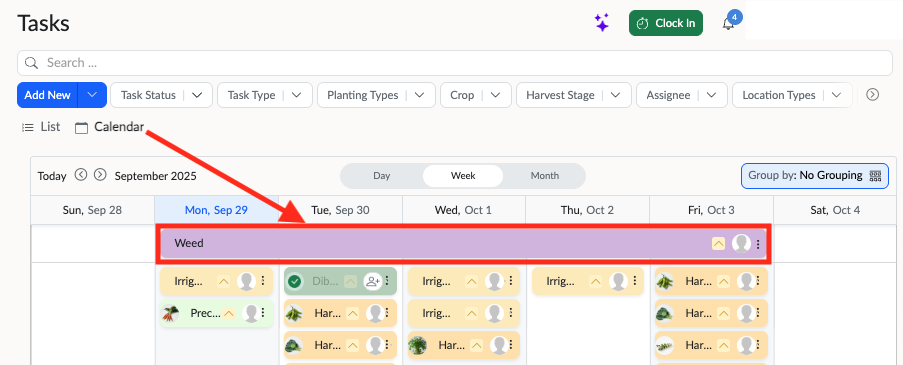
Use a Multi-Day Task when work can be completed within a general timeframe instead of on one specific day. For example, you might create a Weeding task that spans five days and let your crew know it should be completed at some point during that period.
To create or update a Multi-Day Task:
Open the task.
Select the date field to open the calendar.
Turn on the Multiple Days Task option.
Select the task’s start and end dates.
Save your changes.
Auto-Generated Tasks in Tend
Tend can automatically create tasks from the information in your Crop Library and Crop Plan. This helps reduce repeated data entry and keeps your task schedule connected to your plantings.
Auto-generated tasks come from two sources:
Default crop data: When you create a planting, Tend automatically generates activities such as seeding, transplanting, and harvesting based on the crop’s default data.
Automated Task settings: In your Crop Library, open a Growing Template and select the Automated Tasks tab. Here, you can configure additional tasks and copy them to other Growing Templates within the same Crop Key.
For accurate task dates and details, make sure the information in your Crop Library and Growing Templates is up to date.
Complete Your Tasks
Always mark tasks as complete. Completing a task creates the related records and expenses in Tend.
Depending on the task, Tend can record:
Inputs and equipment used
Labor by crop and assignee
Harvest amounts
Connections to the related planting or order
Keeping your tasks complete and accurate gives you stronger traceability, more reliable reports, and better farm records.
Create Detailed Task Templates for Plantings
In your Crop Library, it's best to take your time and set up task templates in your Growing Templates for work that accompanies a planting, such as weeding, fertilizing, bed prep, or trellising. When you create a planting, Tend will automatically generate the tasks and their associated details.
This saves time when adding multiple varieties or plantings to your Crop Plan.
For example, if you grow several tomato varieties:
Create a Growing Template for one variety and name it something like “Main Tomato Growing Template.”
Add the tasks that apply to your tomatoes, such as pruning, staking, and trellising.
When adding other tomato varieties to your Crop Library, use the Clone Growing Template option.
The task details from the original template will be copied to the new variety.
Creating Stand-Alone Tasks
You can create a task that is not connected to a Growing Template or automatically generated from your Crop Plan.
To create a stand-alone task:
Open the Tasks page.
Click Add New.
Enter a Task Type or select one from the dropdown menu.
Select the task’s priority and assign it to a team member, if needed.
Select the date field to choose the date and time.
Add any necessary task details.
Link the task to a Location or Planting, if applicable.
Add any Inputs or Equipment needed for the task.
Enter the Estimated Labor Time.
Add any other related entities, if needed.
Click Save.
Recurring Tasks
Tend is also aware that some of these tasks are recurring - That’s why we have incorporated the Recurring Tasks feature to handle not only recurring crop tasks, but also regular non-crop tasks like equipment maintenance, irrigation, and animal husbandry activities. By setting up recurring tasks, these essential duties are scheduled and managed routinely, so you can stay on track.
The process is similar to creating a "stand-alone" task, you'll just need to edit the frequency of reoccurrence.
Click on 'Add New' from your Tasks page.
Enter the task type name or choose one from the drop down menu.
Set the priority level and assign the task to an employee. (optional)
Click on 'Today' under Date. This will open your calendar window.
Next to 'Recurring' click on the dropdown arrow next to ‘Does not repeat’.
Set the frequency of recurrence to fit your needs.
Click Save to create the reoccurrence
Link the task to a location or specific planting, if needed.
Include any necessary comprehensive task details.
List any inputs or equipment required.
Click 'Save'
Tasks in Tend: Your Built-In Compliance & Traceability Tool
Tasks are more than just a checklist for daily operations—they form the foundation of your farm’s record-keeping system. Each task you complete is automatically logged.
These completed tasks can cover the full spectrum of farm activities, including seeding, transplanting, harvesting, input applications, and expenses. By completing tasks, you’re not just marking work as “done”—you’re capturing the essential data your farm needs for:
Comprehensive traceability: Link harvests back to plantings and inputs with a clear, auditable trail.
Compliance support: Maintain the level of documentation required for organic certification, GAP, or other regulatory frameworks.
Operational insights: Track production costs, labor by crop and assignee, and equipment usage.
For growers facing compliance requirements, this is especially important. Task completion ensures your records are created automatically. Treat tasks as both a work log and a compliance record. The more complete your task data, the stronger your traceability and reporting will be.