
Overview
Crop Plan helps you plan and manage your crop production for efficiency and profitability. This is where your goals for the season become your production plan. You begin by adding your plantings and then Tend will generate your Task List based on all of the information you already input for each crop in your Crop Library.
The best way to get started is to add a planting. You can keep adding plantings and editing those plantings, until your Crop Plan is complete. You can create a Crop Plan for this year and the years ahead.
Orientation
There are three main tabs in Crop Plan:
Crop View: shows a timeline of your plantings throughout the year. You can quickly adjust plantings right from this main window.
Location View: displays a layout of your plantings based on your fields and beds. Drag and drop plantings between the Unassigned Plantings panel and Assigned Plantings panel to optimize timing and placement.
Nursery View: anything growing in your Greenhouse Zones and Growhouses will live here.
Toggle between these views by clicking the tabs at the top of the screen:
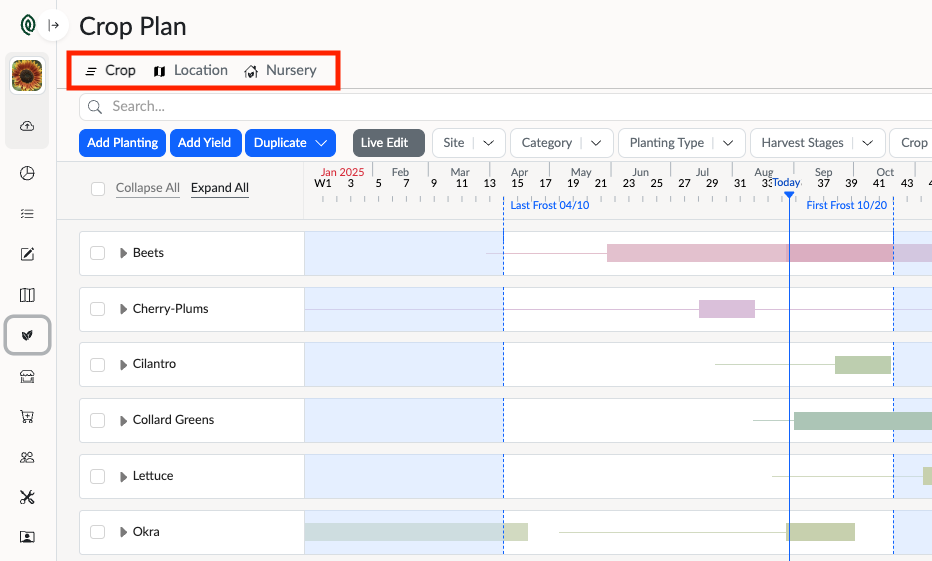
For a deeper orientation of each tab, see the Crop View and Location View articles.
Tend Tip! While Crop Plan is primarily used for planning out your plantings over a season, it is highly integrated with other features across Tend. This reduces the amount of data entry you need to do across the app and makes sure that everything is in sync.
How Crop Plan is Integrated with other Features
Your Growing Templates in your Crop Library store information on WHAT you grow: Crop, Variety, and Harvest Stage, as well as detailed information on HOW you grow each crop. This information is used to populate planting information when you add a new planting to your Crop Plan. After adding a planting, information from the planting flows to other features needed to manage your production plan (e.g, Tasks).
Before Adding a Planting
Before you add a planting, build out your Growing Templates in your Crop Library Tend's Crop Library is preloaded with growing information for hundreds of crops and thousands of varieties. Spending time creating your Growing Templates will generate default settings for important information within each Crop. Information such as crop attributes specific to your growing region or Tasks like sowing, weeding, adding nutrients, and harvesting will be transferred to your Crop Plan.
Adding a Planting
Adding a planting in Crop Plan is fast because it uses the customized details stored in Growing Templates in Crop Library to populate the planting page. You can override default information on a per planting basis if needed.
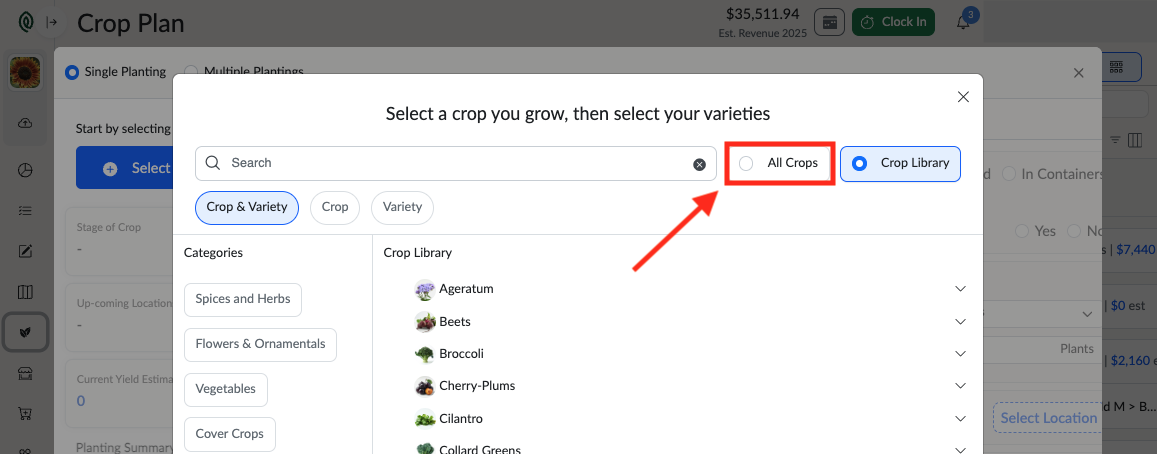
You can also add a planting of a crop that you do not yet have in your Crop Library by Clicking 'Add New' from the main age, then 'Select Crop' in the planting pop-up window. From there Select the radial button for 'All Crops' to search Tend's database of Crops and Varieties to add to your Crop Plan. Adding a new crop from here will automatically add it to your Crop Library.
After Adding a Planting
Once you add a planting, Tend updates other areas with the information:
Smart Shopping List: The information from your Planting based on amount of seeds needed will populate into your Smart Shopping List to help you know how many seeds to purchase.
Tasks: Adding a planting automatically generates relevant tasks like sowing, weeding, and harvesting informed by your Growing Templates in Crop Library and updated with the specific dates you entered when you Add a planting in Crop Plan.
Reports: Use Reports & Analytics for feedback on your Crop Plan to ensure you have the right mix of crops producing at the right time. Check out your Harvest Calendar Report to see a seasonal breakdown of which crops you will be harvesting each month.
Crop Plan displays:
Crop View shows a timeline of your plantings throughout the year. You can quickly adjust plantings right from this main window.
Add Yield: to quickly select a crop and input harvest yields.
Duplicate: easily duplicate a planting in various ways.
Live Edit: allows you to adjust planting and harvest dates within the colored planting bar.
Bulk Edit: select multiple plantings and change Crop Details all at the same time.
Filters: use the filters along the top to narrow down what you are seeing.
Location View displays a visual breakdown of your plantings within your fields and beds. It also displays any unassigned plantings you may have.
Nursery View gives you detailed information on where your Greenhouse and Growhouse plantings are assigned.
Within each view, you can visualize how each stage of your production will unfold over the season.
The heart of Crop Plan is your plantings, so let's get started by adding a planting.