
In this Guide, you'll import key data and complete your farm’s basic settings so your digital farm foundation is ready to grow.
Expected hours: 1-3
Getting into Tend
Goal: Set up your new Tend account
Farm Warm-Up (Farm Settings Basics)
Goal: Set your foundation.
Watch Settings intro video HERE
Review General Settings → frost dates, bed & path widths, harvest schedules, etc.
Tip: This information will come into play all throughout Tend’s platform, so make sure to spend some time dialing this in
Critical Connection: The harvest schedule you set here in settings will tie to when harvest tasks will be created for each planting
Add/update Users & Roles → invite your team and assign permissions.
Note: This will allow you to assign tasks and give instruction to specific employees and track labor per user.
Small Win: Your farm’s digital “about me” is complete!
Meet Bud! (your personal Tend guide)
Goal: Get familiar with all of the resources available to help you navigate Tend and ask for help if you need it.
Who is Bud?
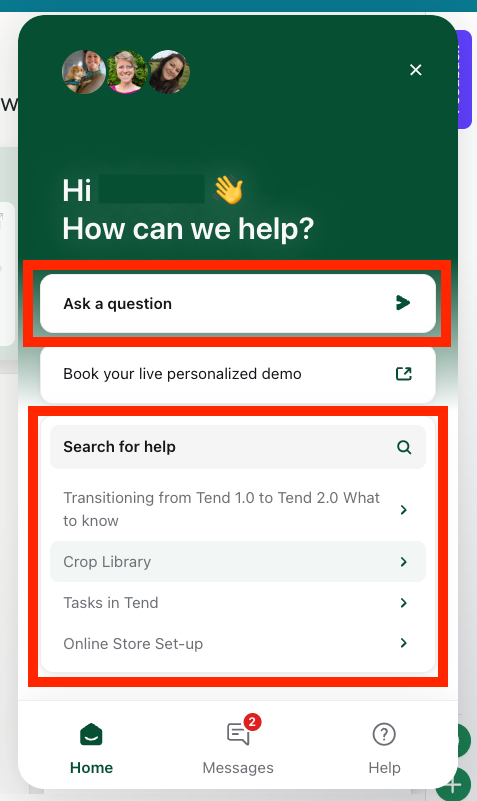
Skip the scrolling and talk to Bud. Instead of searching through our help center, you can ask Bud questions in plain English-like 'How do I invite my team?' or 'Where do I set my frost dates?'-and get a direct answer instantly.
Located on the right side of your Tend screen, you can click on the Green Support of Leaf icon and "Ask a question"- Bud will search through all of our help documents and find the best answer for you.
Bud's answer not good enough? You can always respond to Bud by saying "speak to a human" and you'll be sent directly to our Customer Support team, who will help you out from there.
You can also search through all of the Help Docs yourself, if you're a real bookworm and like to get into every detail!
Import necessary data
The Import Hub can save you time and get some key data into Tend with the click of a button.
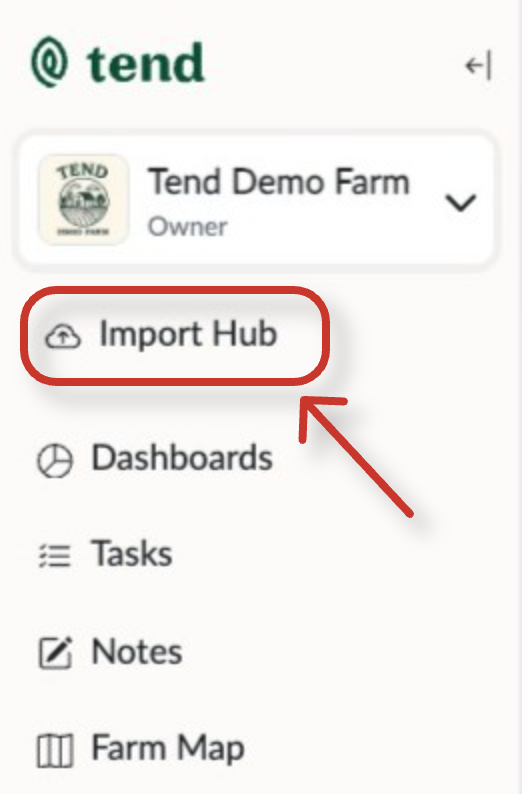
Go to Import Hub, top left underneath your farm name
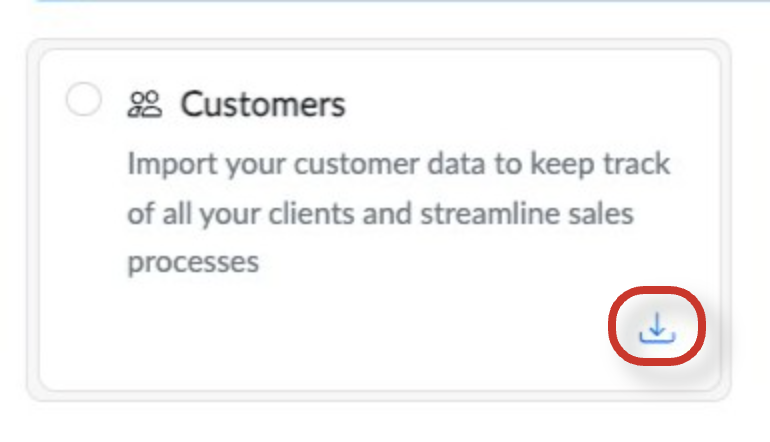
Download the Import template in the bottom right corner of the specific data type you want to import (ex: Customers)
Open the template on your computer, delete the sample data and fill in the fields with your client information
Once complete, save the file (.csv, .xls, .xlsx)
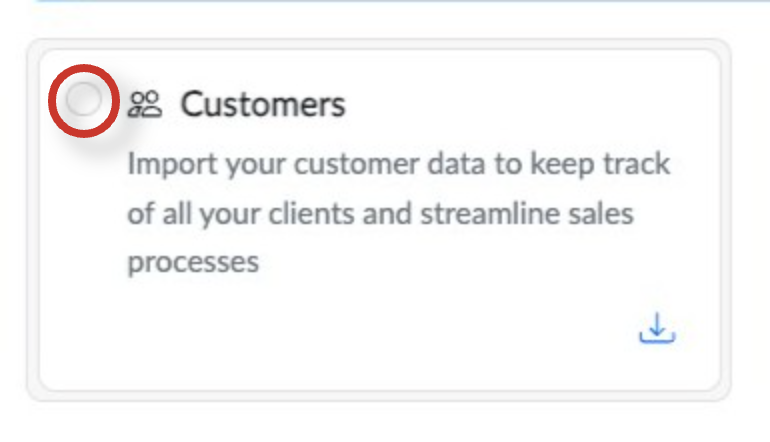
Go back to Import Hub and select the box of the data type you'd like to import
Hit Next and follow the import steps
Go to the Feature in Tend and confirm your upload completed, and check out your account already filled with you farm's key data!
*Crop Library Note
When you are uploading your crops into Crop Library, you will be prompted to select a Harvest Stage for each crop
A Harvest Stage is the final "product" that you'll be harvesting- are you growing this crop for baby greens, mature leaves, heads, etc?
You will need to select at least one harvest stage for each crop from your file. If you harvest a crop in multiple ways (baby and microgreens for example), select all that apply!
Tip- try to keep the harvest stages as minimal and consistent as possible across your crops and varieties- this will keep your Crop Library uncluttered and only contain exactly the crop-variety combos you need
Resources - General Settings | Users & Roles | Getting Started Guide | Import Hub | Crop Library
Copyright Tend. All Rights Reserved.