
Tend provides a user permissions system to ensure that your team members have appropriate access to perform their roles efficiently. This guide explains how to manage your users, roles, and permissions.
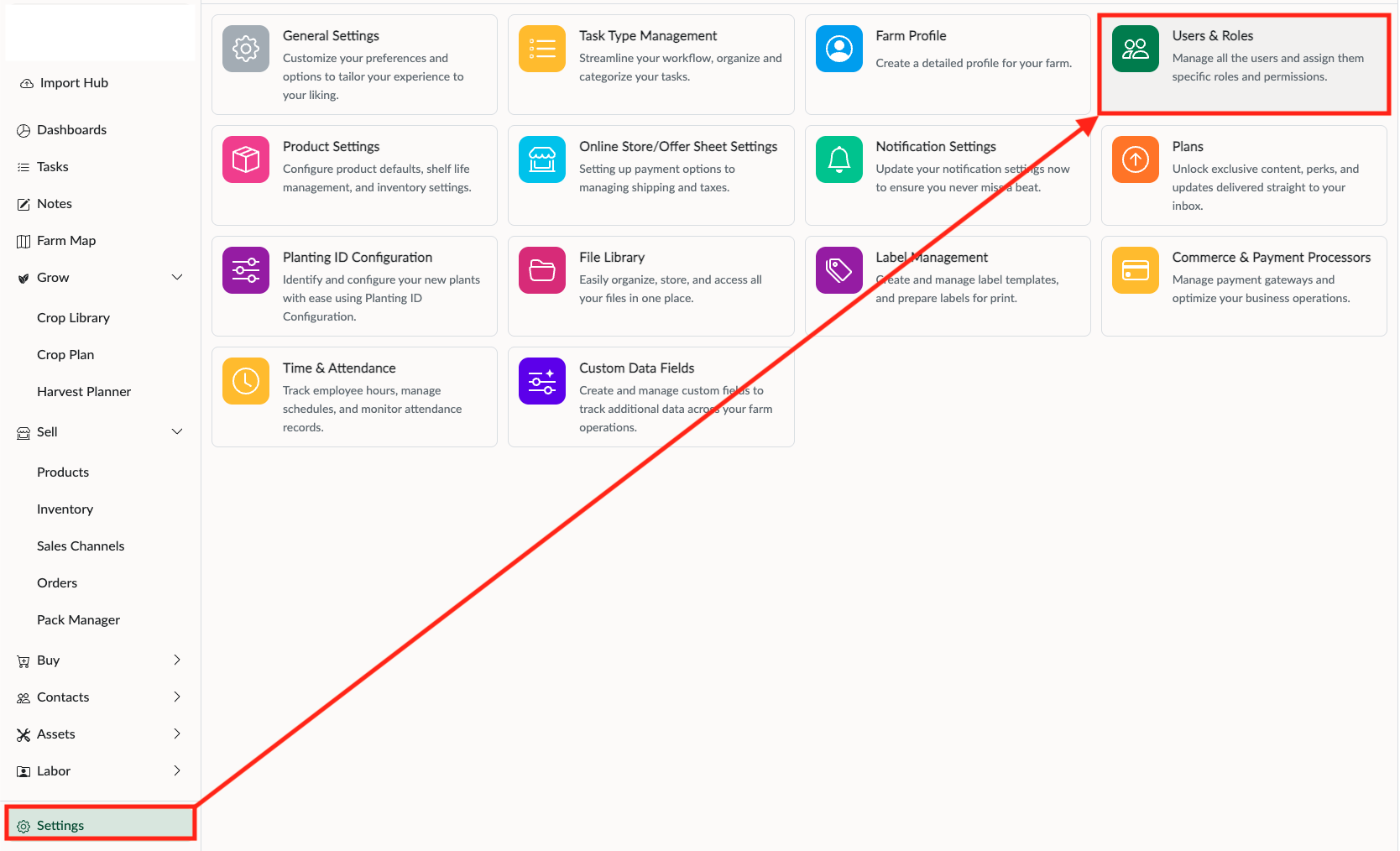
To access your Users & Roles, click into Settings from the bottom left hand corner of your screen, then select Users & Roles.
Roles and Permissions
Tend comes with 5 built-in roles. You cannot edit these permissions, they are managed by Tend. To view these role permissions, click into the 'View Role Permission' tab.
Owner: Full control over the system, including all administrative and operational functions. Only the Owner can transfer Ownership of the farm to an active Admin user directly in the Users & Roles page. There can only be one Owner role per farm.
Admin: High-level access for managing team operations and configurations.
Finance: Operational access for managing tasks and finances but with some limitations compared to Admin.
Crewmember: Focused access for performing specific tasks without administrative permissions.
View-Only: Restricted to viewing data without editing capabilities. Recommended for auditors, accountants, and consultants.
The "View Role Permission" tab shows a listing of the features in Tend and whether that role has permission (green checkbox) or not (greyed out).
Managing Roles and Permissions
Adding a User
Navigate to Settings → Users & Roles.
Click “Add New.” A pop-up will appear.
Choose to either:
Create user with email or phone number: send an invitation to the user's email so they can join your farm.
OR if you don't have an email or phone number for the user, you can create a user without email or phone number: Provide your employees with a username and password to login.
Fill in the required fields to add your new User.
Include a Labor Rate: labor rate is used to calculate labor cost for tasks.
Assign the user an appropriate role based on the user's responsibilities.
Click “Create”
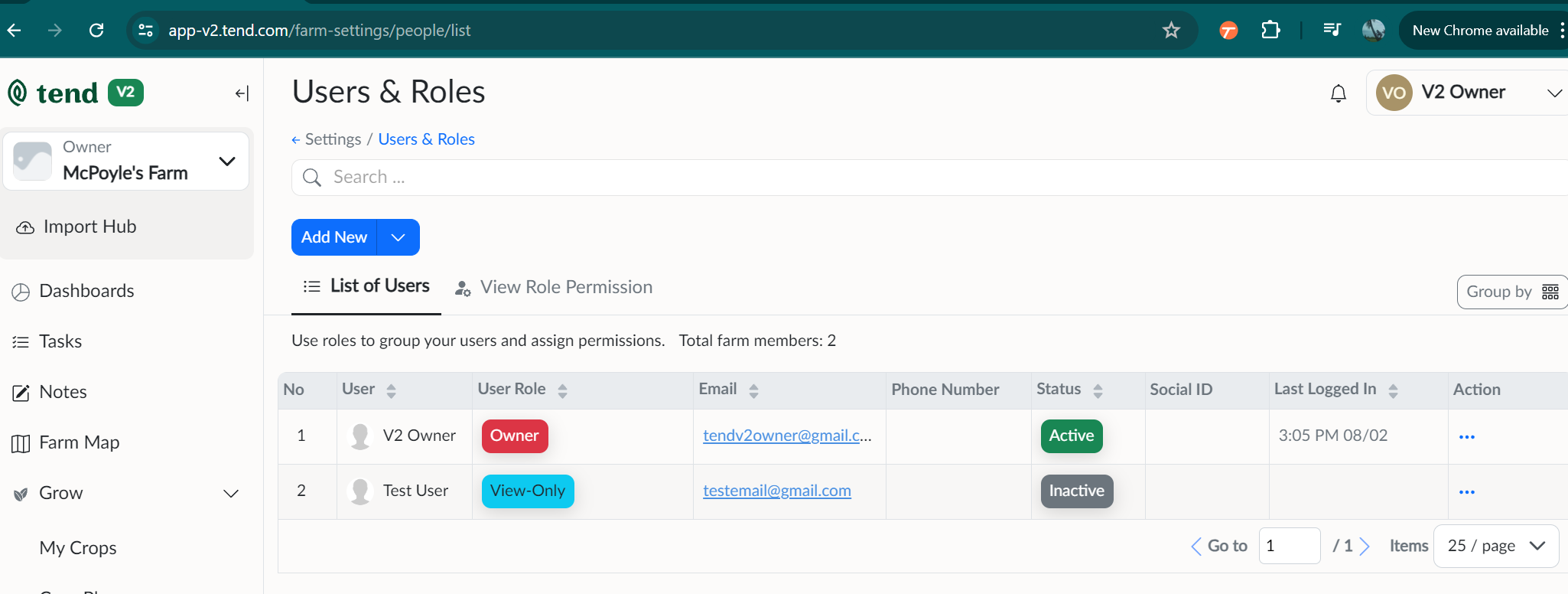
Once you "Add New" to create your team in Tend, you can see everyone listed under the "List of Users" tab.
Editing Roles
Navigate to Settings → Users & Roles.
Select the user you wish to update.
Update their information or modify their assigned role from the dropdown menu.
Note: Only Owner and Admins can manage the roles and status of their users. All roles (except for View Only) can update their own profile information such as name, email, phone number, and photo.
Deleting Users
To remove a user, go to the three dots next to that user under "Action." Click 'Edit User.' Then in the top right of the pop up box click "Delete."
Note that you can only delete a user if you are an owner or admin, and only owners can remove admin accounts.
Change Ownership of your farm:
Only the current farm Owner can initiate the Ownership transfer and Ownership can only be transferred to a user with an Active Admin role.
Log in with the current owner’s account.
Navigate to the User & Role page through Settings.
Click on the Owner line to open the detail popup
(or click the three dots beside the Owner line and select Edit).In the Edit User popup, select the Transfer Owner option.
A list of Admin users will appear, choose the Admin name to whom you want to transfer ownership. (Ownership can only be transferred to an Admin)