
In Week 1, you’ll set up your Tend 2.0 account, choose the right plan, import
key data, and complete your farm’s basic settings so your digital farm foundation is
ready to grow.
Expected hours this week: 2-3
Getting into Tend 2.0
Goal: Set up 2.0 account
Logout of Tend 1.0 account - watch video HERE
At the log-in page, select Tend 2.0 and you will start your 7 day free trial
Anytime during your 7 day free trial of 2.0 you can select a plan in your Settings under "Plans" (link here)
When you sign up for your Tend 2.0 plan, you will get a prorated refund on your 1.0 account (if applicable) and your 1.0 account will become a Sunset Free account. You will have access to both your 1.0 and 2.0 accounts now as long as you have an active 2.0 plan.
This all is dependent on you using the same email as the owner of the 1.0 and 2.0 account
Import necessary data: what information would you like to transfer over from your 1.0 account?
Customers - watch video HERE
Go to your Customers in your 1.0 account and click the download button, top right corner
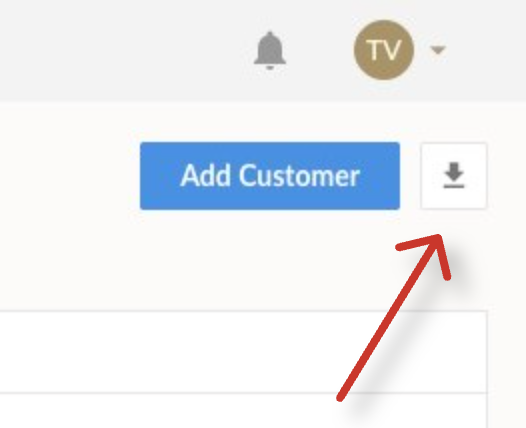
Log out of your 1.0 account and login to your 2.0 account
Go to Import Hub, top left underneath your farm name
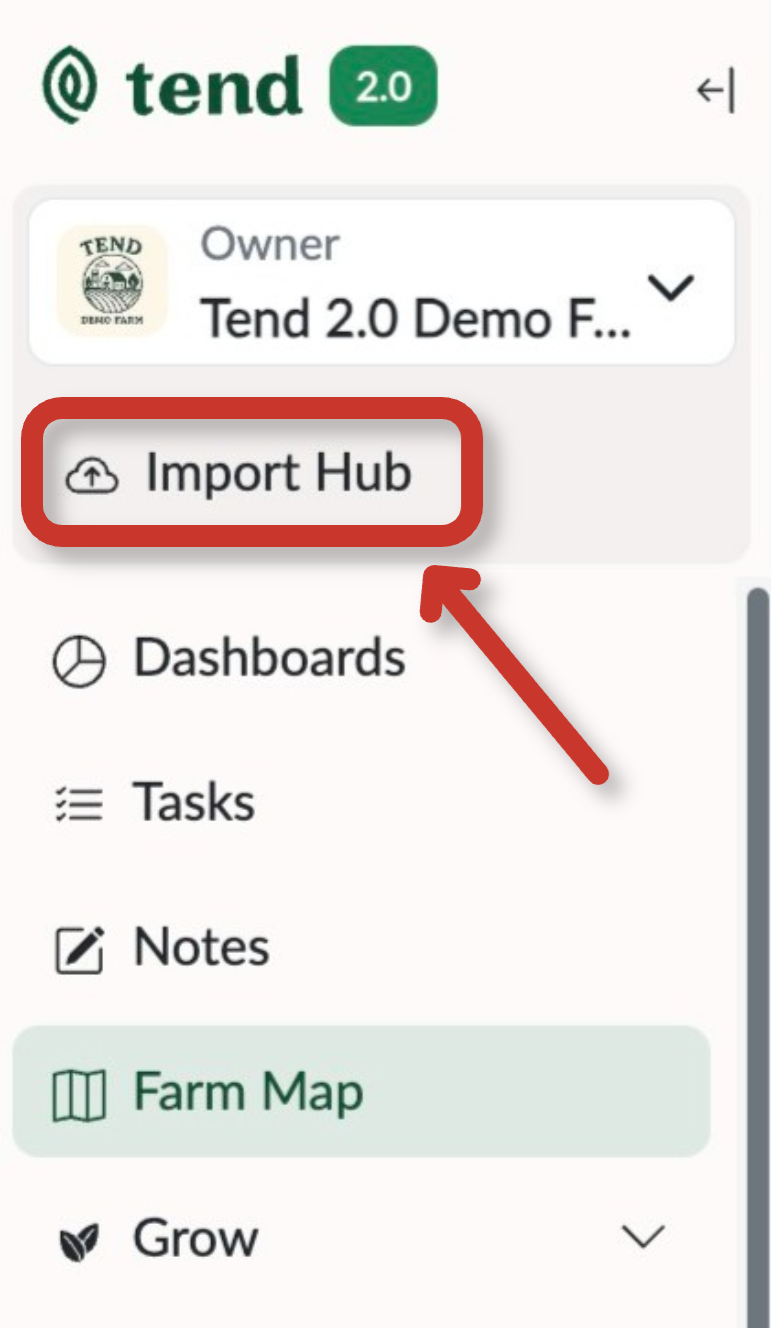
Select Customers and hit next
Upload your file and make sure all of the fields are correct (they should be if you use the csv downloaded from 1.0)
Confirm everything looks good, and click next and you’re good to go
Find Contacts on the left hand menu, select Customers and see all of your customers uploaded and ready to buy your products
Growing Locations- watch video HERE
Login to your 2.0 account
Go to Import Hub ( top left underneath your farm name)
Select Locations
Follow the instructions, and your farm map from 1.0 will be imported into your 2.0 account
Go to Farm Map and confirm map imported- if you’re not seeing your map, click on Sites (top left) and hit the drop down menu, you should see your farm name as the second site. Click on your farm site and confirm map looks correct.
*Note- if your map has shifted slightly once you transfer to 2.0, let us know! We have a quick solution we can do on the back end for you so you don’t have to worry about moving all of your fields/orchards individually
Crop Library (see Customers video above)
Login to your 1.0 account
Go to the top right of your screen and click on the brown circle with your initials- select Export Data to CSV, and select a date range.
2.0 Tip: Export data per season instead of all at once, that way you can save your files in folders per season and be able to quickly refer to them when you need to
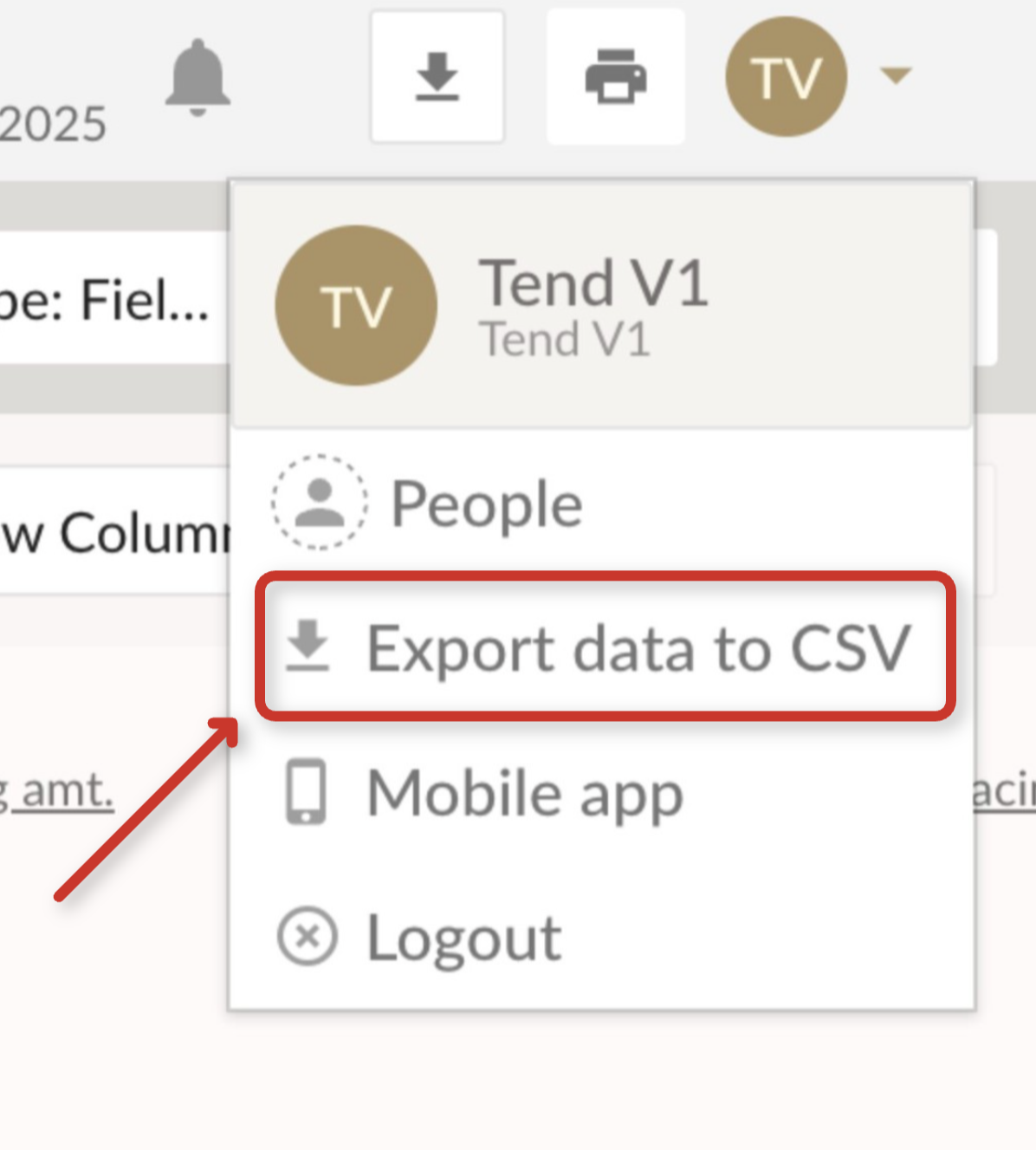
If your files are small, you will instantly get a download. If you have lots of data in Tend, you will receive an email with all of your data compiled in CSV format and sorted.
Find the My Crops CSV file.
2.0 Tip: Only import the crops that you definitely want to have in 2.0. You can always add more later but it will start you off with a clean slate. Edit your csv before you upload to remove any crops you do not want to carry over into 2.0
Logout of your 1.0 and login to your 2.0 account
Go to Import Hub (top left under your farm name)
Select Crop Library and hit next - upload your My Crops file
You will then be prompted to select harvest stages for each crop and variety- this organization of crops is new in 2.0, so you will select at least one harvest stage for each crop from your file. If you harvest a crop and variety multiple ways (baby and microgreens for example), select all that apply!
Click Import and you’re all set to go! Check out your new Crop Library and see all of your crops ready to go
Farm Warm-Up (Farm Settings Basics)
Goal: Set your foundation.
Watch Settings intro video HERE
Review General Settings → frost dates, bed & path widths, harvest schedules
2.0 Tip: This information will come into play all throughout Tend’s platform, so make sure to spend some time dialing this in
Critical Connection: The harvest schedule you set here in settings will tie to when harvest tasks will be created for each planting
Add/update Users & Roles → invite your team and assign permissions.
Note: This will allow you to assign tasks and give instruction to specific employees and track labor per user.
New feature: You can now add users without needing an email or phone number- you’ll provide your employee with a username and password to login.
Small Win: Your farm’s digital “about me” is complete!
Resources - General Settings | Users & Roles
WEEKLY REMINDER: Book your call with the Tend Onboarding Team if you haven’t already- we will help you learn the ropes!
Copyright Tend. All Rights Reserved.