You can edit the pages on your website by visiting "Website & Email" - "Website" - "Pages."
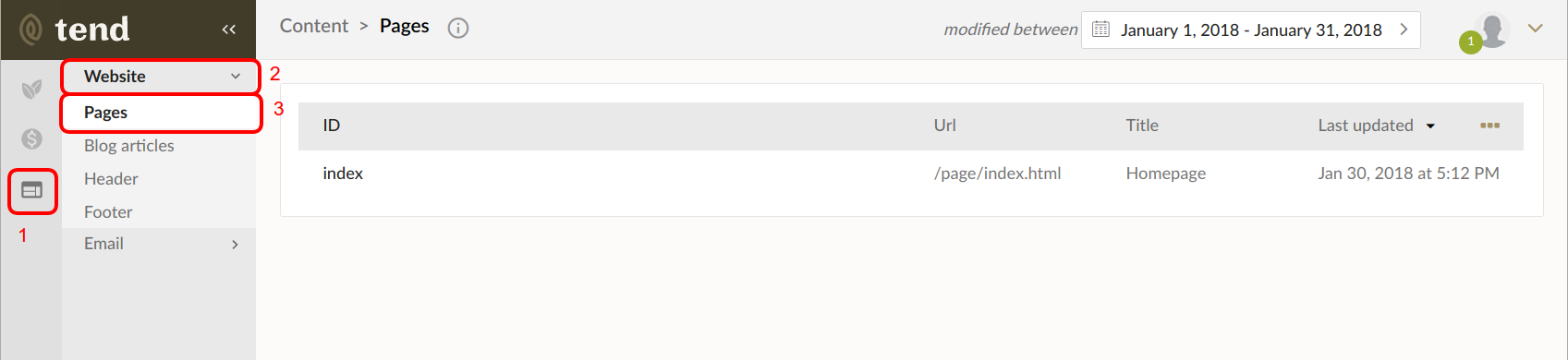
Inside "Pages" you'll see a table of all the pages you've already created, as well as the option to add a new page. To add a new page simply click on the green "Add" button in the bottom right-hand corner. To edit an existing page, click on the page you'd like to edit inside the pages table.
Your website's pages are organized in grids. Grids are the sections of your website where you can add types of content. Inside a grid are "rows" and "columns". Rows are the horizontal sections you'll place on your page, and columns are the types of content you can add to a row, like text, images, banners, or carousels.
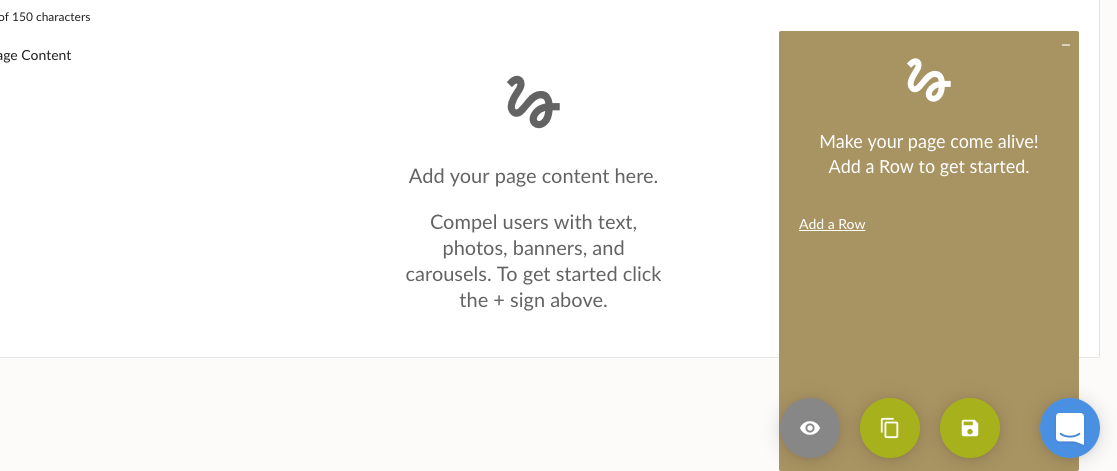
To add new content to your page you'll need to click on the "+" sign across from "Page Content".

Your content is organized in rows and columns. Columns (types of content) go inside rows. Add your first row by clicking "Add a row"
Once you have a row, you'll select the type of content you'd like to be in that row. You can choose from a text box, an image, a banner, or a carousel. You can have as many types of content as you'd like in a row, and you're free to mix and match as you please.
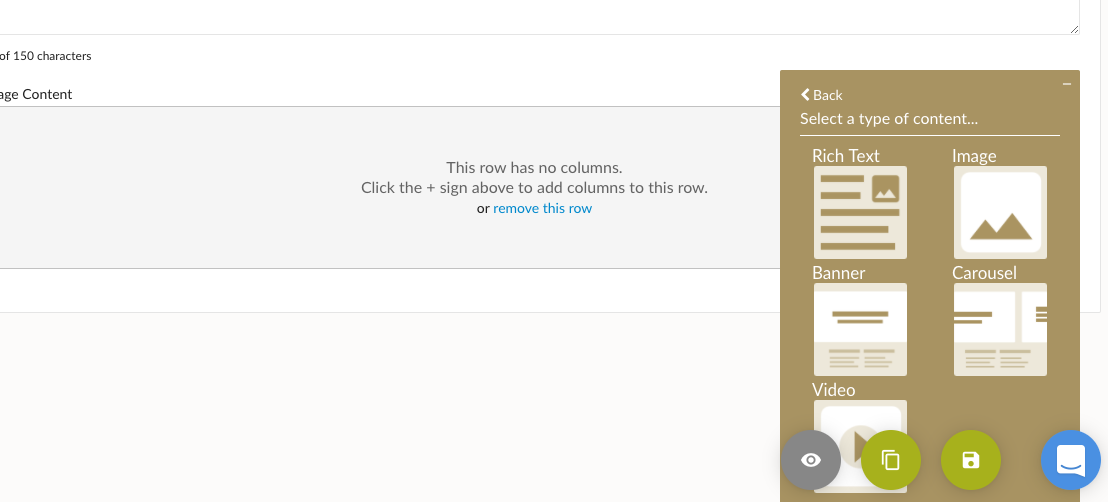
To add more rows, simply click on the "+" sign again (across from "Page Content") or click on the "+" sign next an existing row to add more types of content to that row
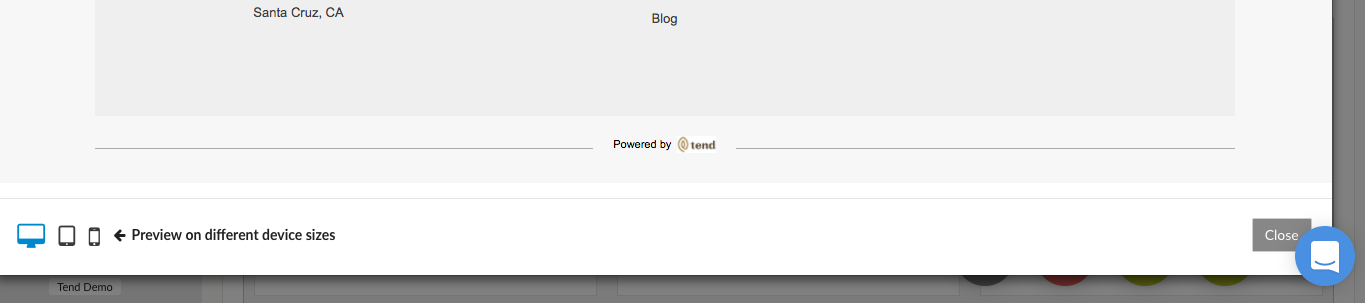
When you're finished creating your page, you can preview it by clicking the "Preview" button in the bottom right-hand corner. The preview will show you how your new page will look before you save your new page. You can also preview how your website will look on different devices by clicking on the different device options in your preview window.
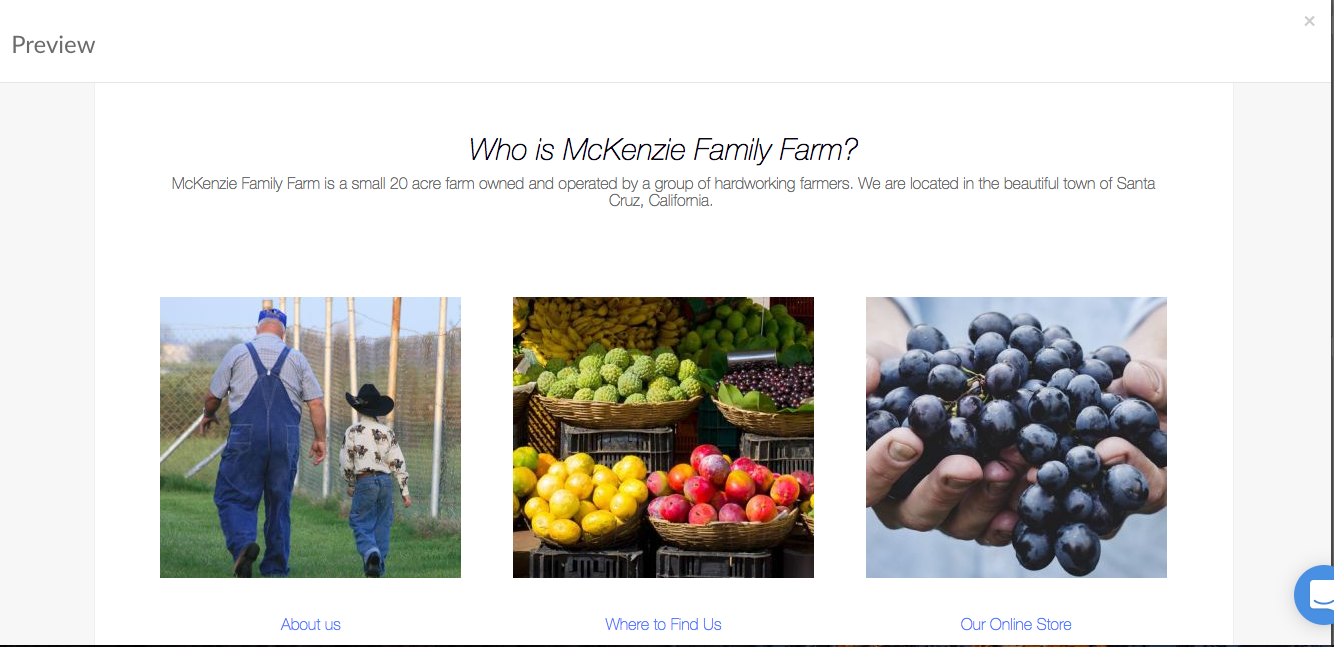
When you're happy with how your page looks, click the "save" button in the bottom right-hand corner. Your page will not appear on your website until you publish.