
Your Tend File Library helps you store files and use them throughout the entire system. You can upload .doc .pdf, png, mp3, or mp4 files, with a size limit of 10MB.
These files can be linked to Tasks, Farm Map, Crop Library, Crop Plan, Product & Inventory, Vendors, Equipment & Tools, Input, Containers, and Transactions. You can also upload image files for your Crop Library and Online Store.
To upload a file, navigate to your File Library from the left side menu or go to Settings → File Library. Click “Add New” then drag your file in, or browse your computer to select the file you want to upload. Once you’ve uploaded your files, you can select them as attachments in Tasks, Assets, and wherever you see the “Add Attachments” button.
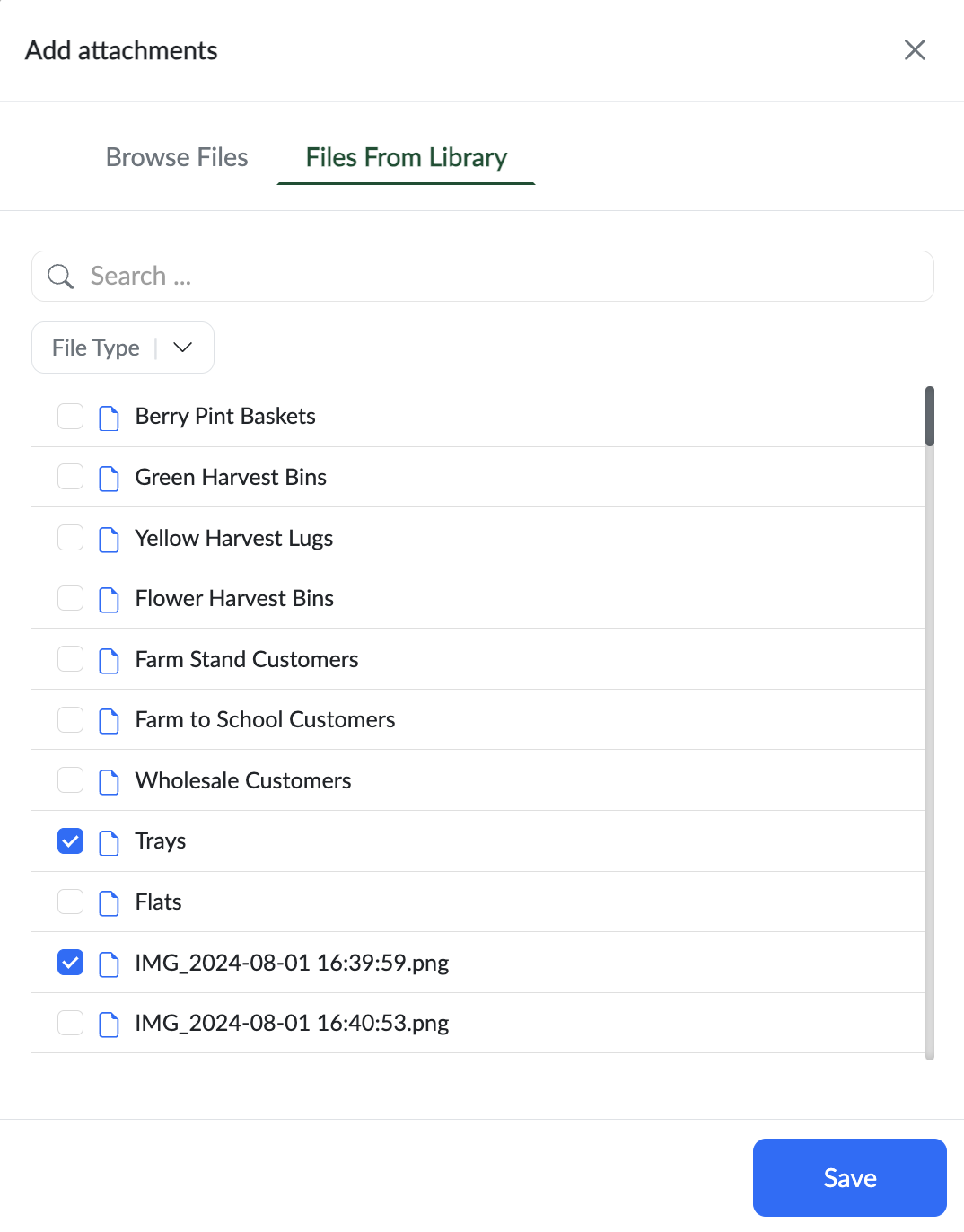
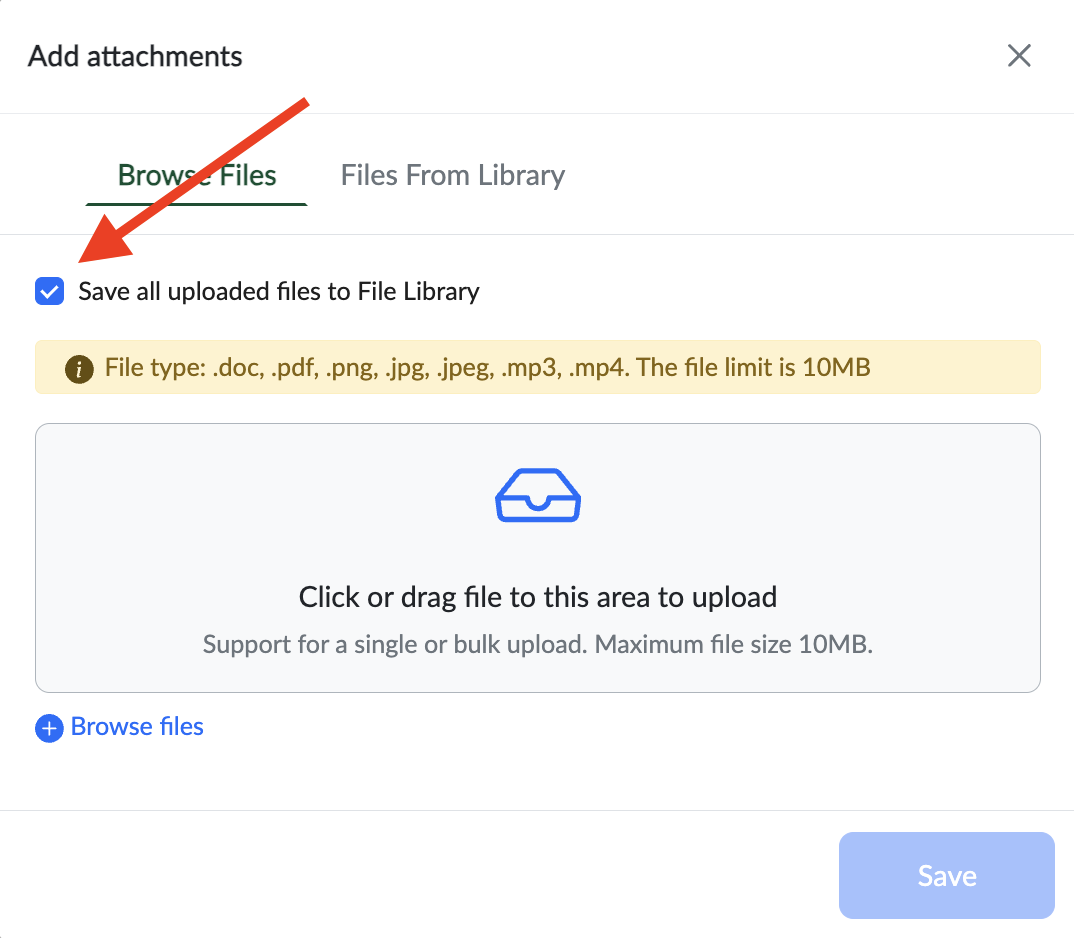
Or, if you upload an attachment directly to a task, you can select if you’d like it to save to the file library. This is helpful if you plan to reuse that attachment in several places, such as weeding instructions to be used in multiple tasks, or an equipment standard operating procedure.
How files are used across Tend:
Say you have a PDF file with safety instructions and a list of items to bring for a weeding task. You just need to add it to the file library, then, every time you create a weeding task, you can simply select that file from the file library instead of uploading a new one from your computer.
Tend's AI Image Generator
How to Generate Great Images with AI
Use the Quick Styles or Wizard option to get started.
Upload or paste one or more reference images (optional). AI will analyze your image(s) and suggest a detailed description for you.
Use "Suggest Description" to get a starting point. You can press it again to refine the description or overwrite the previous suggestion.
Edit and improve your description. The more details you add, the better and more consistent your results will be.
Try different Quick Styles or create your own. Styles help you keep a consistent brand look across all products.
Use the Wizard tab to build your prompt step-by-step. Select dimensions, lighting, angle, mood, and more—then click "Add to Description."
Generate multiple images to compare results. It often takes a few iterations to get the perfect product image.
See our Help Doc on Tend's AI Image Generator for more details on how to create a perfect prompt for great image generation.