
How Are Harvest Tasks Generated?
When you add a planting to your Crop Plan, Tend automatically creates Harvest Tasks based on its harvest window and frequency settings. These settings determine how many tasks are created and when they are scheduled, eliminating the need to manually build harvest lists throughout the season.
As field conditions change, you can adjust upcoming tasks using Field Walk on mobile or Harvest Planner on desktop.
Printing and Uploading a Harvest Sheet
To download and print a Harvest Sheet:
Select Tasks from the left-hand menu.
Click More Actions in the upper-right corner.
Select Harvest Sheet (Download).
Choose a date range using the filters, then click Print.
After recording your yields on the printed sheet, take a clear photo or scan it. You can upload the completed sheet in either of these ways:
Go to Import Hub, select Quick Yield, click Next, and upload the sheet. Review the imported data for accuracy, then click Import.
Return to Tasks and select More Actions > Harvest Sheet (Upload).
Harvest Windows explained
A harvest window represents the time between when a crop is first ready for harvest and the last day it could possible be harvested. You'll set up your Harvest Windows for each crop in Crop Library.
Multiple Harvest Windows
Tend understands that crops have diverse harvest windows. We recognize that while some crops have a single harvest window, others might have several throughout their life cycle. For crops with multiple harvest windows, Tend allows you to specify each one, enabling the creation of harvest tasks that span the entire planting cycle, rather than focusing solely on the first harvest.
First Harvest Window: The initial time-frame when the crop is ready for harvesting.
Days Between 1st and 2nd Harvest Window: The gap between the end of the first harvest window and beginning the second harvest window.
Second Harvest Window: The second time frame that the crop is ready to harvest.
You can create up to 5 harvest windows.
Harvest Frequency Explained
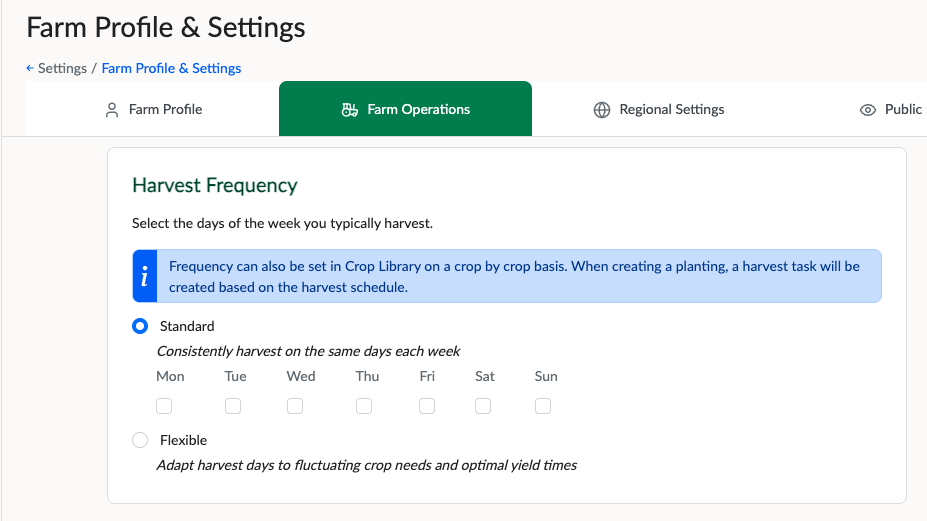
Harvest Frequency Explained
Harvest frequency determines when Harvest Tasks are scheduled. You can configure this setting at three levels, with the most specific setting overriding the levels above it:
Farm Level: Set your farm’s default harvest days in General Settings. These days apply to all crops unless a different schedule is set at the crop or planting level.
Crop Level: Set a unique harvest frequency for each Growing Template. In the Crop Library, select a crop, open the Yield Info tab, and choose a harvest schedule.
Planting Level: Customize the harvest frequency for an individual planting when its schedule differs from the farm or crop defaults.
If no frequency is set at the crop or planting level, Tend uses the farm-level schedule. If no farm-level harvest days are selected, Tend creates two Harvest Tasks: one on the first day and one on the last day of the harvest window.
Select Flexible to schedule Harvest Tasks on specific dates rather than recurring days of the week.
How Do Harvest Tasks Work?
Harvest Tasks connect planning, field observations, crew instructions, and final harvest records in one workflow.
Planning
Add as much or as little detail as your crew needs to complete the harvest. Each task can include scheduling information, instructions, checklists, attachments, containers, equipment, tools, and inputs—giving your crew one place to find everything they need.
Executing
During the harvest, you and your crew can use the Harvest Task to record real-time results, including actual yields and the containers used. You can also add notes, complete checklists, and upload attachments to capture any instructions or observations that do not fit into the standard fields.
Lots
When you complete a Harvest Task in Tend and enter the actual yield, Tend automatically creates a lot to help you track what was harvested for each crop. To find these records, navigate to Sell > Products & Inventory > Lot Management. Select a lot to view its harvest date and a link to the associated Harvest Task.
Manual Harvest Task Creation
You can manually create a Harvest Task from the Tasks page on desktop or mobile. Click Add New, select Harvest as the task type, and choose a planting from the dropdown. Only plantings that are currently active in your Crop Plan will appear. If the planting you need is unavailable, update its planting timeline details in the Crop Plan first.