
Use Tend’s Equipment & Tools inventory to organize and manage your farm equipment in one place. Record important details such as brand, model, serial number, storage location, operating instructions, and maintenance schedule.
You can also link equipment—including seeders, tractors, tillers, plows, and rollers—to tasks so your crew knows which tools to use and where to find them.
Access Equipment & Tools
From the left hand menu, click Assets.
Select Equipment & Tools.
Add Equipment to Your Inventory
Click Add New.
Enter a descriptive name for the equipment.
Select the Equipment Type.
Add the brand, model name, and model year.
Enter the serial number, if applicable.
Tend Tip: Don’t see the option you need in a dropdown? Type its name, then click the + button at the bottom of the list to add it.
Operation Status
Equipment can have one of three statuses: Available, In Use, or Maintaining.
You can update the status manually. However, when equipment is linked to a task, its status updates automatically:
When a user clocks into the task, the equipment’s status changes to In Use.
When the user clocks out, the status returns to Available.
The Maintaining status must be selected manually when the equipment is undergoing maintenance.
You can also add the equipment’s storage location and operating instructions so your crew knows where to find, use, and return it.
Settings
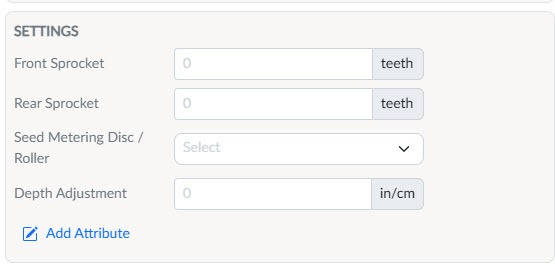
If the equipment requires a specific configuration—such as discs, rollers, or sprockets for a precision seeder—a Settings section will appear after you select the Model Name.
Use this section to enter the equipment’s default settings when you typically use the same configuration.
If the settings vary by crop or task, configure them when linking the equipment to a task. You can add equipment-specific settings to either a task template or an individual task.
Note: You must select a Model Name before the Settings section will appear.
Add Attributes
Add attributes to collect information from crew members before or after they use a piece of equipment. For each attribute, choose whether a response is required.
For example, you could ask a crew member to confirm whether they checked the equipment’s fuel level before use. They can answer Yes or No directly from any task linked to that equipment.
Attributes help standardize equipment checks and keep important information connected to the relevant task.
Maintenance Information
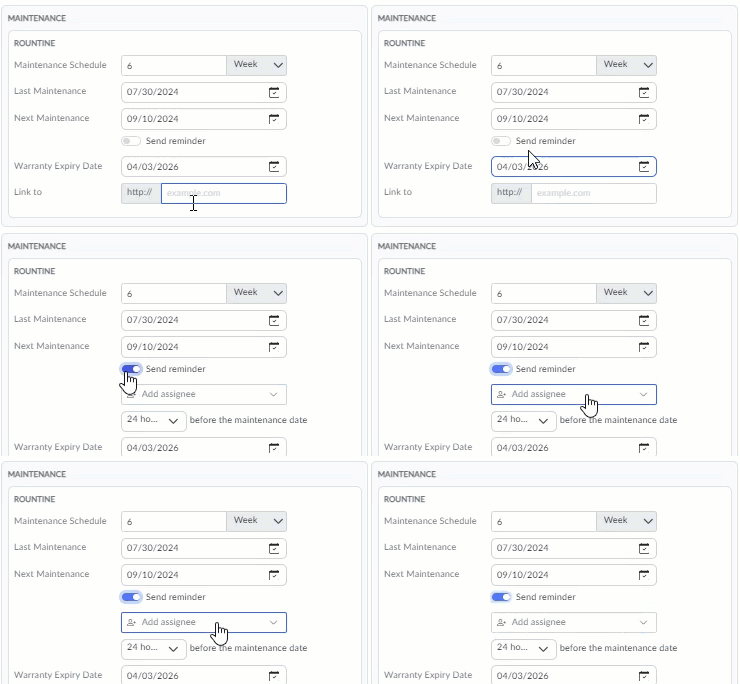
Enter how often the equipment requires maintenance and the date it was last serviced. Tend will use this information to calculate the next maintenance date.
Turn on Send Reminder to notify a team member about upcoming maintenance. Assign the reminder to a user and choose how many hours in advance they should be notified.
Maintenance reminders appear in the assignee’s Notification Center.
Specifications
Add the equipment’s technical specifications, including:
Fuel type, if applicable
Dimensions
Weight
Recording these details gives your team quick access to important equipment information when planning transportation, storage, or use.
Other Details
Use this section to record additional purchasing, ownership, and reference information:
Indicate whether the equipment was purchased or leased.
Add the acquisition date, vendor, vendor item number, and purchase price.
Click Add More to include a secondary vendor.
Add a link to the vendor’s website or another relevant webpage.
Record whether the equipment is insured.
Upload a photo to help your crew identify the correct equipment.
Attach documents such as the user manual or warranty.
Add any other helpful descriptions or notes.
Usage History
Open the Usage History tab to view activity associated with the equipment, including:
Status changes
Task assignments
Maintenance activity
This history provides a centralized record of when and how the equipment has been used, helping your team maintain transparency and accountability.
When you have finished entering the equipment’s details, click Save in the upper-right corner to add it to your Equipment & Tools inventory.
Recurring Maintenance Tasks
Create recurring tasks to keep equipment maintenance on schedule.
Before setting them up, confirm that each piece of equipment has the correct serial number in your inventory. Then:
Create a recurring task using the appropriate maintenance interval.
Link the relevant equipment to the task.
Assign the task to the team member responsible for completing the maintenance.
Linking each task to the correct equipment makes it easier to track maintenance and keep your tools in good working condition.
Add Equipment to Tasks
Link equipment to tasks or task templates so assignees know which tools they need. When you add equipment to a task template, any attributes saved in the equipment’s details are automatically added to the task.
Example attribute questions include:
Is the equipment in proper working order?
Did you add fuel? If so, what type and how much?
Was the equipment returned to its proper storage location?
These questions promote accountability, safe operation, and consistent equipment care.
Customize Your Equipment View
From the main Equipment & Tools page, use the search bar and filters to quickly find equipment.
Available filters include:
Equipment category and subcategory
Status
Brand
Storage location
Fuel type
Model year
You can also customize and save the information displayed:
Columns: Click the columns icon in the upper-right corner, then select or deselect the columns you want to display.
Filters: Click the filter icon to choose which filters appear on the page.
Saved views: Click the blue save icon and enter a name for the view. To open a saved view, click the arrow next to the save icon.
Upload an Equipment & Tools List
Use the upload feature to add multiple equipment records at once.
Click the Upload icon in the upper-right corner of the Equipment & Tools page.
Download the CSV template to ensure your column names match Tend’s required format, or upload an existing file that is already formatted.
Click Next.
Review and verify your data.
Follow the remaining prompts to complete the upload.
Download Your Equipment List
To export your Equipment & Tools inventory, click the Download icon in the upper-right corner of the Equipment & Tools page.
Choose either CSV or Excel format to download your current equipment list.