
Task Templates
While Tend automatically handles the fundamental cultivation tasks like seed sowing or transplanting based on your planting details, we understand that there are other crucial tasks specific to both the crop and the farm. That's why you can also incorporate your custom tasks into each Crop Template.
By setting up crop-specific task templates, you are able to eliminate the need to add the same tasks individually for each crop. All tasks defined in a crop template will automatically apply to all subsequent plantings created of that Growing Template in your Crop Plan. No extra work is needed; the template will generate tasks with the initiation of a new planting.
For example:
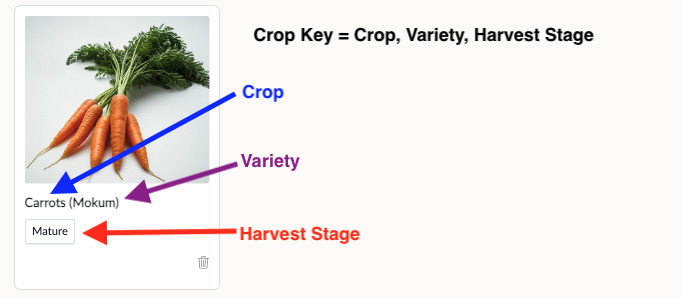
In your Crop Library, you have a Crop Key of Swiss Chard (crop), Bright Lights (variety), Mature Leaves (harvest stage). (Remember Crop Key = Crop + Variety + Harvest Stage) Click into that Crop Key, then from the drop down menu select which Growing Template you want to view. Next, click into the Automated Tasks tab. Here you will see a few tasks that have been automatically created by Tend such as a sow task or transplant task. Your harvest tasks will also be shown here based on the information you input in the Planting Detail tab.
You can add all necessary tasks associated with this Growing Template here. You might add a Pest & Disease Management Task or a Weeding Task. Any tasks that you add here will automatically be added to your task list when you add a planting using this Growing Template to your crop plan, no need to re-enter this information.
You will also have the option to duplicate these tasks to a Cloned or Linked Crop Template as long as the two crops have the same harvest stage.
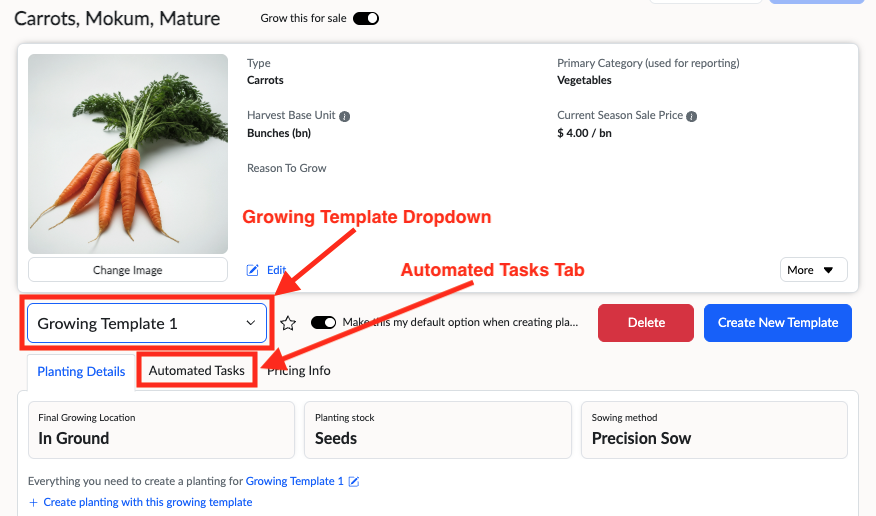
Tends Auto-generated tasks
The initial auto-generated tasks are created for seeding, transplanting, and harvesting tasks, guided by the data you entered in the Planting Details tab of your Growing Template. The accuracy of your predefined crop data ensures these tasks perform effectively. You can click on these tasks in the task tab of the growing template and edit them.
Your Custom Tasks
Now, you have the opportunity to integrate your personalized tasks into the growing template. This feature allows you to seamlessly include crop-specific tasks like fertilization, weeding, trellising, etc., and the ability to define the exact conditions to carry out these tasks.
Create a Task Template
Navigate to the Crop Library feature and select the crop you want to create a new task template for.
Click on the Automated Tasks tab within the crop key.
You will see the Tasks that will be auto-generated by Tend based on the default crop data.
To add a custom task to the template, select the blue 'Add Task' button.
Input task details such as:
Task Name: Give it a Custom Name.
Priority: High, Medium, or Low.
Task Type: Choose from the dropdown menu or add a new one.
Assignee: You can assign this task to multiple crew members, if needed.
Task Dates: Define when this task will take place and if it needs to be on a recurring schedule.
Notes: Add notes for the crew member that may be completing this task.
Checklist: Create a list of items that need to be checked off in order to complete this task.
Attachment: Include a file from your File Library or attach a photo for reference. Remember to include Instructions with the attachment.
Conditions: Depending on the task you chose from the Task Type dropdown menu you may see an additional section to include conditions for the task.
For example: A weeding task will ask you for the method of weeding: Flame, Graze, Manual, Mechanical.
A Thin Seedlings (Field) Task will ask you what you want to thin to (In Row Spacing) and Seedlings per Cluster.
Tags: Add any tags that you have created to make this task easily searchable.
Equipment: Add any special tools or equipment the team needs to complete this task. (These can be configured in your Equipment & Tools under Assets)
Inputs: Select from the dropdown menu for any Inputs needed for the task (These can be configured in your Materials & Inputs under Assets)
Including an Input will auto-populate the application rate that you set for that Input. You can adjust these amounts within each task.
Estimated Labor Time: You can add an estimated labor time to make sure your crew has an idea of how long this task is expected to take to complete.
Links: Does this task need to be linked to a specific Entity such as a Customer, Transaction, or Vendor? If so, add it here.
Click Save!
Tend Tip! Remember, it's vital to provide comprehensive task details because your records are generated from completed tasks. Be sure to include as much information as possible.
Edit a Task Template
Click into the Crop Template in Crop Library and go to the Tasks tab.
Click into the task you want to update and make necessary adjustments to the template.
For tasks that have already been created, based on active plantings, you can edit the tasks in the Tasks feature by finding the task and making the necessary changes.
Adding a new task to a Crop Template when plantings already exist in your Crop Plan
Click into the Crop Template in Crop Library and go to the Tasks tab.
Click Add Task.
Fill in the new task template details.
Click Save.
Here you will be asked which plantings these changes should be applied to:
(If nothing is selected, the task will be added to the template only and won’t affect any plantings.)
Future plantings: All plantings that are created with this growing template and have a planting date after the current date.
Present plantings: All plantings that are created with this growing template, where the current date is between the planting date and the termination date.
Plantings with custom criteria: Apply changes using specific criteria, such as choosing plantings with planting dates before or after a selected date.
If this last one is selected you will be asked which plantings you want to apply this to based on a specific date.
Delete a Task from a Template
In the Tasks tab of the Crop Template, click on the trashcan icon next to the task you want to delete.
Tend will give you a pop-up window asking you to confirm. Make sure this is the action you wish to take before clicking Confirm. This action cannot be undone.
Applying a Task to a different Growing Template
You can only duplicate tasks across Growing Templates within the same Crop Key.
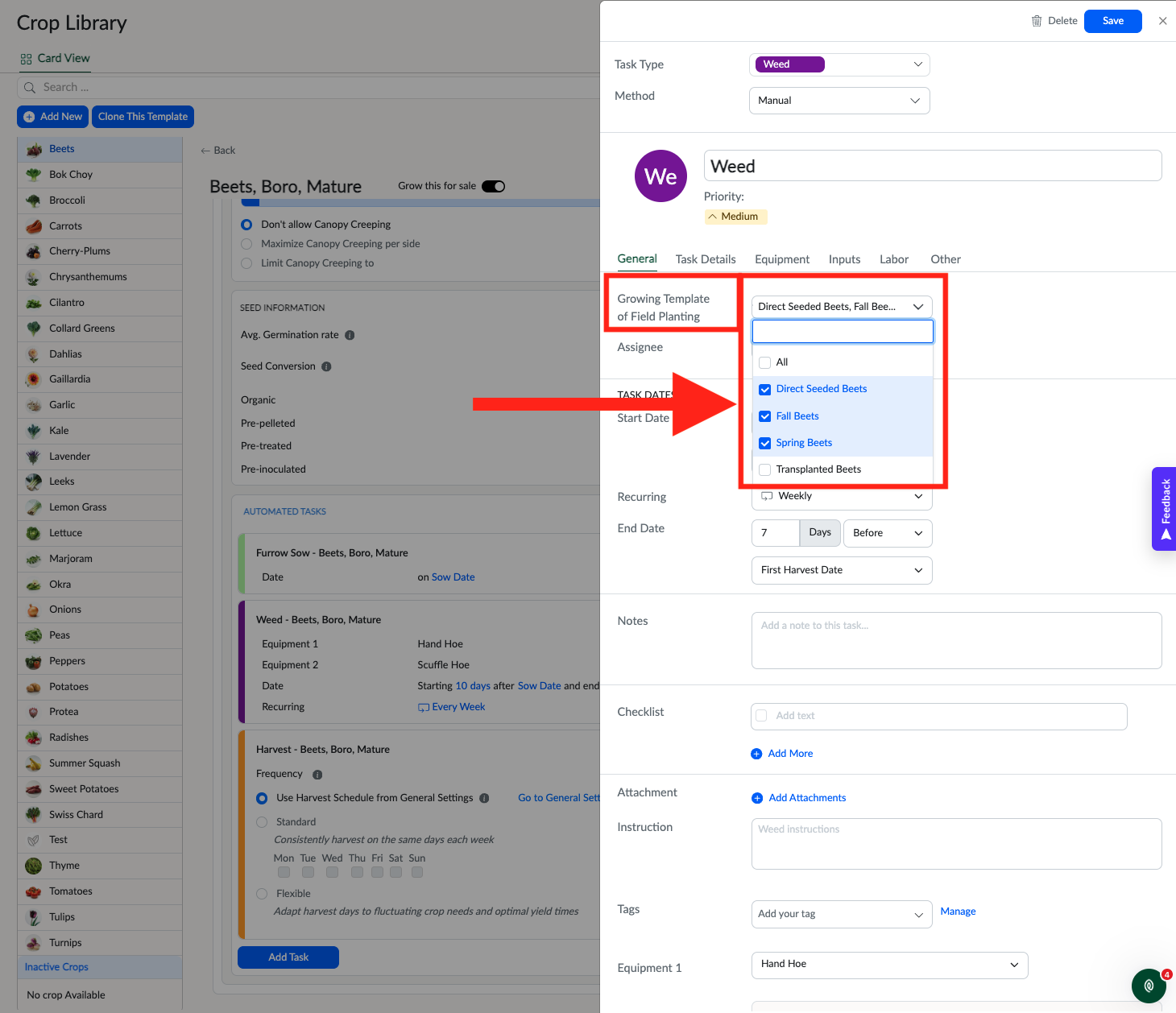
For example, if you have a specific weeding task set up in your 'Beets, Boro, Mature' crop key, and you create multiple Growing Templates within that crop key, you can choose to add that weeding task to those other Growing Templates.
Duplicating a Task
Using the Duplicate Icon is a quick way to create a similar task that may already have specific information already applied such as equipment, notes, or inputs. You can not duplicate certain tasks such as Sowing tasks or Transplant tasks.
From your Crop Library, click into a Crop's Growing Template, then click into the Automated Tasks tab. Click on the duplicate icon next to the task you want to duplicate (see image below for reference).
This will bring up a window that asking you to review all fields, including date fields for this duplicated task.
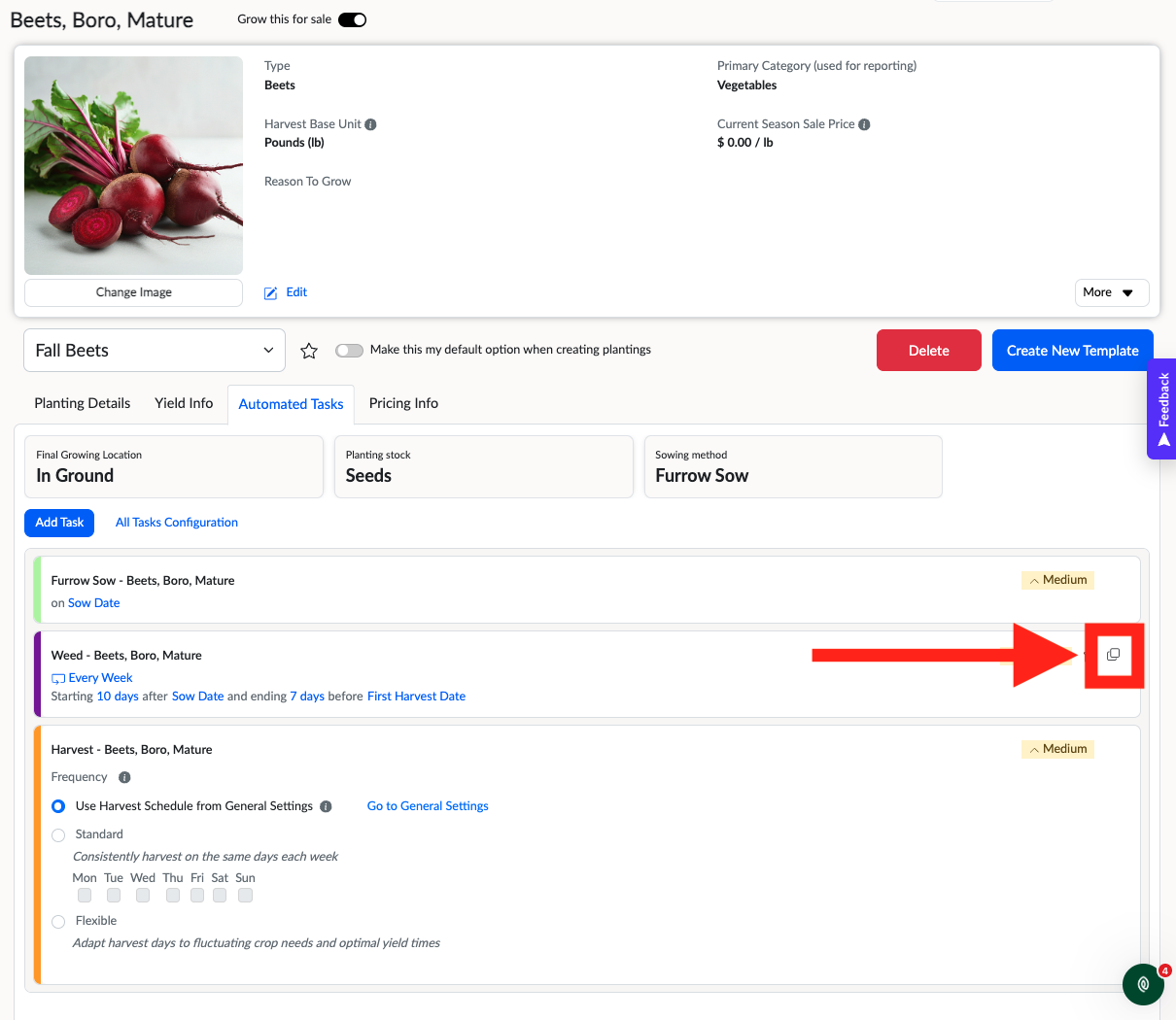
The new duplicated task template will open for you to edit and save. Here is where you can also apply it to other Growing Templates with this Crop Key using the dropdown next to 'Growing Template of Field Planing'
Why You Should Use Task Templates
Efficiency: Automate task lists to save time on data-entry and reduce errors.
Guidance: Tasks are integrated into your Tend calendar, providing timely reminders for crucial tasks. Every growing season is busy and we know it's hard to remember everything.
Consistency: Maintain consistent practices for optimal crop outcomes.
Certification Records: Tasks marked "complete" generate records, eliminating the need for additional data entry, simplifying documentation for certification, audits, and reporting.
Management: Keep your crew aware of how tasks should be carried out so they can stay efficient and focused on their work.
Note: Auto-generated planting related tasks such as Precision Sow, Furrow Sow, Broadcast Sow, or Transplanting tasks cannot be removed from the task template.