Deleting a field that you created by drawing your field
1. Go to the Locations feature
2. Click on the field that you'd like to delete
3. Move your mouse over the field name on the right-hand pull-out screen
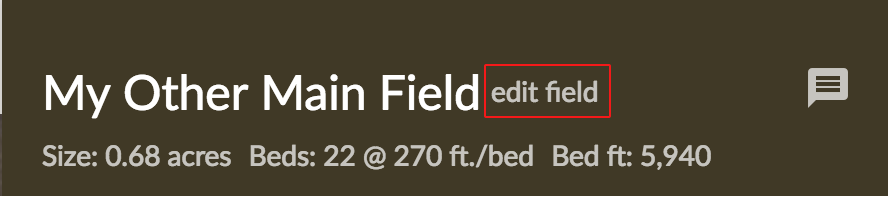
4. Click on "edit field" text

5. Select "Remove Field" in the bottom right-hand corner

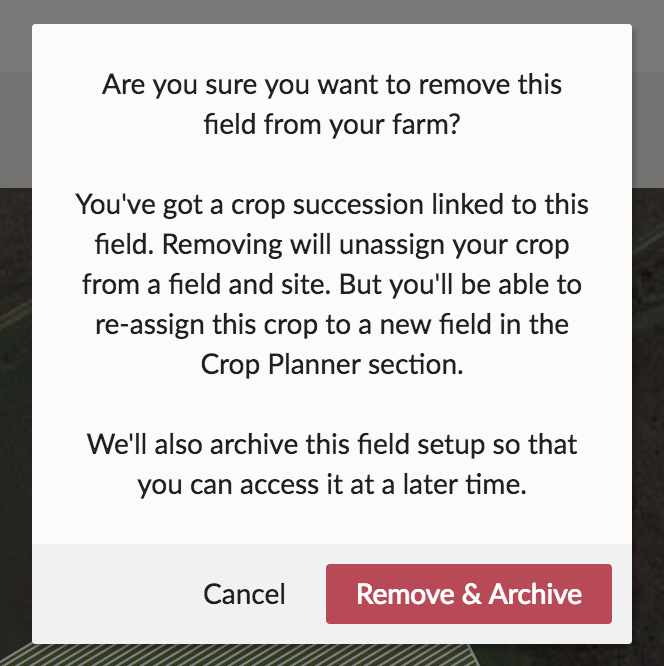
6. A warning pop-up screen will appear. Click "Remove and Archive".
Note: All planting information will be saved so that you can re-assign these plantings to new or other fields.
7. All done! If you're field image does not disappear from the map, refresh the page.
Deleting a field that you created by manually adding bed information
1. Go to the Locations feature
2. Click on the field that you'd like to delete
3. Move your mouse over the field name on the right-hand pull-out screen
4. Click on "edit field" text
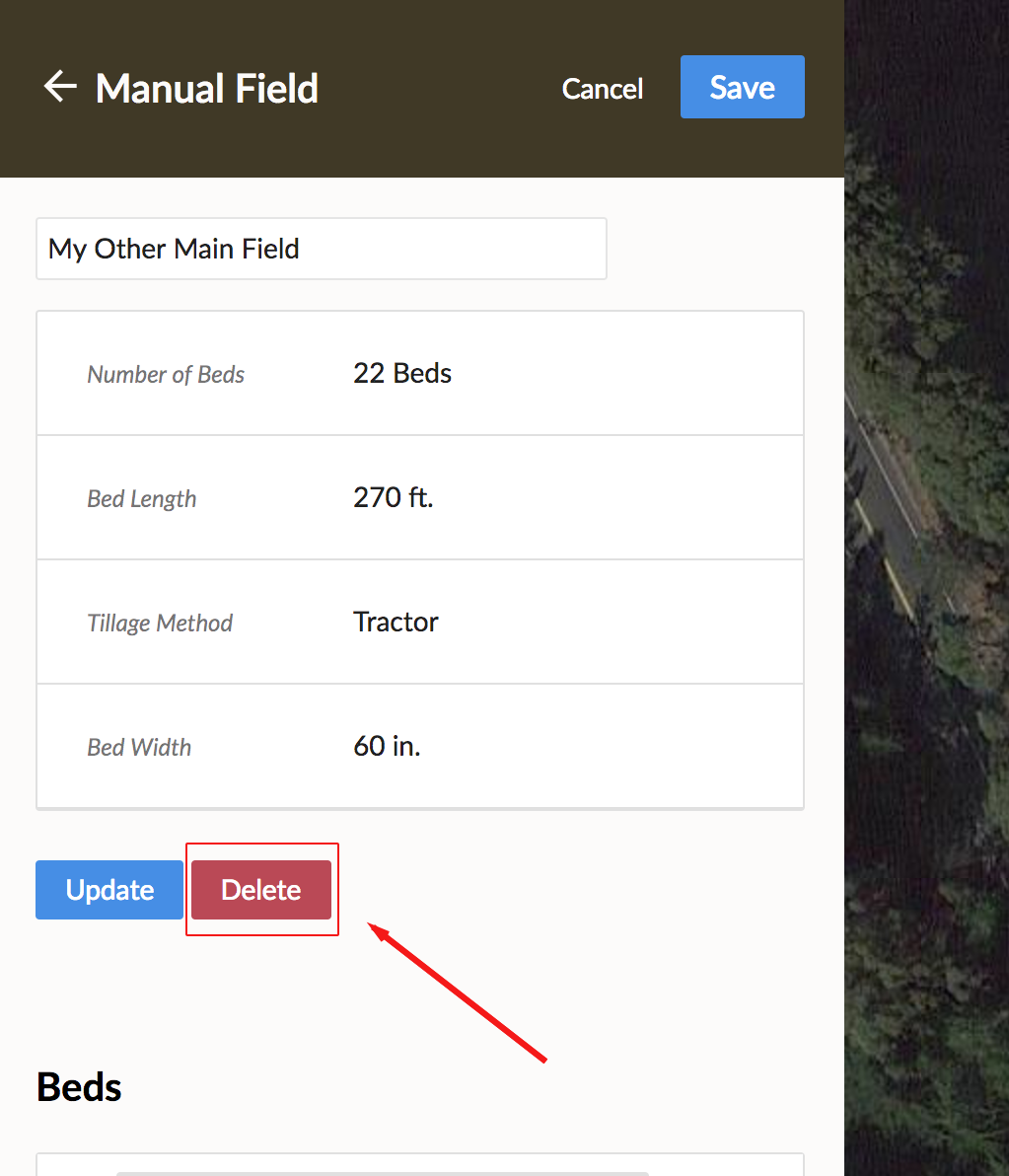
5. A pull-out screen will appear on the left. Select the "Delete" button.
Note: All planting information will be saved so that you can re-assign these plantings to new or other fields.
6. All done! If you're field image does not disappear from the map, refresh the page.