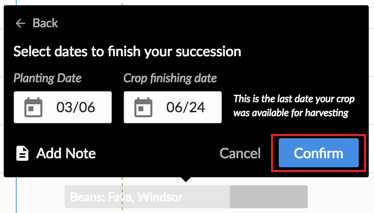
You can "finish a planting" in either the Crop Planner or the Locations sections. You can indicate that you are done harvesting a planting, there was crop failure, or that the planting was never planted. This planting will be updated in the Crop Planner and will now appear in gray.
Crop Planner: When Reviewing your Crop Plan
Click on a planting that you'd like to "finish".

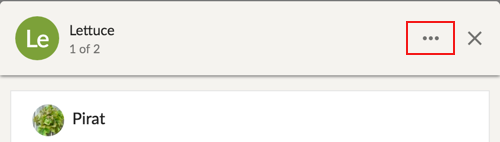
2. A pop-up screen will appear with details for this planting. Move your mouse over the "more button" in the top right-hand corner.
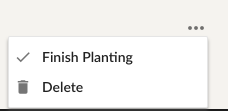
3. A drop-down will appear. Select "Finish Planting".
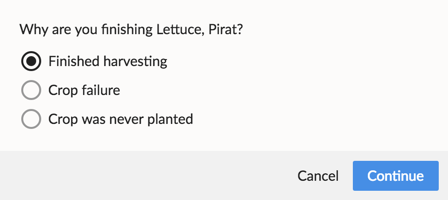
4. Select why you are finishing this planting and click "Continue".
5. Add any additional information and click "Finish".
Locations: When Reviewing Field Info
Click on a field that has one or more plantings in it that you'd like to "finish".
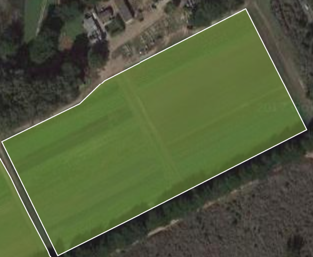
2. In the right-hand pull-out, click on the planting that you'd like to "finish".
Pro tip: If it's hard to find your planting in this pull-out, use the date, crop family, or growing status filters to organize this list.

3. A pop-up screen will appear with details for this planting. Move your mouse over the "more button" in the top right-hand corner.
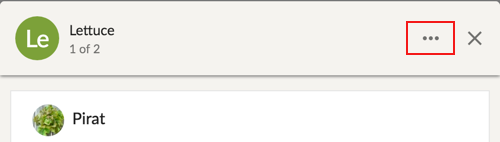
4. A drop-down will appear. Select "Finish Planting".

5. Select why you are finishing this planting and click "Continue".
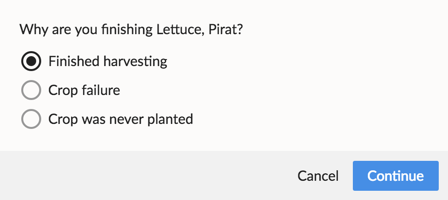
6. Add any additional information and click "Finish".
Locations: When Assigning a New Planting
You can also finish an older planting when you're assigning a new planting to a field.
Click on the field that you'd like to assign a new planting to.
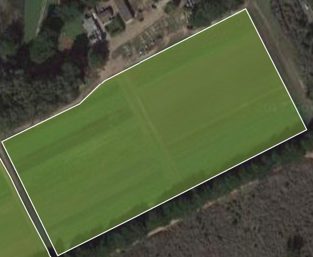
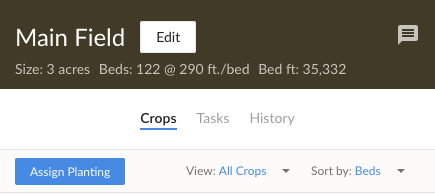
2. Select the "Assign Planting" button in the right-hand pull-out.
3. Select the "Add to Field" button for the planting you'd like to assign to this field.

4. A large pop-up screen will appear showing all of your beds and assigned plantings in this field. Move your mouse over the older planting you'd like to finish; a black box will appear above this planting – click on the planting listed here that you'd like to finish.
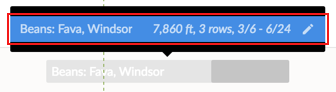
5. Select "Finish Planting".
Note: Selecting "Unassign from Location" will remove this planting from this current field, but will keep this planting "active" in your crop plan.
6. Select the reason why you are finishing this planting and click "Continue".
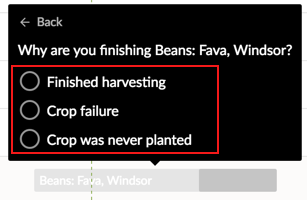
7. Add any additional information and click "Confirm".