Instructions
Find your operating system and web browser below, and then follow the instructions to clear your caches. If you have questions, don't hesitate to get in touch with us via the blue button.
Windows
Internet Explorer
1. Open Internet Explorer
2a. Internet Explorer 8: Select "Tools" tab and choose "Internet Options"
2b. Internet Explorer 9: Select the small gear icon and choose "Internet Options"
3. On the General tab, under Browsing history, click Delete.
4. Select "Temporary Internet files, Cookies, and History"
5. Note: leave the "Form data, Passwords, and inPrivate Filtering" unselected
6. Select Delete
7. Select "OK"
8. Exit and reopen Internet Explorer
9. All done!
Chrome
1. Open Chrome
2. On your browser toolbar, select "More More"
3. Move your mouse over "More tools" and then select "Clear browsing data"
4. Select the checkbox for "Cookies and other site and plug-in data" and "Cached images and files"
5. Select beginning of time to delete everything
7. Select "Clear browsing data"
8. Exit and reopen Chrome
Mac OS
Chrome
1. Open Chrome
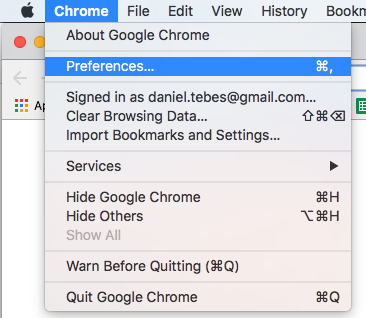
2. Go to the "Chrome" tab
3. Select "Preferences"
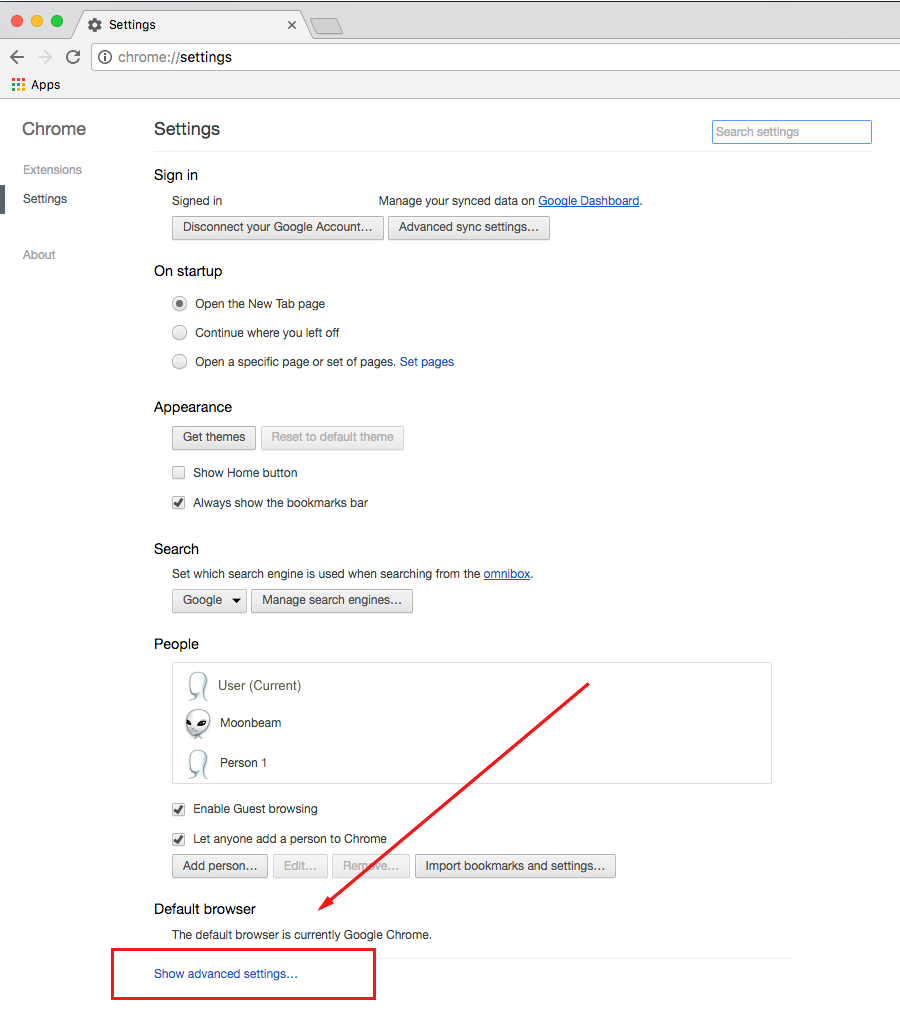
4. Select "Show advanced settings"
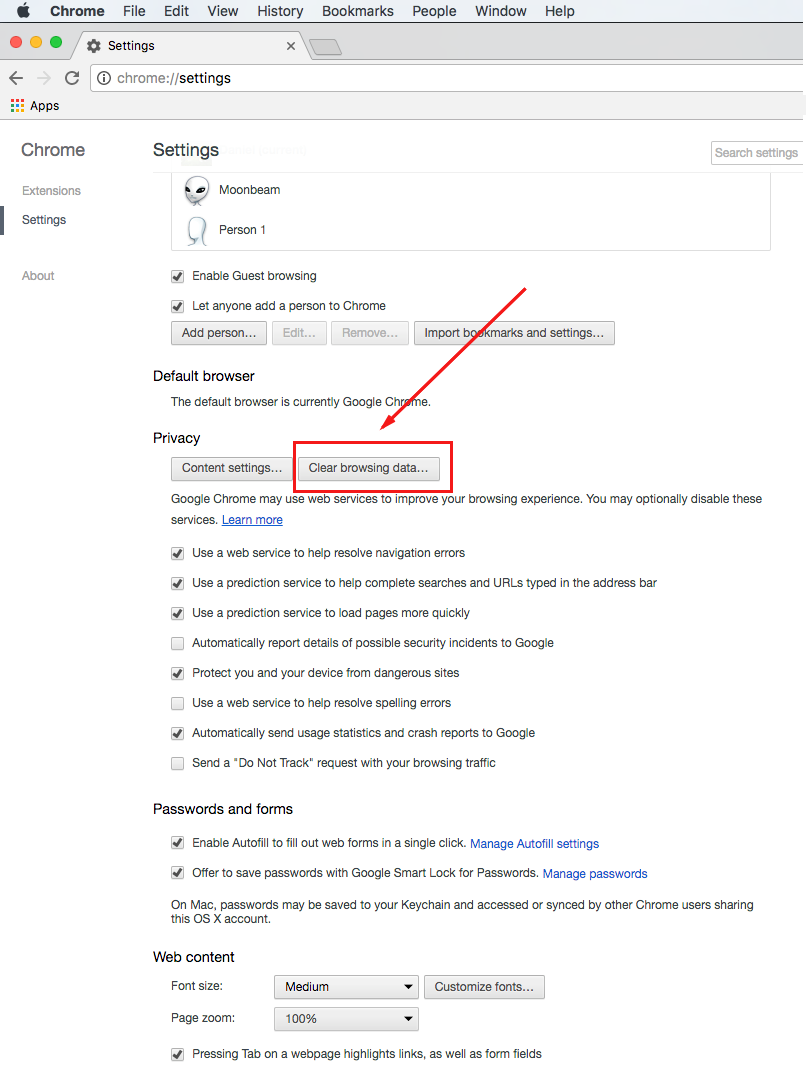
5. Select "Clear Browsing Data"
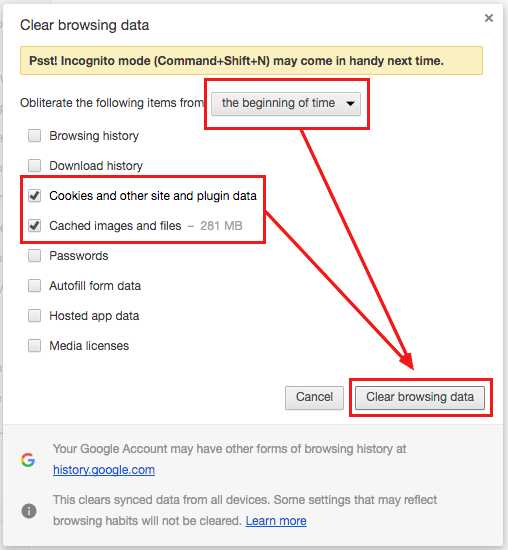
6. Select "from the beginning of time"
7. Select "Cached images and files" and "Cookies and other site and plugin data"
8. Select "Clear browsing data"
9. Exit and reopen Chrome
10. All done!
Safari
1. Open Safari
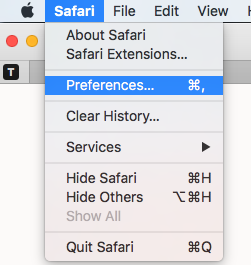
2. Go to the "Safari" tab
3. Select "Preferences"
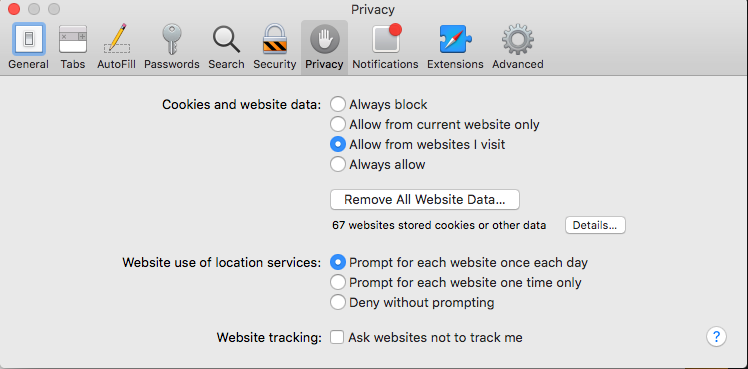
4. Select "Privacy" tab
5. Select "Remove All Website Data"
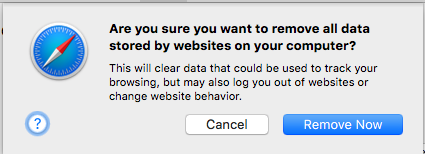
6. Select "Remove Now"
7. Exit and reopen Safari
8. All done!
Firefox
1. Open Firefox
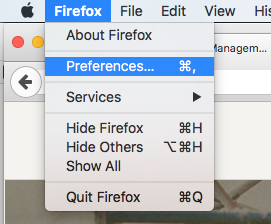
2. Go to the "Firefox" tab
3. Select "Preferences"
4. Go to the "Privacy" tab
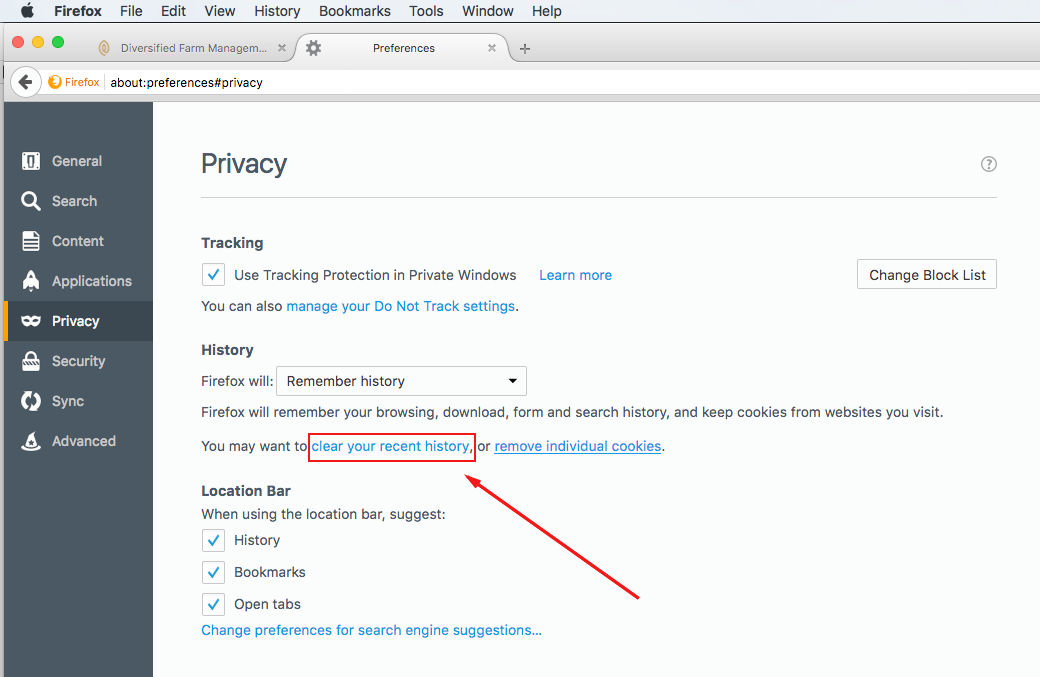
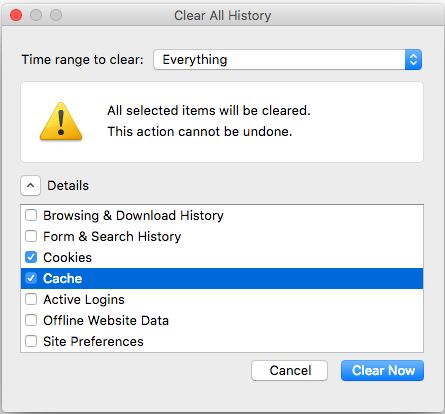
5. Select "Everything"
6. Select "Cache" and "Cookies"
7. Select "Clear Now"
8. Exit and reopen Firefox
9. All done!
More info about caches
What are caches (a.k.a. caching)? Caches are small bits of code stored locally on your web browser that help websites query information and run faster. Most web browsers automatically clear caches on a regular schedule. Because Tend is in beta, we make updates to our Web App more frequently than other websites.
Why do I need to clear my caches?
Sometimes when we push larger updates or new features to our beta Web App, you may encounter caching issues. This means the caches in your browser do not match those in the newer version of our Web App, which can cause performance issues. You can fix this by following the instructions above to clear your caches.
Manually clearing caches vs. "shift + refresh"
Holding down the "shift" button on your keyboard while selecting the circular "refresh" button by the url area in your browser will clear caches (but not cookies). If you're experiencing something strange in our Web App, try this first.
When we push a larger update or new feature to our Web App, it is best to manually clear your caches and cookies (instructions above). We will send you a message in the App with a link to this article when this is necessary.
Need help? Get in touch
At any point if you'd like one of us to walk you through this process, don't hesitate to reach out to us via the blue button in the App. You can also email [email protected] and we'll get back to you.