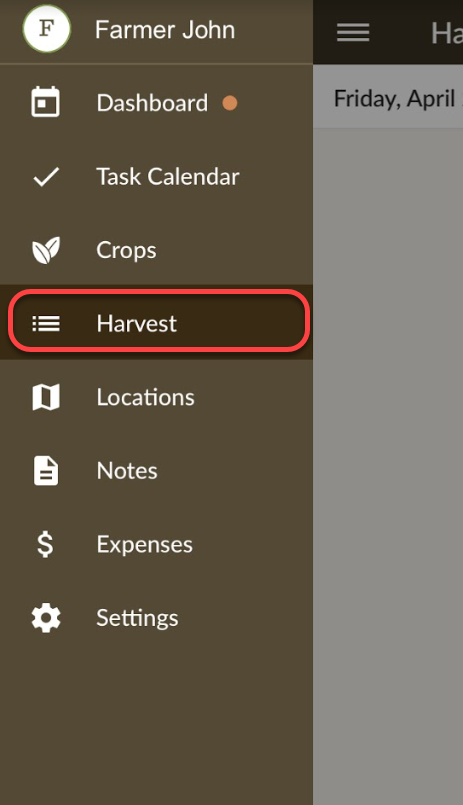
First, navigate to the Harvests tab in the Tend mobile app
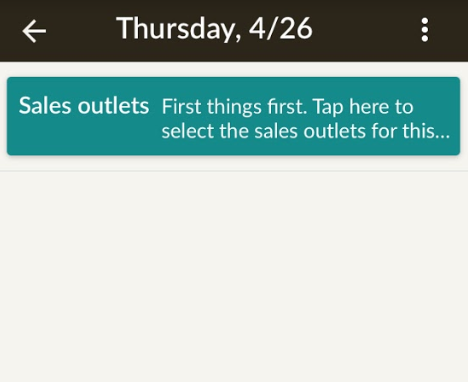
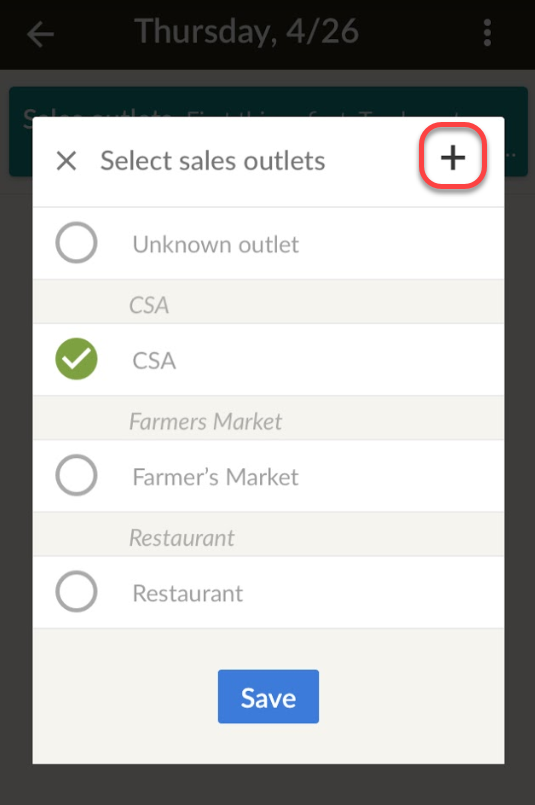
Click on the blue Sales Outlets button and select the appropriate outlet for the harvest you're recording.
If you don't see the correct sales outlet you may need to add a new outlet by tapping on the "+" icon
Once you've selected your sales outlet you'll need to select the crop you are harvesting. At the top of the screen you will see "Available Now" which shows plantings which are currently in the harvest window you've defined in your crop plan. If you are harvesting a crop before or after the planned harvest window you can select All Plantings.
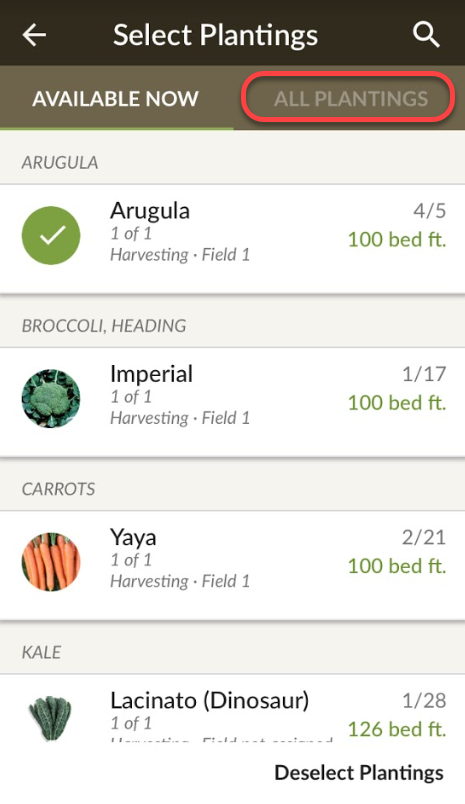
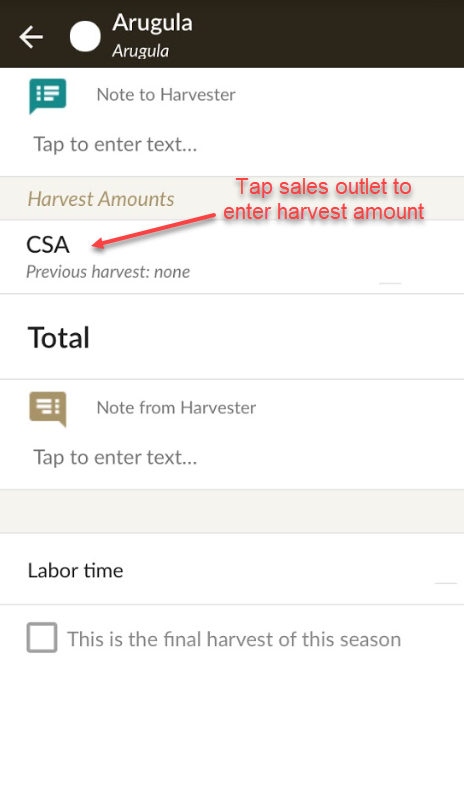
After you've selected the crop you plan to harvest, you can tap on each planting to enter harvest details including amount to be harvested, notes, and labor time. To enter the harvest amount, tap on the Sales Outlet.
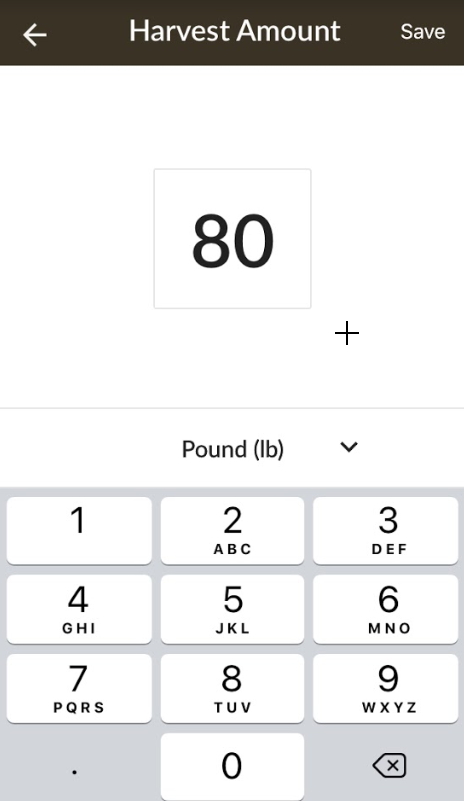
You can enter the amount and units for the crop you're harvesting (pound, bunch, case, head, etc.)
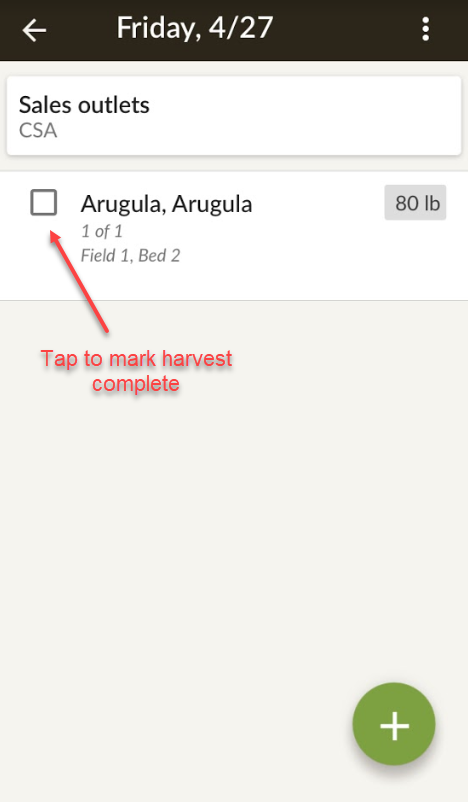
Once you've harvested a crop from the Harvest List, tap the checkbox to mark it as completed. Then hit the back button in the top left corner to exit the harvest list and save. Your harvest record has been created!