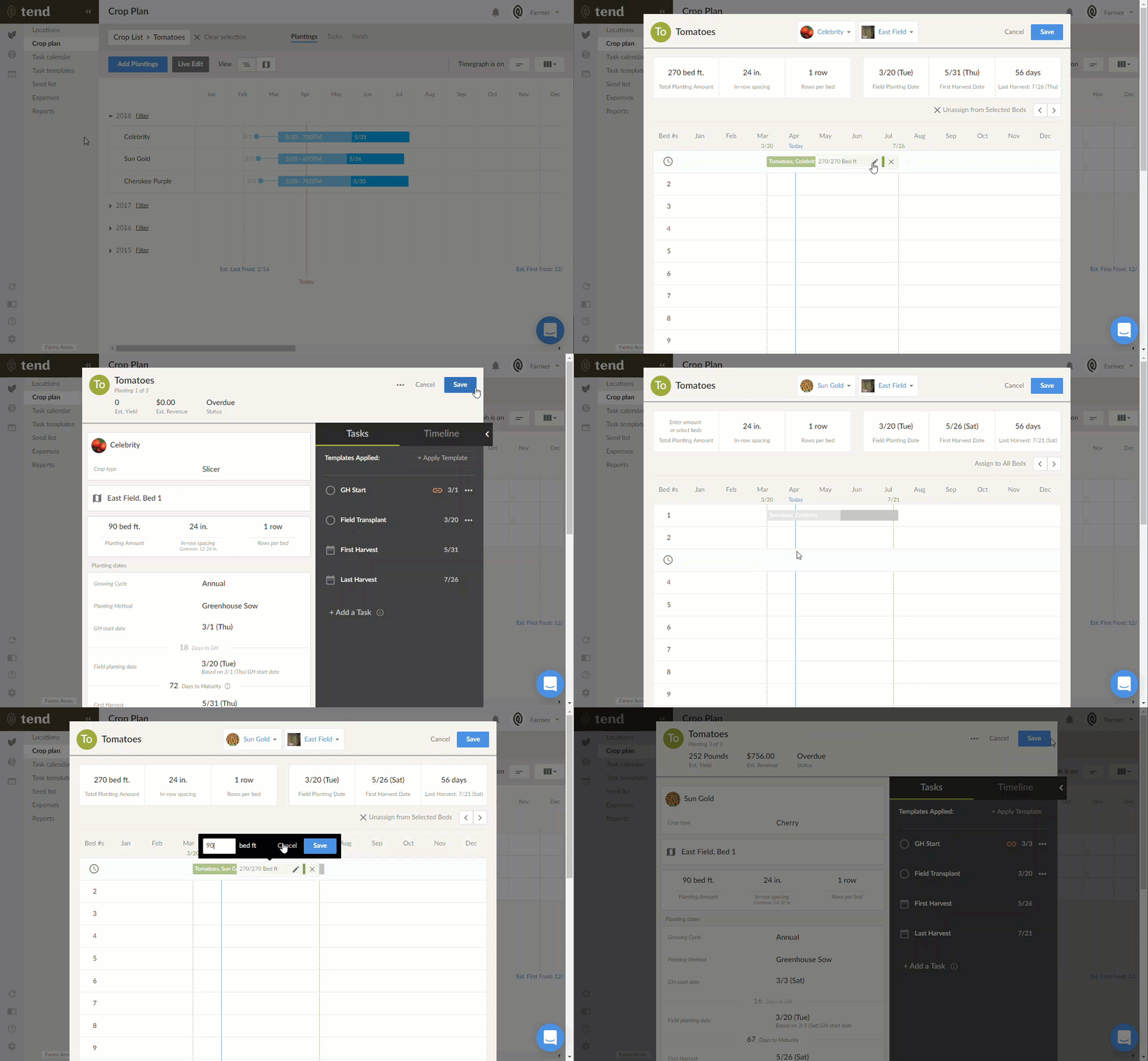
With the crop planning tool you can assign more than one crop to a single bed, allowing you to break up a bed into multiple sections for different varieties, or plan for intercropping where plantings occupy the same space.
For example, you want to add three varieties of tomatoes to a single bed which is 270 feet long, each variety occupying 90 feet of bed space. First, go into the Crop Planner, select the first variety and click on Select Location. Pick the field you want to plant your tomatoes in, and in the bed assignment screen click in an available bed to add the first planting and a green bar will appear. By default the planting will be assigned for the full length of the field, but you can modify this by clicking on the planting and selecting Edit. This will bring up a text box which allows you to enter the desired number of bed feet that crop will occupy. After entering and saving the value (in this example 90 feet), we can go back and select the next variety of tomatoes and complete the same steps. When adding a crop to a bed that already has a planting assigned to it with the same planting date, you'll need to click directly beneath the gray bar which represents the existing planting, allowing you to add the new crop directly on top. See the brief video below which illustrates adding two varieties of tomatoes to the same bed.