If you already have a website, but you're considering switching to Tend, you can try Tend's Website tools while leaving your current site in-tact.
The following tutorial shows you how!
—
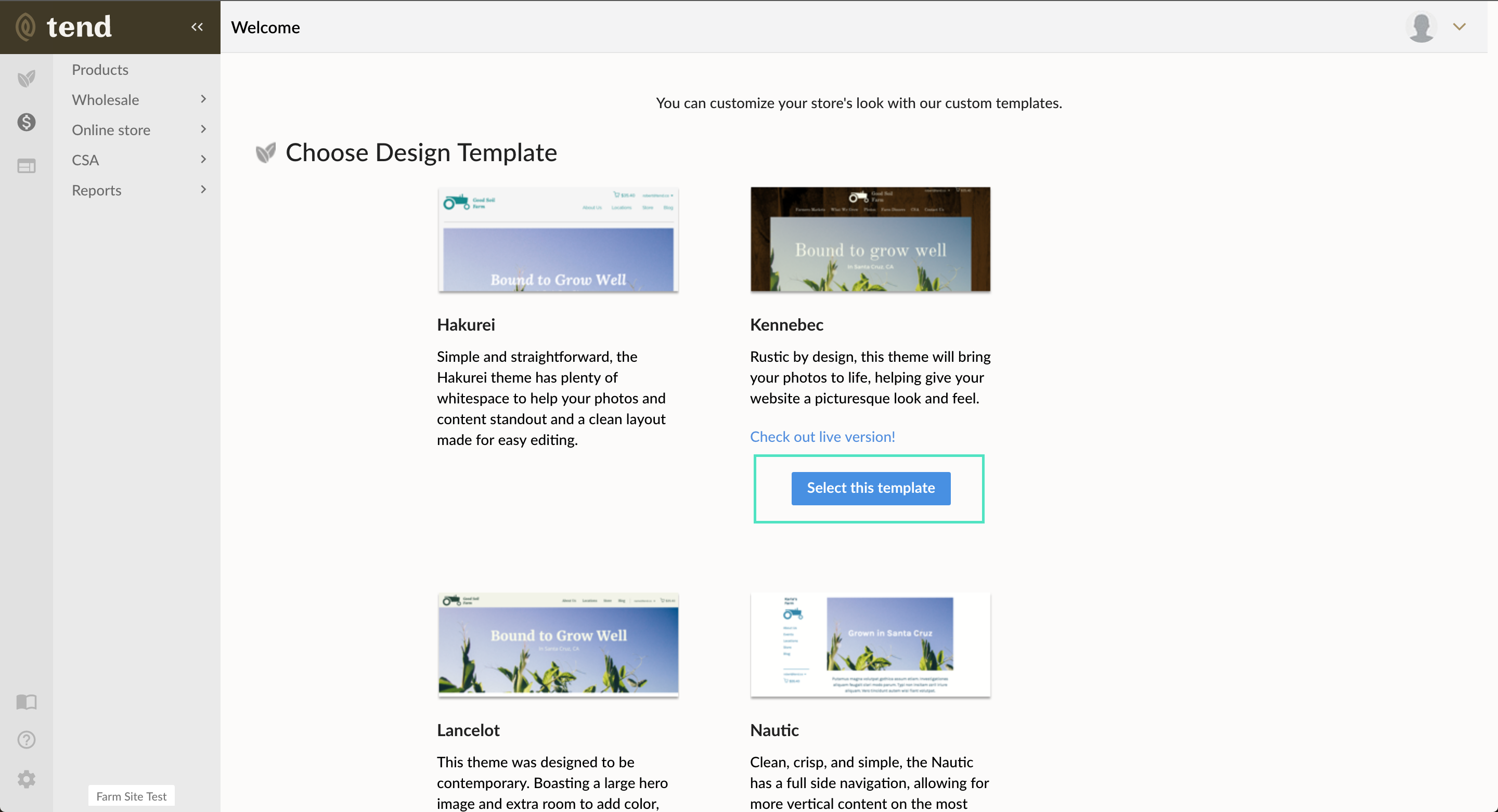
We have a handful of themes to choose from.
Click each below to preview it.
Set up a Tend website.
You can set up a Tend Website, play around with our editing tools, and see what a published site really looks like in order to help you decide whether you want to migrate your site.
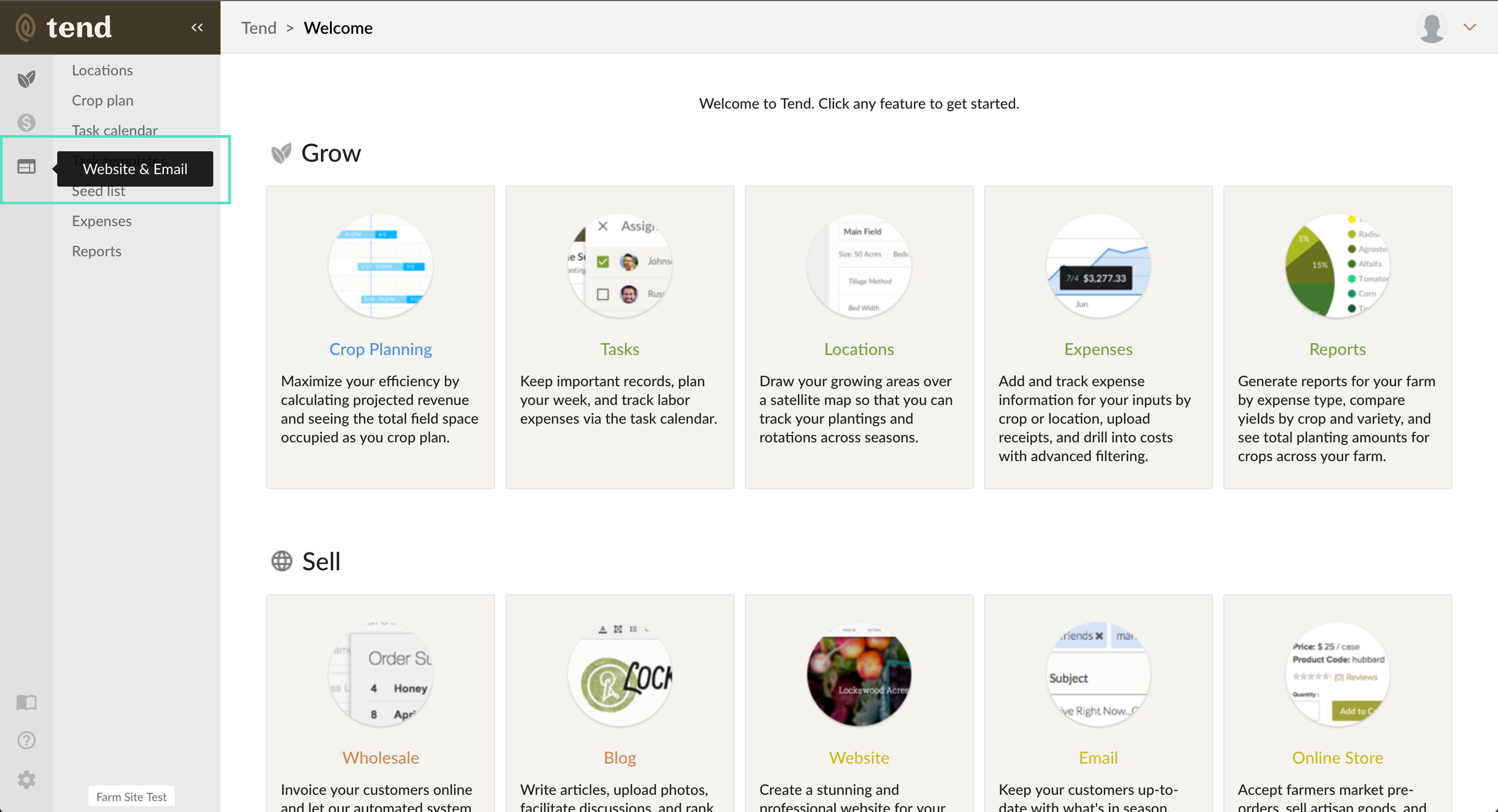
1. Navigate to Tend's Website & Email features
2. Select a template for your site
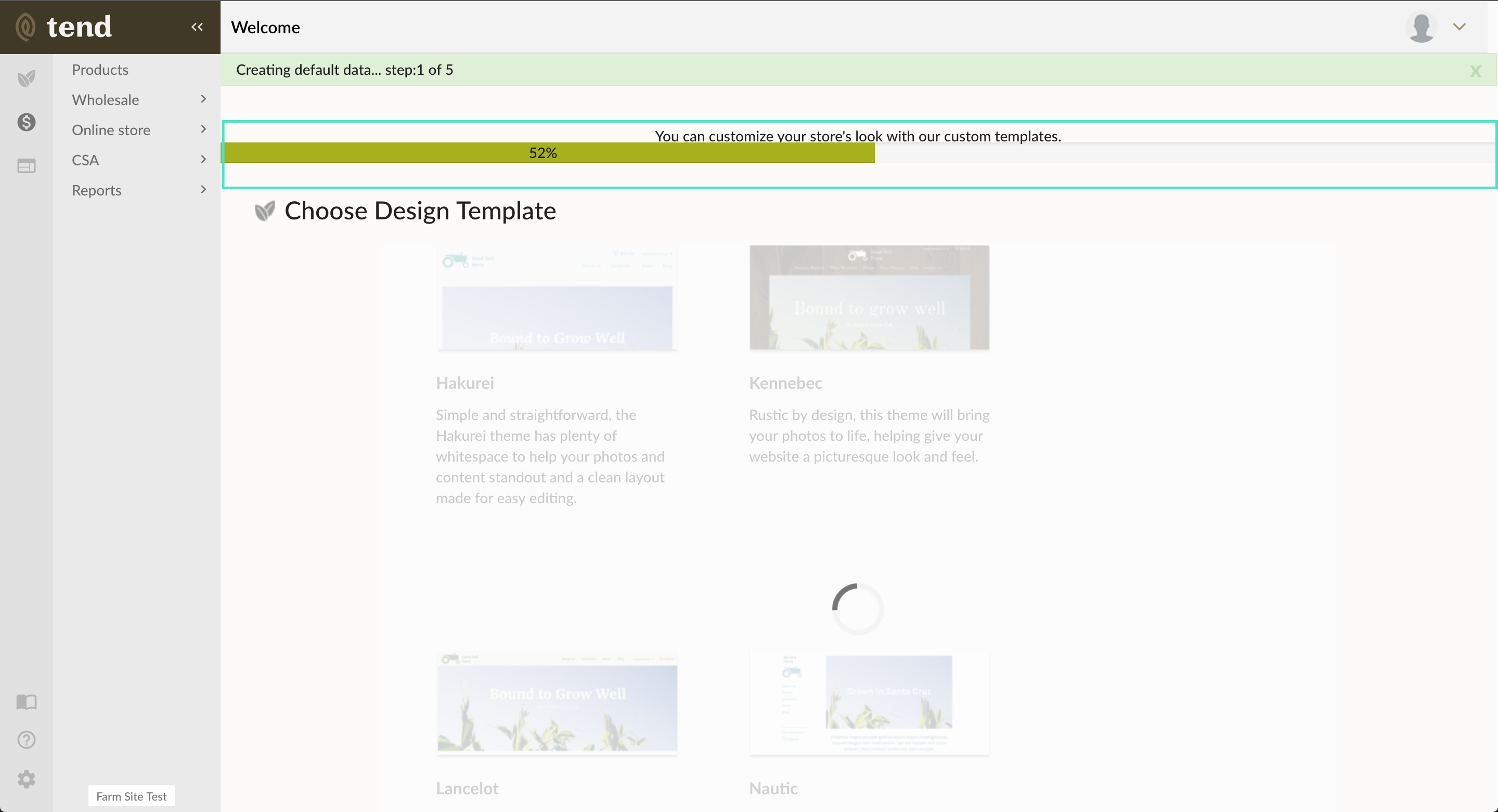
3. Wait until the site builds
4. Under Website & Email > Website > Pages, click a page to edit it (or click the + icon to add a new page)
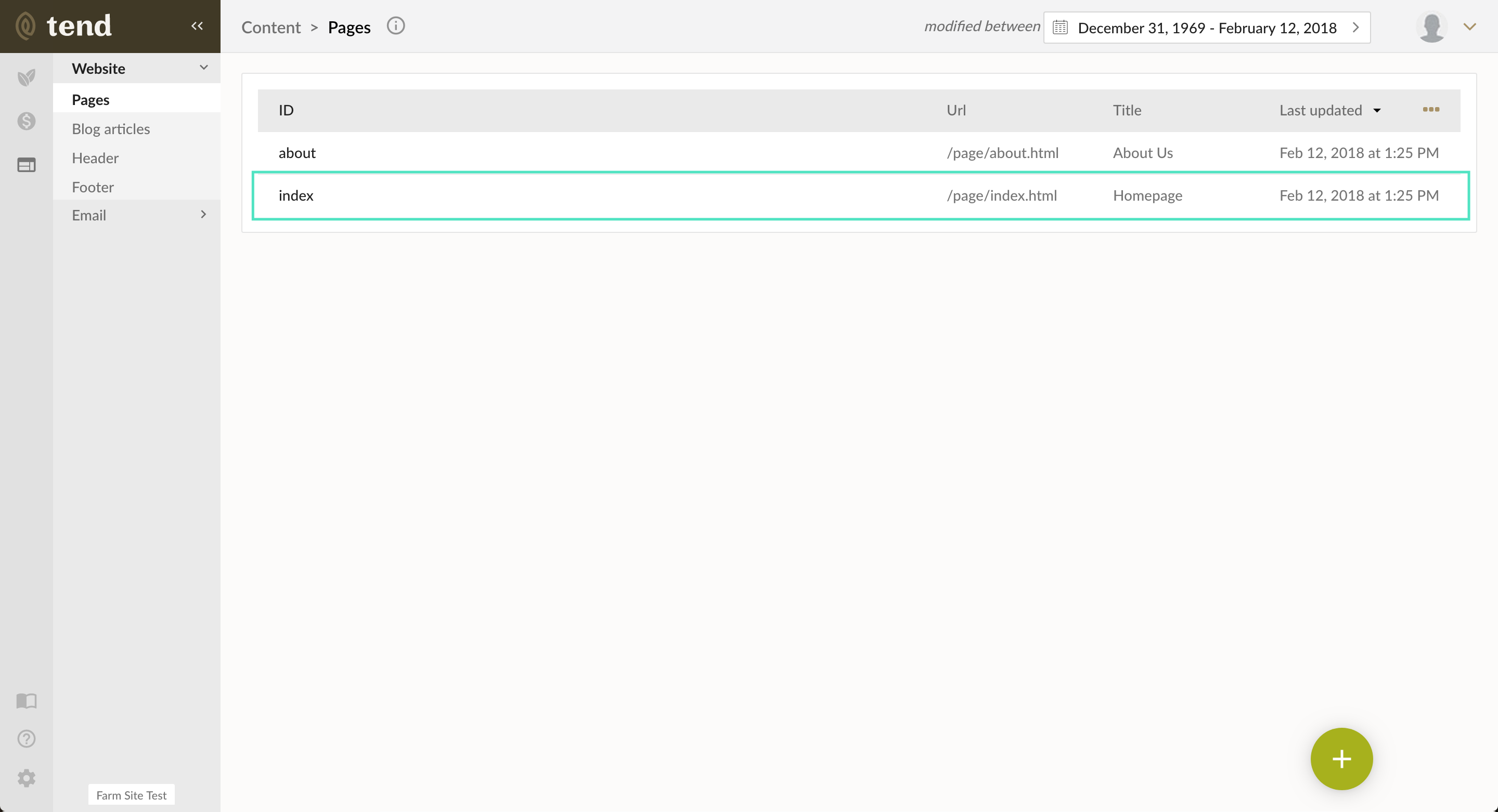
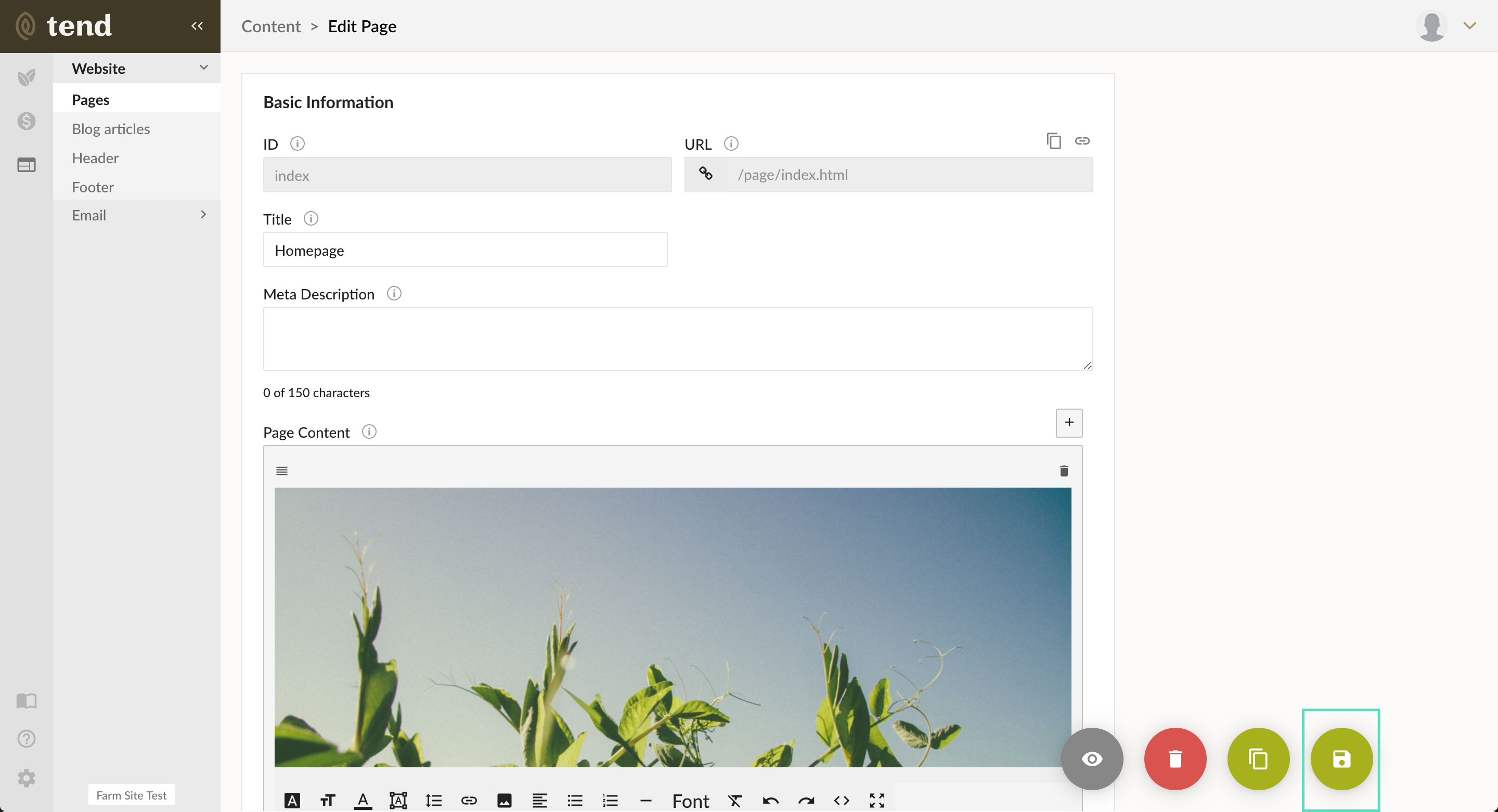
5. Edit something on the page to trigger the Publish notification (in #6 below)
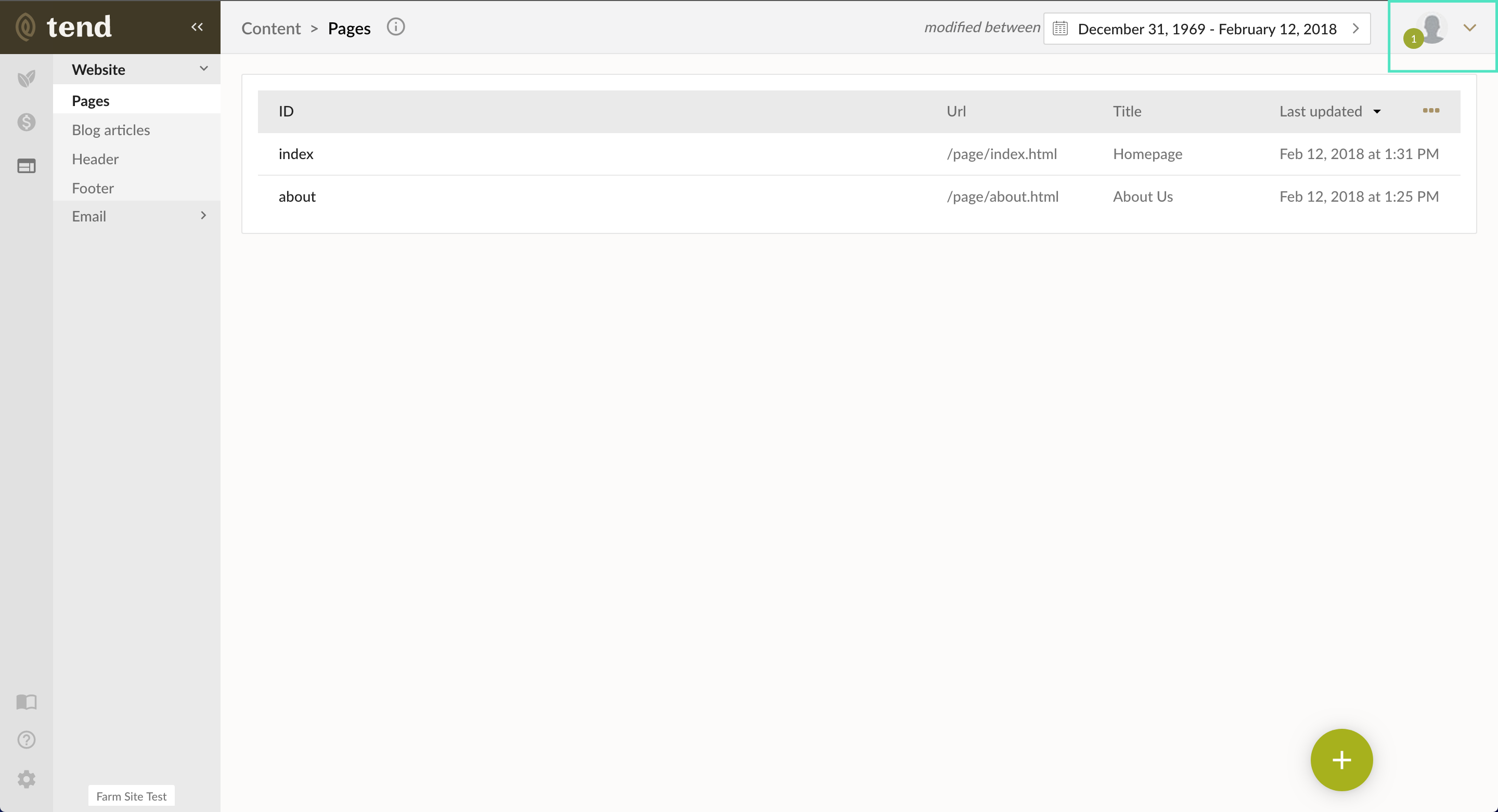
6. Click the User icon
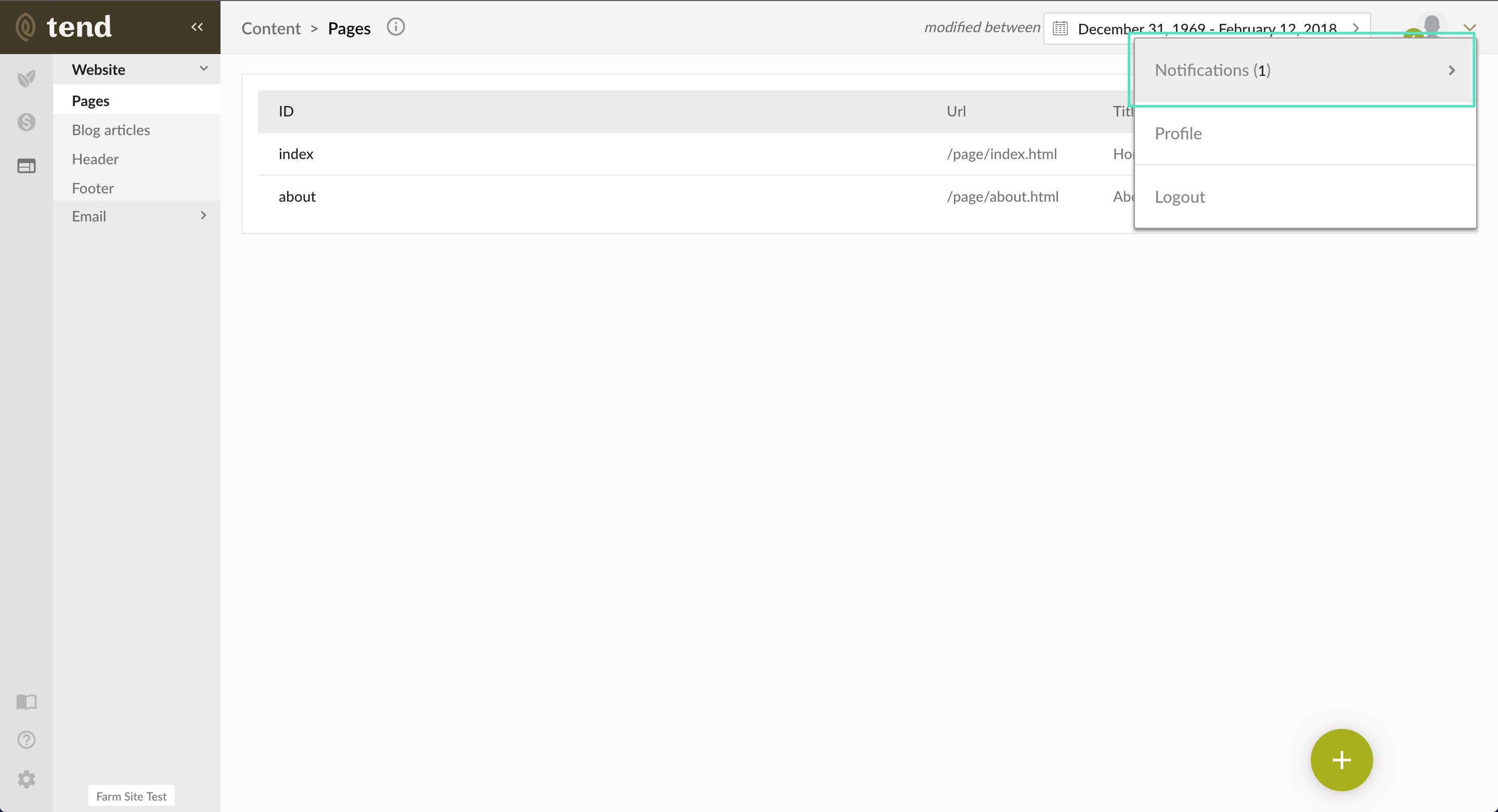
7. Click "Notifications (1)"
8. Click "Unpublished changes"
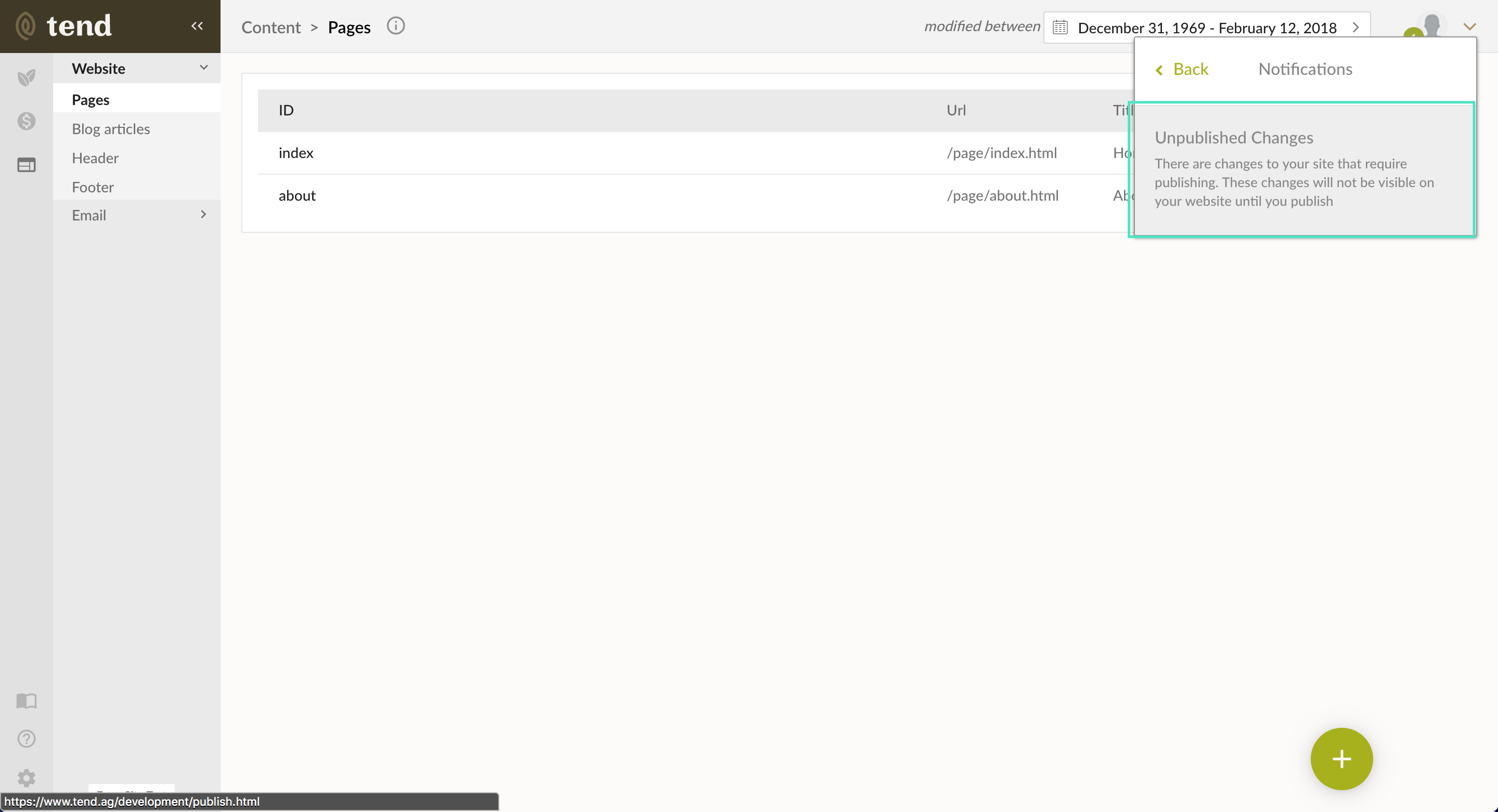
9. Click the "Publish" button (Every time you make a change your site, you need to return this page to re-publish your site; otherwise your site won't update)
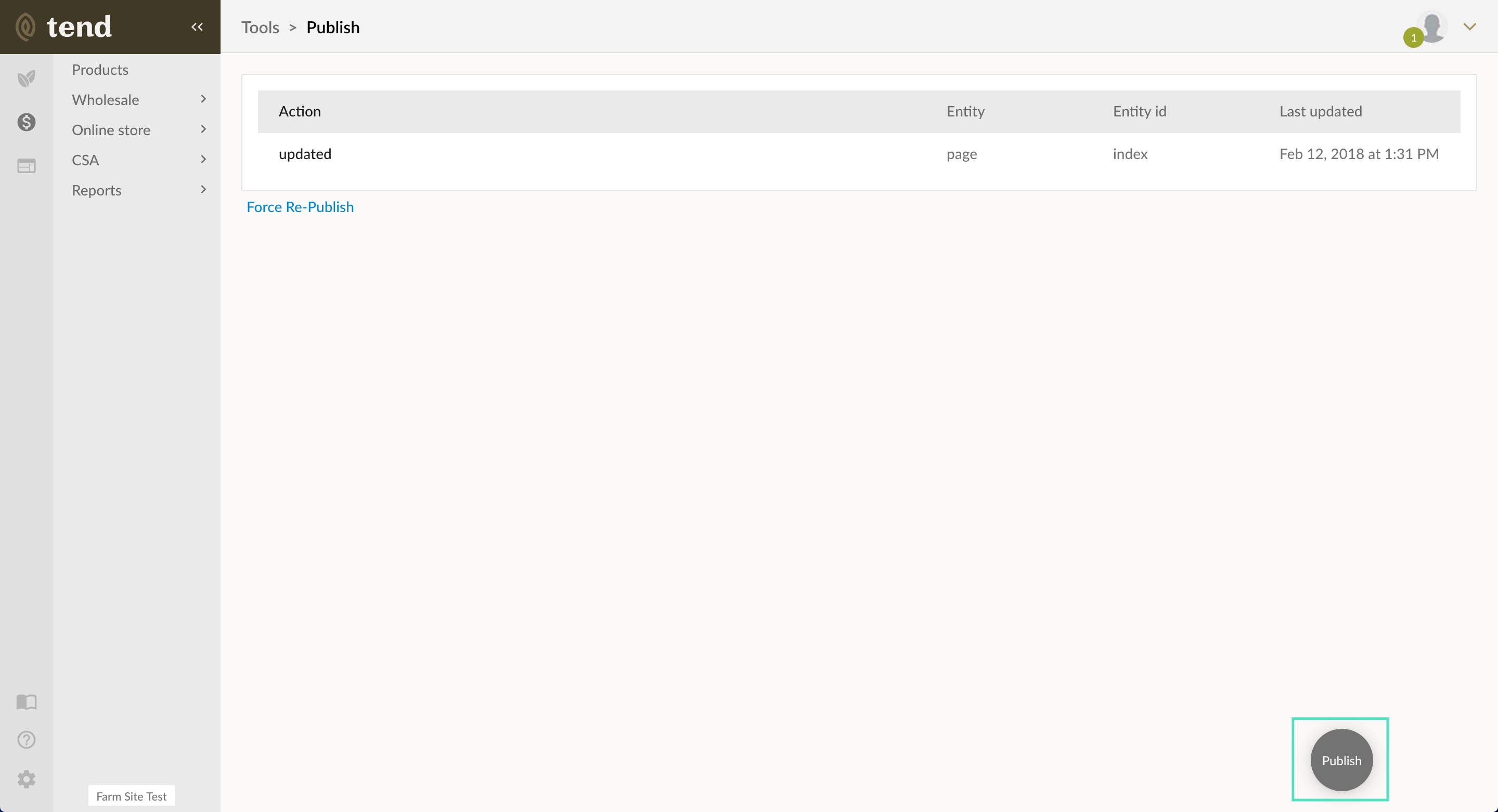
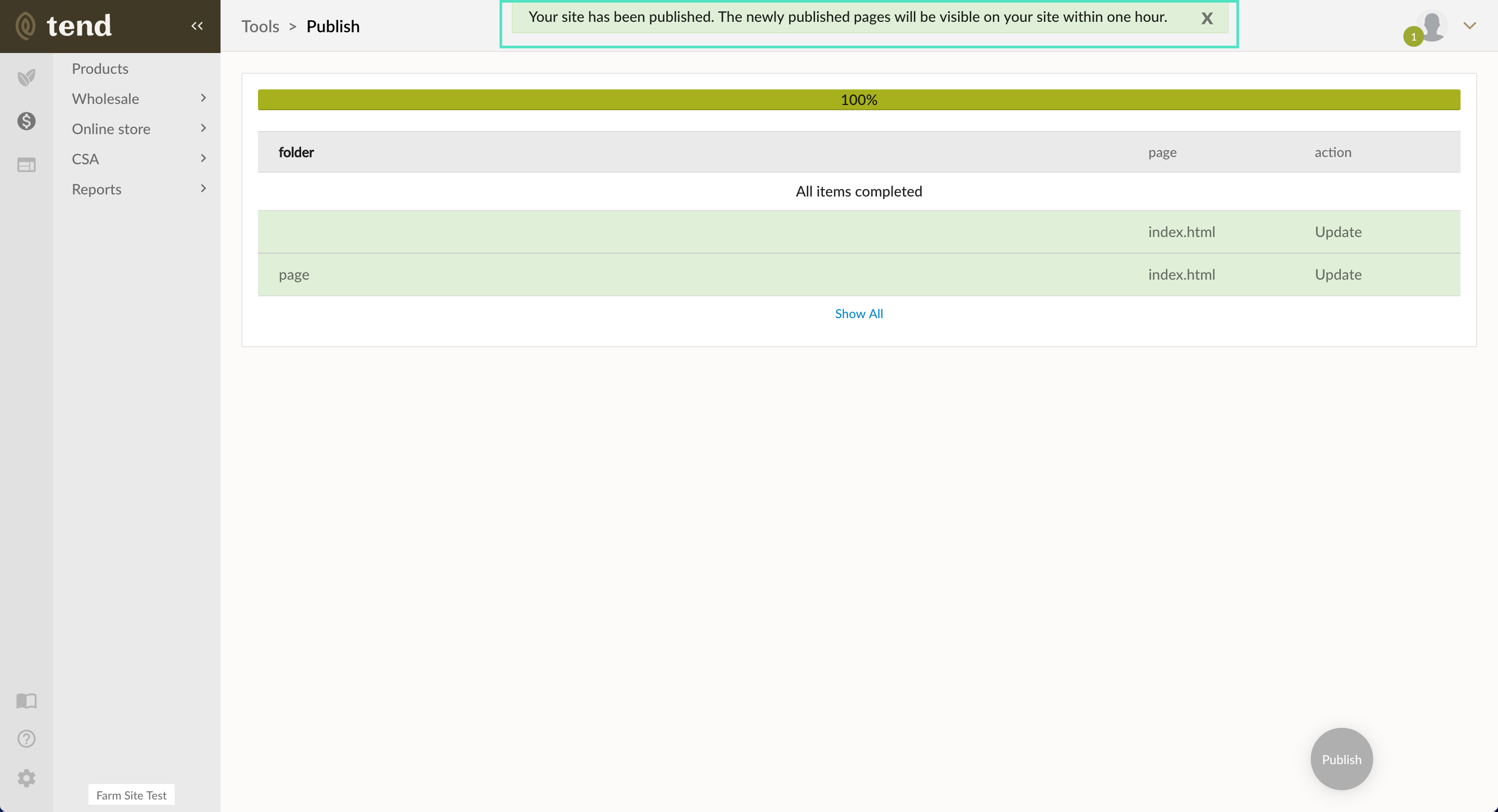
10. Wait until your site publishes
11. Return to Website & Email > Website > Pages > Any page, then click the "Link" icon to view your website.
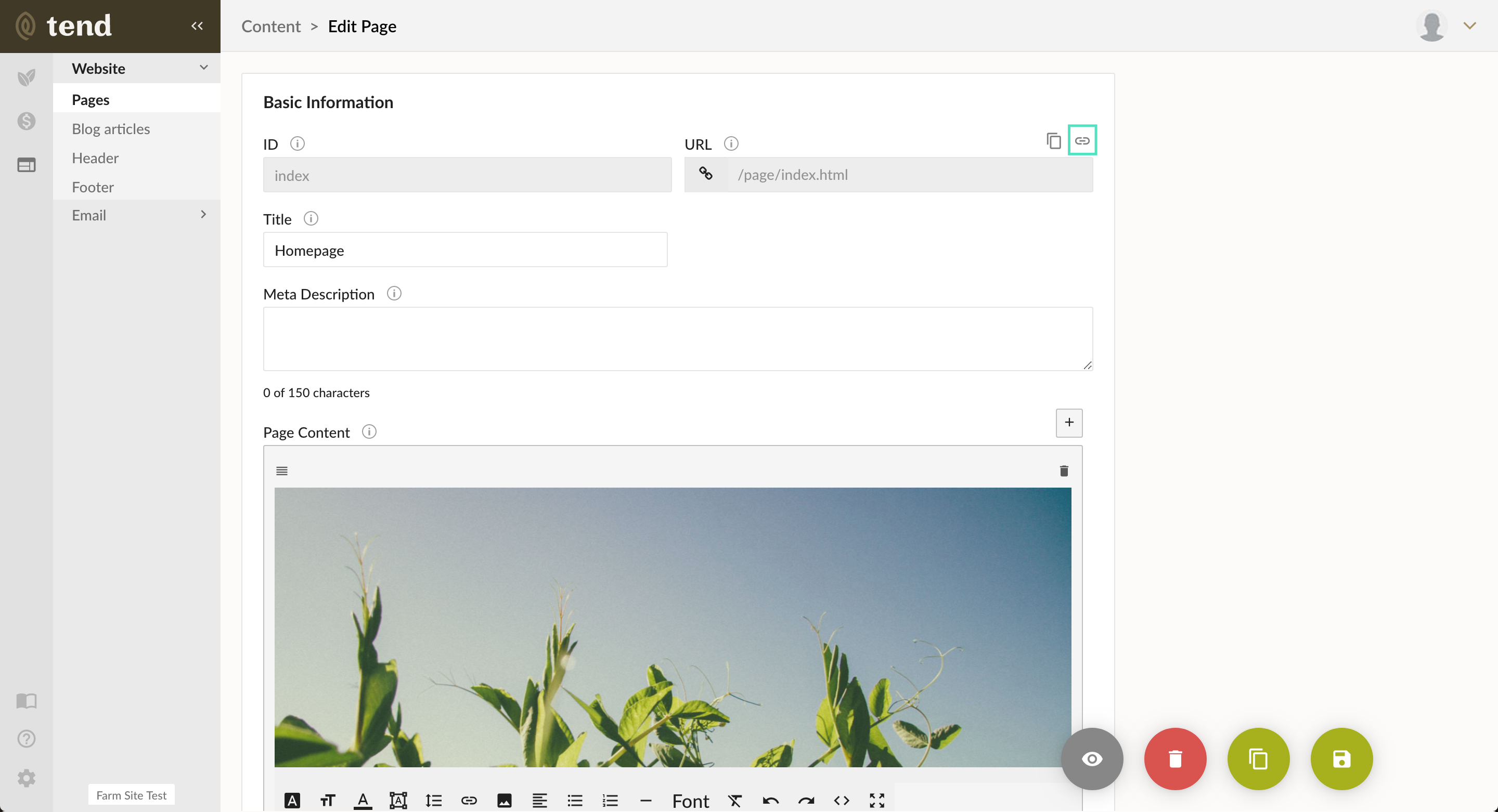
12. Review your site

—
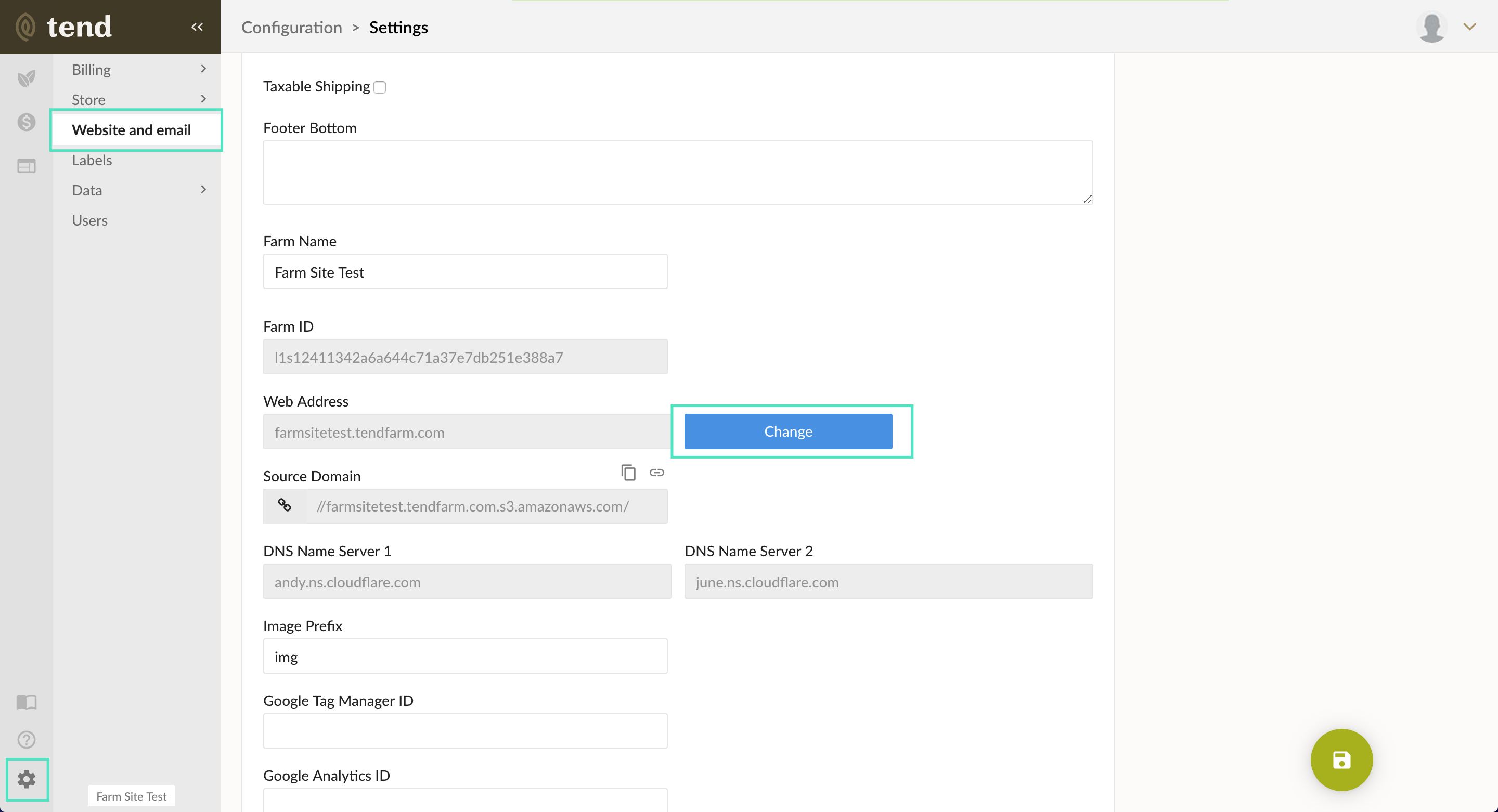
13. To change your domain name, click here, scroll down to "Web Address" and click the blue change button.
If you are not entering a valid domain you will not be able to enter the domain name.
Please note it may take up to two days before your site links.