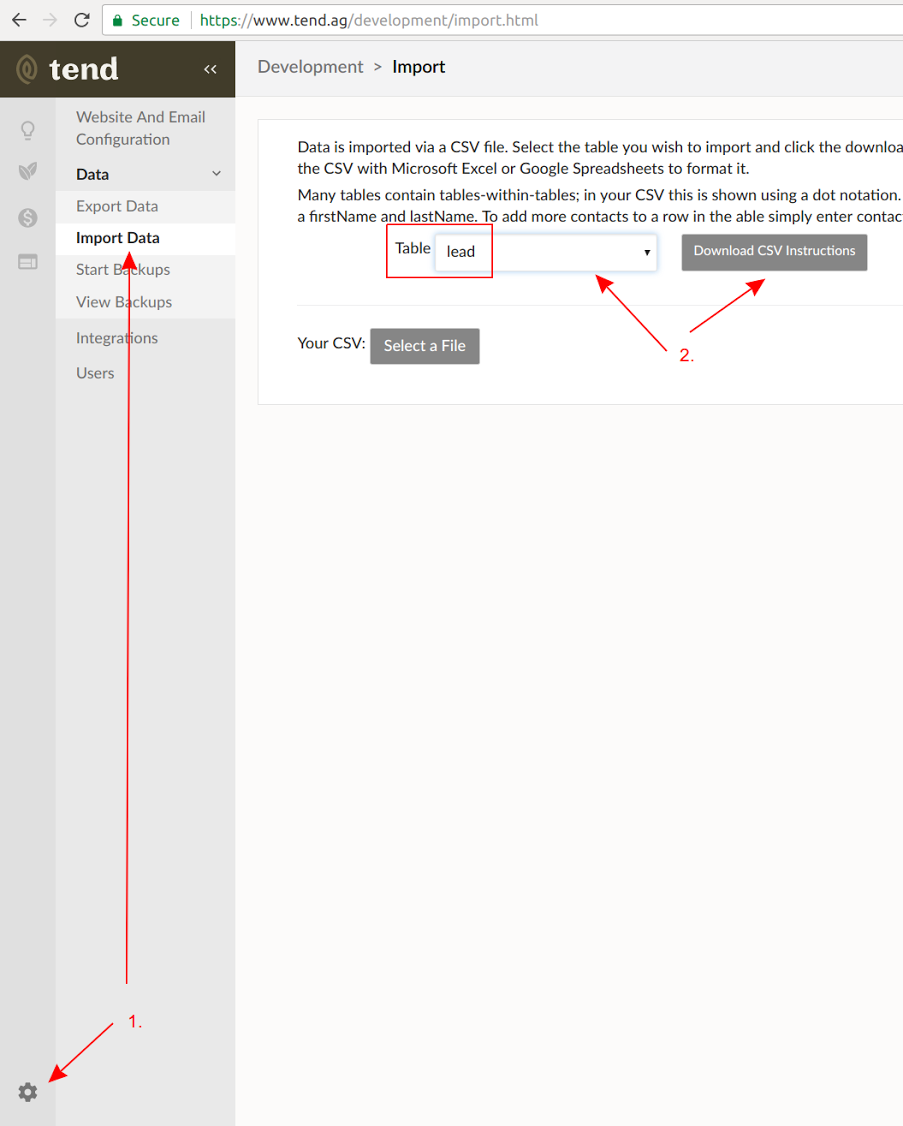
On the navigation toolbar on the left side, click on the cog icon which takes you to "Settings". Click "Data" and "Import Data".
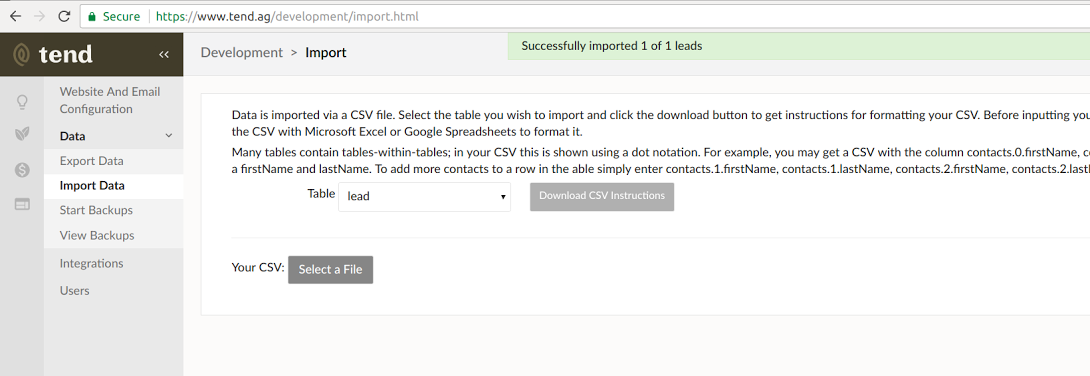
In the dropdown next to "Table" select "lead" and download the CSV instructions. You should be able to open this file in any spreadsheet program (Google Docs, Microsoft Office, Open Office, etc.).
Here's a screenshot of that page:
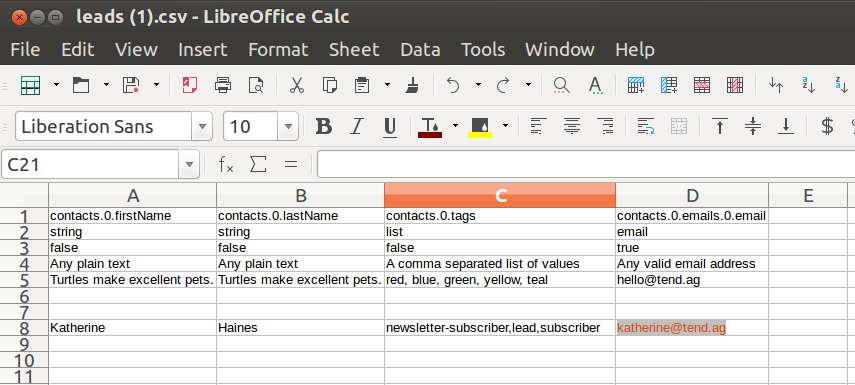
The CSV template will have multiple fields. Feel free to delete any columns that don't apply to your data set. For example, if you don't use last names, you can delete the relevant column.
Here's a screenshot of the trimmed data set with input information:
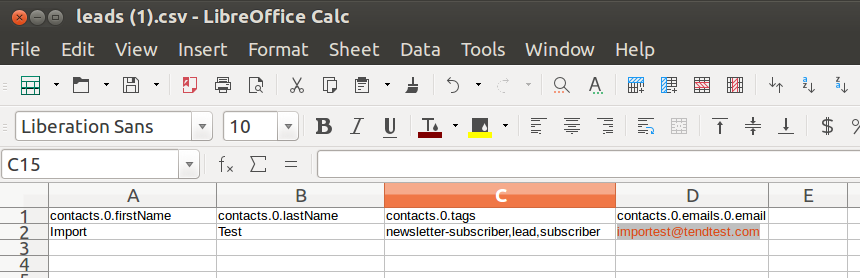
3. Then I removed the instructions so it's only the field and the data. This is just importing 1 subscriber. You can import as many as you like with extra rows.
4. When you're ready, go back to the Import Data page. Select "lead" again and then click the "Select a File" button to upload the CSV.
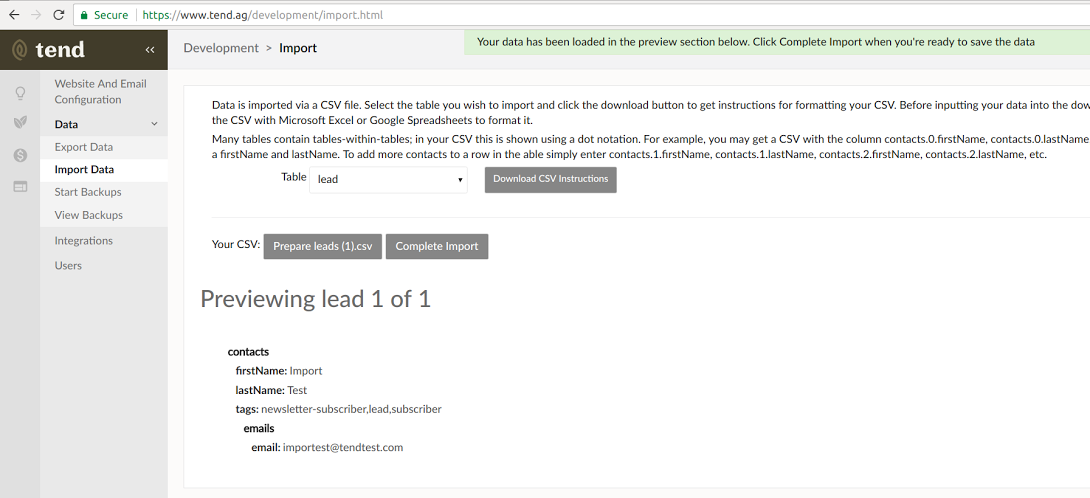
5. If the preview look correct, click "Complete Import." If it does not, you probably have a formatting problem with the data. To ensure there are no errors, it's best to compare your spreadsheet with the example file.
6. Once you're done click "Marketing" on the left-hand side and select "Email" and then "Subscribers" to view the imported contacts.