
Overview
Products in Tend are the items you sell, whether they’re fresh produce, seedlings, cut flowers, value-added goods, or products you buy from an outside source. The Products feature connect your harvests and inventory to sales, ensuring everything you offer is clearly organized, traceable, and ready for your customers.
Products are designed to streamline the process of turning your farm's diverse harvest into sellable products. Here you define the specifics of the products you want to sell. Understanding the need for flexibility and efficiency in farm produce sales, Products was created to allow for the seamless conversion of crops into a variety of market-ready formats, catering to different customer preferences and maximizing sales opportunities.
Accessing Products
To get started, go to the left-side menu and click Sell > Products. This will open your Products Page, where you’ll see:
A list of all your products.
Search and filter options to quickly find what you need.
Tools to manage product details, units, and availability.
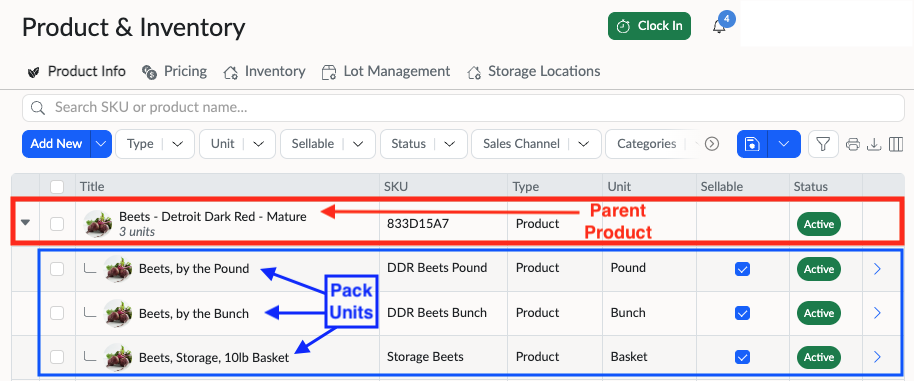
Each item you see in your Products list is called a Parent Product. Parent Products are automatically generated when you add a crop to your Crop Library.
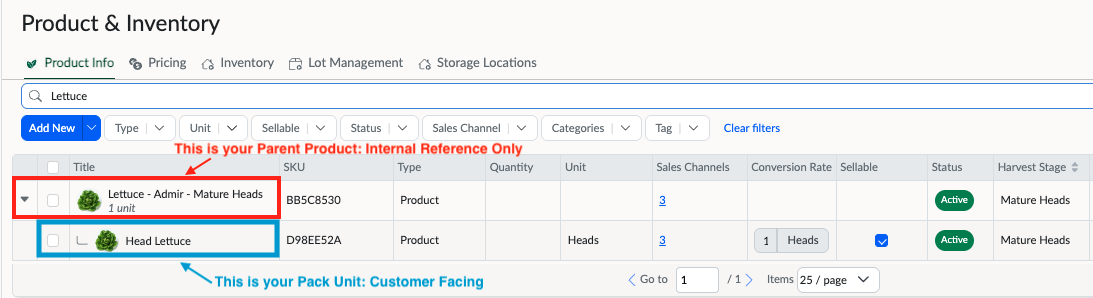
Underneath each Parent Product are Pack Units. Click the arrow to the left of a parent product to see all of your listed pack units. These pack units represent the specific ways you sell that item (e.g., by the pound, by the bunch, or in flats). Parent Products are primarily for your internal organization, while Pack Units are what your customers see in sales channels.
Parent Products and Pack Units
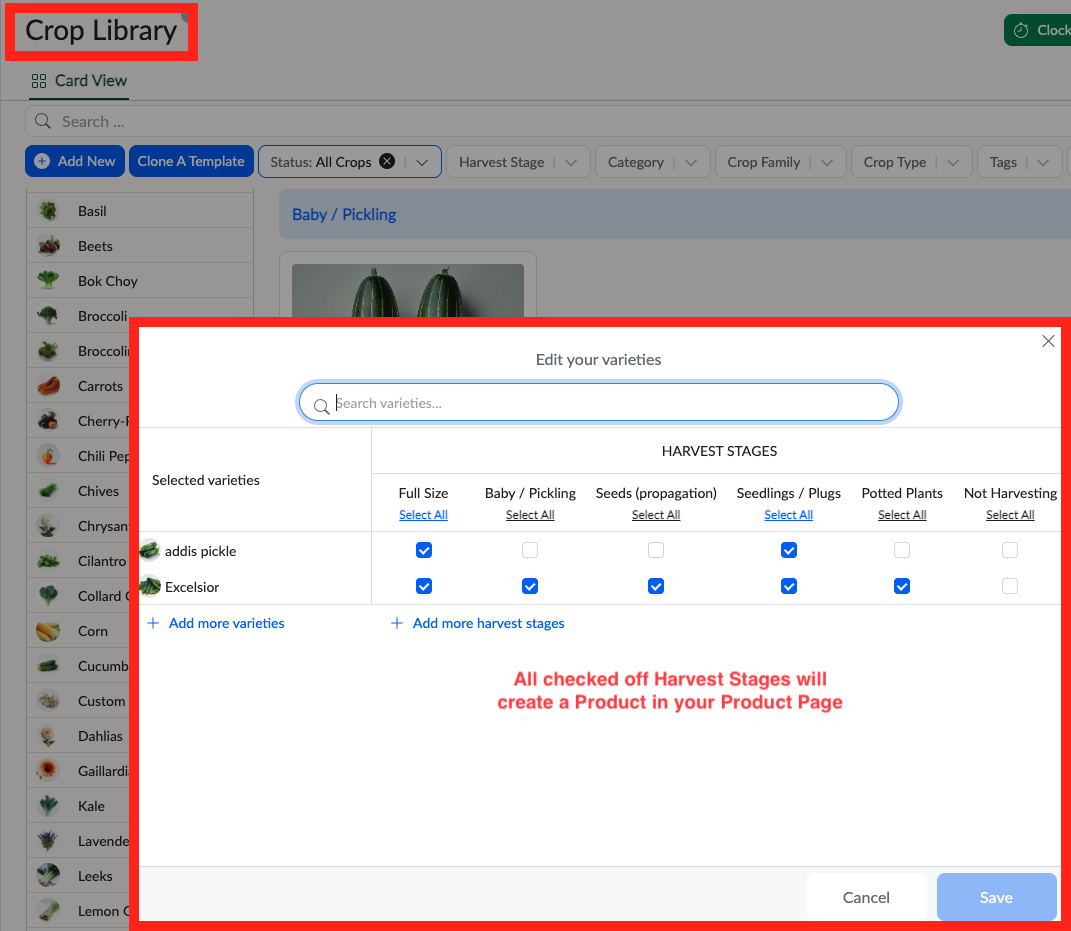
Parent Products are automatically created with its harvest stage when you add an item to your Crop Library. For example: from your Crop Library if you add a new crop key of Cucumbers - Excelsior - Full Size (crop - variety - harvest stage), a product will automatically be created in your Product page under that name. In your Crop Library, if you also add a harvest stage for 'Seedlings / Plugs' for your Excelsior Cucumbers because you plan to sell them at a plant sale, Tend will also create a product for Cucumbers - Excelsior - Seedlings / Plugs.
All checked off Harvest Stages from Crop Library will create a product in your Product Page.
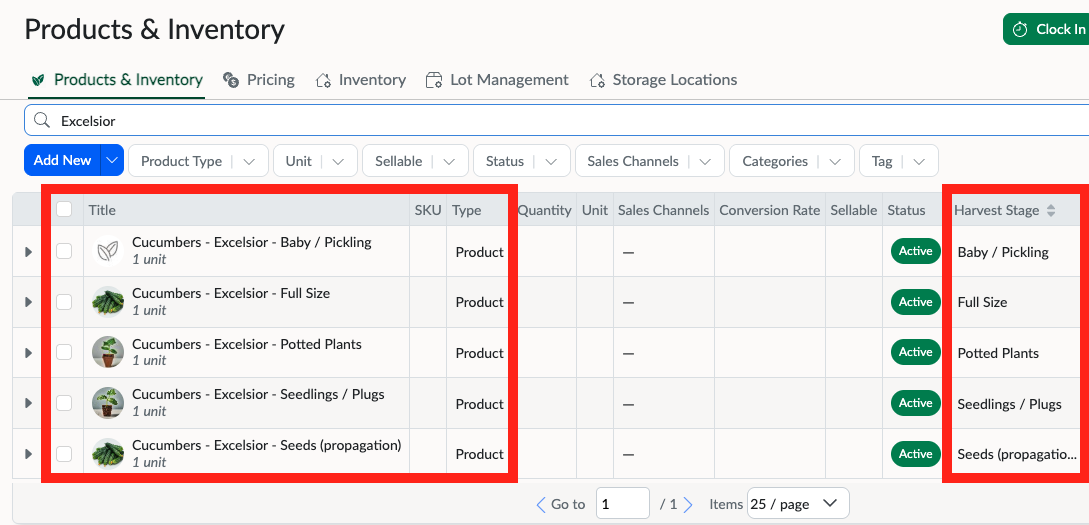
Each Parent Product that is created will automatically have one pack unit under it to start. That pack unit will automatically be set to 'Made to Stock' because it is your primary harvest base unit. You can view this pack unit by clicking the arrow to the left of the parent product. This Pack unit is the customer facing product. You can click into the parent product to add additional pack units. Additional pack units will automatically be set to 'Made to Order', but you can change this to 'Made to Stock' by clicking into the pack unit details window, scrolling down to the Inventory section and changing the Fulfillment Mode to 'Made to Stock'.
To read more about Made to Stock and Made to Order, please see our Inventory and Lot Management Help Doc
Pack Units represent the specific sales formats of a product. The Pack Units are what are displayed to customers and available for purchase if you decide to have them shown in your Online Store or Offer Sheets.
For example:
You plant Carrots, Mokum, Mature (Crop, Variety, Harvest Stage).
Your Parent Product will be “Carrots – Mokum – Mature.”
The first Pack Unit will default to the harvest stage unit (e.g., pound).
You can add additional Pack Units under the parent product such as bunches or bags of 5 by clicking into the Parent Product and scrolling down to Pack Unit List, and clicking the blue Add More button.
Adding New Products
You can also add items that aren’t tied to your Crop Library (e.g., produce from another farm, seasonal items, things you forage, or purchased goods).
From the Products page, click the blue Add New button.
Fill in the Product details:
Name: Give your product a Parent Name (e.g., “Pickles”)
Description: This is an internal description only and will not display to your customers.
You will add customer facing description within each Pack Unit. See below.
Images: Add multiple images that will display in your Online Store. When you add images, you will be asked if you would like to apply these changes to all related child items (pack units) as well.
This will help maintain consistency across your inventory.
You can also choose to Save all uploaded files to your File Library.
Category: Choose from the dropdown menu
You can edit these categories from your Online Store/Offer Sheet Settings and scrolling down to Category Management.
Tags: (optional), these tags are added to your Tag Filter dropdown menu along the top of the main Product page.
Example: Customer Favorite, Seasonal, or Limited Stock
Source: Select Grow, Buy, or Other
Shelf Life: Does your product have unlimited shelf life?
Selecting this option means the item and its Lot will not have an expiration date, allowing for indefinite selling and use.
Or does your product have an average shelf life?
If so, add it here with the number of days/weeks/months.
Lots tied to that product will automatically expire when their shelf life ends.
Status
The Active and Sellable settings control how a product can be used in Tend.
Active
Active controls whether a product is available for operational use.
When Active is turned off:
The product is hidden from operational lists and selectors.
The product cannot be added to new orders, lots, inventory adjustments, recipes, or assemblies.
The product remains visible in historical records and reports.
Sellable is automatically turned off.
All Show selections for sales channels are automatically cleared.
Sellable
Sellable controls whether a product can be sold or displayed through a sales channel.
When Sellable is turned off and Active remains on:
The product remains visible in the Products and Inventory tabs.
The product remains visible on the Pricing page.
The product can still be used for internal inventory and operational purposes.
All Show selections are cleared across every sales channel.
The Show checkboxes are disabled and cannot be selected.
The product is removed from product selectors for orders, purchase orders, and transactions.
The product is removed from Online Store and Offer Sheet product configuration.
To display or sell a product through the Online Store, an Offer Sheet, or another sales channel, both Active and Sellable must be turned on. You must also select Show for the appropriate sales channel.
Example
In this example, the bulk arugula product can still be used for internal inventory tracking, while only the packaged retail product is available for sale.
Product | Active | Sellable | Use |
Arugula by the lb | On | Off | Tracked internally but not available for sale |
1/2 lb Arugula Bag | On | On | Available to display and sell through selected sales channels |
Valid Status Combinations
Active | Sellable | Meaning |
ON | ON | Operational and sellable |
ON | OFF | Operational only |
OFF | OFF | Inactive product |
OFF | ON | Invalid state |
Pack Unit List: Add Pack Units. You will need to add at least one unit in order to save this Product.
For example if your Parent Product is 'Pickles' you may add two separate pack units for selling them as Pints and Quarts.
Sales Channels: Choose where the product will be displayed and is available to purchase. i.e. Online Store or Offer Sheets
Stock Keeping Unit (SKU): You can edit the SKU and Internal Product ID here.
Print a barcode if you would like to add this to your product packaging.
Click Save to save the new Product.
Kits & Dynamic Products
PLEASE NOTE: Kits and Dynamic Products are ONLY available on the Pro, Ultimate, and Enterprise plans. Kits and Dynamic Products do not yet link to active inventory. They will be automatically set to Unlimited Inventory in your Online Store and Offer Sheets, which can not be changed.
To add a Kit or Dynamic Product click the blue 'Add New' button from your Products page and select either Kit or Dynamic Item.
Overview
Kits and dynamic products let you sell items that are combinations or substitutable groupings of products. These are especially useful if you sell boxes, bouquets, or bundled items that may be either fixed recipes or flexible substitutions.
Kits = assemblies built from a 'recipe'.
Dynamic Products = are substitutable items that allow flexibility at the packing stage.
Kits
A Kit is a defined grouping of items based on a 'recipe'. Each kit specifies exactly what quantities of each component are required.
Examples:
Flower bouquet: 4 stems of Flower A + 3 stems of Flower B.
Salad kit: 1 head of lettuce + 1 pound cucumbers + 1 pound tomatoes
CSA box: fixed weekly selection of vegetables.
Key Points:
Kits are an “AND” situation → every ingredient in the recipe is required.
5 of this AND 2 of that AND 3 of the other
Can be prepared to order (during packing) or to stock (pre-made and inventoried).
Kits are best for products where ratios and 'recipes' matter.
Dynamic Products
A dynamic product is a flexible product where substitutions are allowed. The customer sees one product name, but the pack team can choose from multiple qualifying items, such as different varieties or substitutions.
Examples of dynamic products:
“Carrots” — which could be chosen from different varieties that you grow or Mixed Carrots.
“Winter Squash” — which could be filled from multiple winter squash varieties.
“Mixed Tomatoes” — the customer orders one item, but the farm decides which tomato varieties to include.
Key points about dynamic products:
They provide flexibility for your pack team to pull from multiple product sources.
They’re useful when customers don’t need to know the specific variety, just the general product.
On the back end, you define which items can qualify for the dynamic product.
Dynamic Products are best for substitutable or interchangeable items.
Pack Units
You have just created a Parent Product with at least one Pack Unit under it. Now you will update product details and customize what your customer sees.
Click into the Pack Unit you just created.
Pack Unit Name: You can adjust the Pack Unit name with something that makes sense to you and your customers.
For example, in stead of it saying "Onions - Red Candy - Bulb - Pound" you can change it to "Red Candy Onions, by the pound".
Subtitle: Add a Subtitle to briefly highlight the key features of this product.
Pack Unit: Here you can update the pack unit, but only if is has not already been linked to an Order.
Description: Describe your product to entice customers. This will display in your Online Store.
Images: Add multiple images that will display in your Online Store.
Organization: Choose from the dropdown menu to select one or more categories this product will be displayed in.
You can edit these categories from your Online Store/Offer Sheet Settings and scrolling down to Category Management.
Tags: (optional), these tags are added to your Tag Filter dropdown menu along the top of the main Product page.
How do you source this product? Select I grow it, I buy it, or Other.
If you buy it, a section will appear where you can add a Vendor Name, Vendor Product number, and Product URL.
Shelf Life: Does your product have unlimited shelf life?
Selecting this option means the item and its Lot will not have an expiration date, allowing for indefinite selling and use.
Or does your product have an average shelf life?
If so, add it here with the number of days/weeks/months.
Lots tied to that product will automatically expire when their shelf life ends.
Cost Of Goods Sold: Input an estimated unit cost for the cost to the farm to buy or produce each unit.
Status: Is the product Active or Sellable?
Sales Channels: Here you can decide which sales channels will show this Pack Unit. You can also set individual prices based on the Sales Channels here. This can also be updated on your Pricing Page.
SKU and Barcode: Here you can edit the SKU (Stock Keeping Unit) and Internal Product ID here.
Barcodes: Pack Units can be assigned barcodes, which are printable for labeling. Print a barcode if you would like to add this to your product packaging.
Inventory: Decide if you want to track inventory for each Product.
Option: Check the box that says 'Continue selling when out of Stock'
This will allow sales to continue even when inventory is out of stock.
For example: If you know you can go harvest more of something if needed, but it may not be currently allocated to your 'Available to sell' Inventory via a harvest task.
'Notify me when Available to Sell Inventory reaches': Enable low-inventory alerts.
e.g., notify me when eggplant inventory falls below 10 pounds.
These alerts will show up in your Notification Center.
Click Save to save the Pack Unit.
Using Filters
From the Products page, you can:
Search and Filter – Use the search bar or apply filters like Type, Unit, Sellable, Status, Sales channel, Categories, or Tags to easily narrow down what you need to be looking at.
Customize Columns – Click the columns icon to choose which columns to display.
Apply filters – Click the Filters icon in the top right corner to choose which filters you want to see across the top.
Save Views – Click the blue save icon to create a saved view. Access saved views from the dropdown menu next to the save icon.
Quick Edit – Scrolling all the way to the right of a pack unit line item will display a blue dropdown arrow where you can quickly update photos, names, tags, or descriptions.
Bulk Edit
You can bulk edit Products and Pack Units by clicking the checkbox to the left of one or more products and/or pack units. A Bulk Edit button will appear at the bottom of your screen. Click here to open the Bulk Edit window and select an Attribute to edit.
You can choose to apply tax to these selected Products/Pack Units and have that apply to specific sales channels.
Choose to have these selected items 'Show' or 'Hide' from selected Sales Channels.
And easily increase or decrease the prices set for these items by a certain percentage and applied to specific Sales Channels.
Deactivating and Reactivating a Product or Pack Unit
Products and Pack Units can no longer be deleted. You can deactivate them to remove them from your main Products list.
To deactivate a Parent Product, click into the Parent Product and select Deactivate at the top of the product details side drawer.
To deactivate an individual Pack Unit, open that Pack Unit under its Parent Product and select Deactivate at the top of the side drawer.
Note: You cannot deactivate a Pack Unit that is included in one or more unfulfilled orders. First, fulfill or cancel those orders, or remove the Pack Unit from each unfulfilled order that includes it. You can then deactivate the Pack Unit.
Once deactivated, the Product or Pack Unit will no longer appear in your main Products list. To find inactive items, use the Status filter at the top of the Products page and choose Inactive.
To reactivate a Product or Pack Unit, filter for inactive items, click into the item to open its product details side drawer, and select Reactivate at the top.
Customize
Start by fine-tuning the pre-populated listings of crops you grow, adjusting Pack Unit details to match your sales approach. Additionally, if you're incorporating resale items into your inventory—like products from neighboring farms—this is the moment to add them. It's key to clearly identify these as "I buy it", and not grown on your farm, to maintain transparency and organization. This approach enables you to manage inventory effectively offering a broader selection to your customers.