When customers sign up for your email newsletter, place an order, or file a support request, they will receive automated emails from our system. If you'd like to change which email address is associated with these emails, do the following:
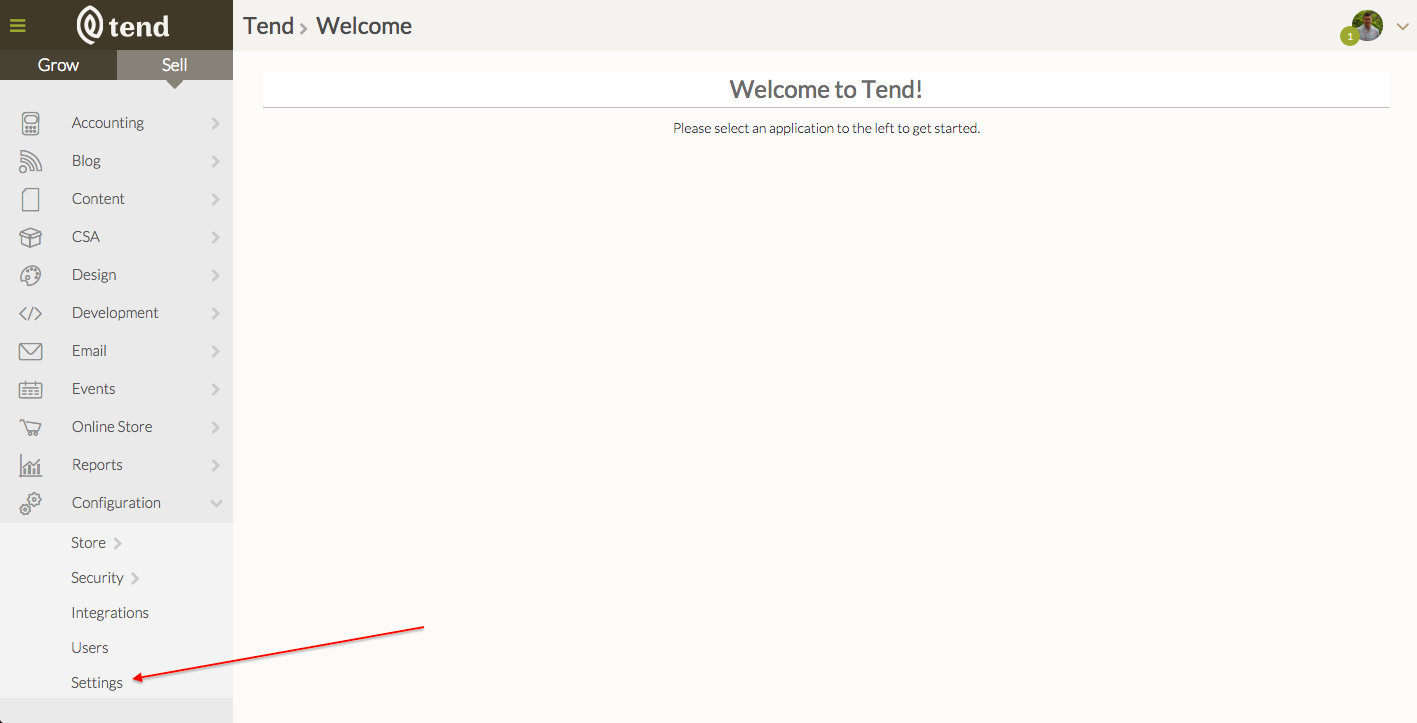
First, enter your admin portal and click on the "Configuration" tool and then click on "Settings" in the drop-down (screenshot #1).
Screenshot #1: Visit your settings
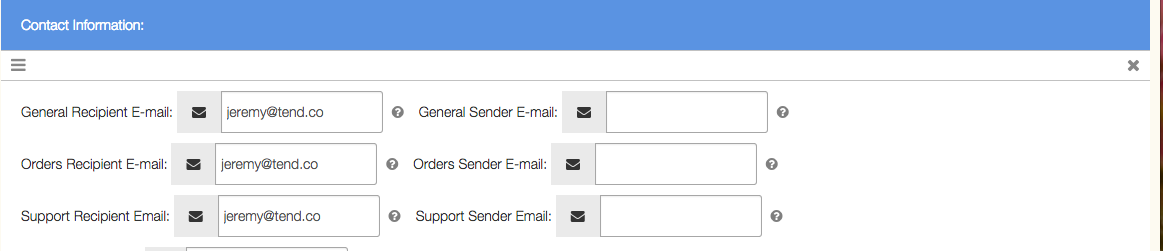
Once inside settings you can scroll down to the fourth section of the page titled "Contact Information". Inside contact information you will see 6 different email fields, "General Recipient Email", "Orders Recipient Email", "Support Recipient Email", 'General Sender Email", "Orders Sender Email" and "Support Sender Email (screenshot #2). Enter the email in the box you'd like to match these corresponding fields. If you're not sure what each field means, click on the question mark next to each one.
Screenshot #2: Fill in your email addresses
Once you've entered your new emails, click "Save" in the bottom right hand corner.