Tags are a way to help you better organize your email subscribers to create highly targeted email lists.
To add tags, visit your "Subscribers" list in your "Email" tool
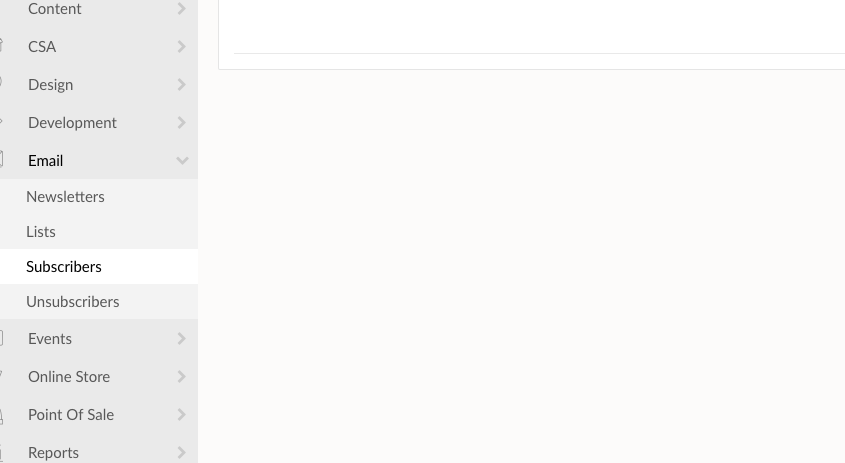
Inside your subscriber's list, you'll see a list of all your subscribers. If you don't see any subscribers, make sure your date filter (located in the top right-hand corner) is set to "all time". If you click on a subscriber you'll see all the information available for this subscriber, like their email address and name. You will also see a field titled "tags".
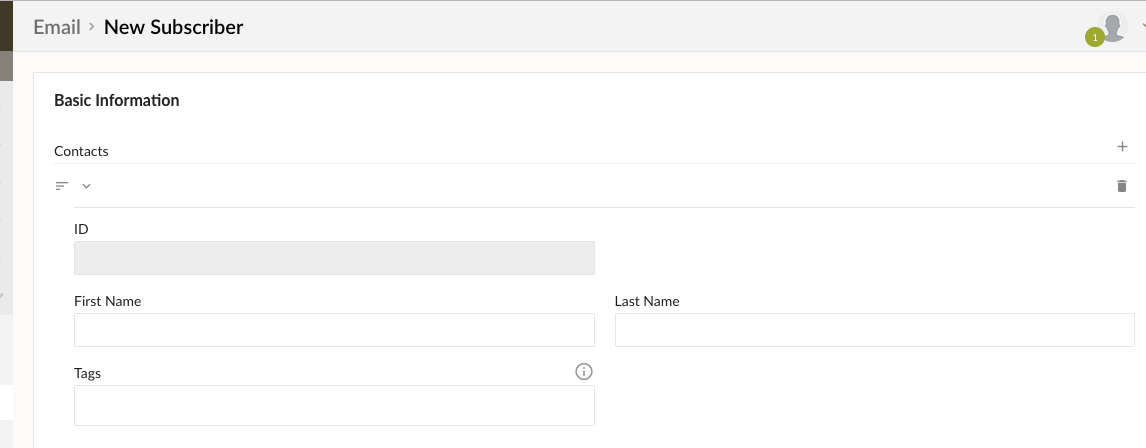
Think of tags like keywords for your subscribers, such as where they came from, who they are, or what they're interested in. For example, if you have an email collection box on your website and someone signs up through this collection box, they'll automatically be given the tag "source-newsletter". The only other time we automatically tag one of your subscribers is when a customer completes an order from your online store and you process that order. In this case, we tag them with "customer" and "source-order".
You can also manually add as many tags as you'd like to a subscriber, here are example ways you might want to tag them:
If a subscriber is a customer of your CSA, you could tag them with "csa"
If a subscriber attended one of your events, you could tag them with "event-attendee"
If a subscriber is a customer of your farmers market, you could tag them with "farmers-market-customer"
Each subscriber can have an unlimited amount of tags. We recommend using lower case letters for all of your tags to avoid confusion and to keep your tags consistent. Tags become extremely valuable when you start creating email lists, so you can use them to create highly specific lists.
When creating a new list you'll see a section titled "contact"
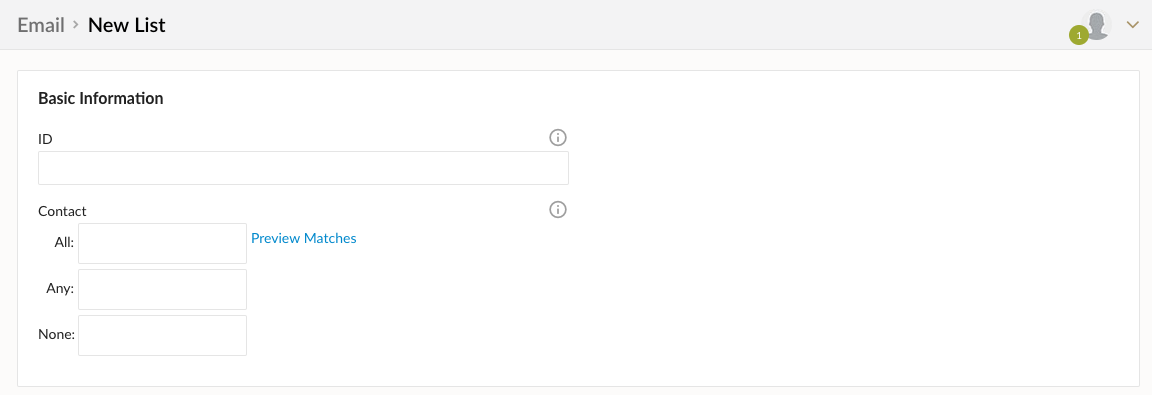
Underneath contact is the formula used to create your email list. This is where you will use your tags. For example, if you want to create an email list that only includes subscribers with the tag "source-newsletter", you would add "source-newsletter" to the "all" field and leave "any" and "none" fields blank. However, if you wanted to exclude your CSA customers from this list, you would add the "csa" tag in the "none" field.
The possibilities for creating lists are limitless depending on how targeted you want your email lists to be. Please note that if you leave all the fields beneath "contact" blank, your email list will include all of your subscribers by default. Email lists are smart and update over time. For example, if you create the above email list on January 1st, even subscribers who sign up for your newsletter after January 1st will be included in this list.