
Overview
Task Types are used to organize and configure specific tasks. Tend comes pre-populated with common task types, each with their own configuration. You can also add custom task types.
Task Type Management allows you to customize your task colors and abbreviations to suit your business. These colors and abbreviations are visible when you view tasks throughout Tend.
Where do Task Types show up?
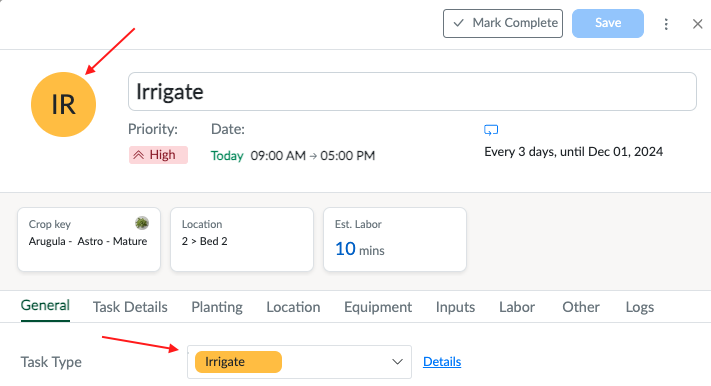
Task type colors, names, and abbreviations will show up in Tasks and Growing Templates. Here the “Irrigate” task type has a yellow color and abbreviation of “IR.” This is the same for any task that has “Irrigate” as its task type.
Editing Task Types
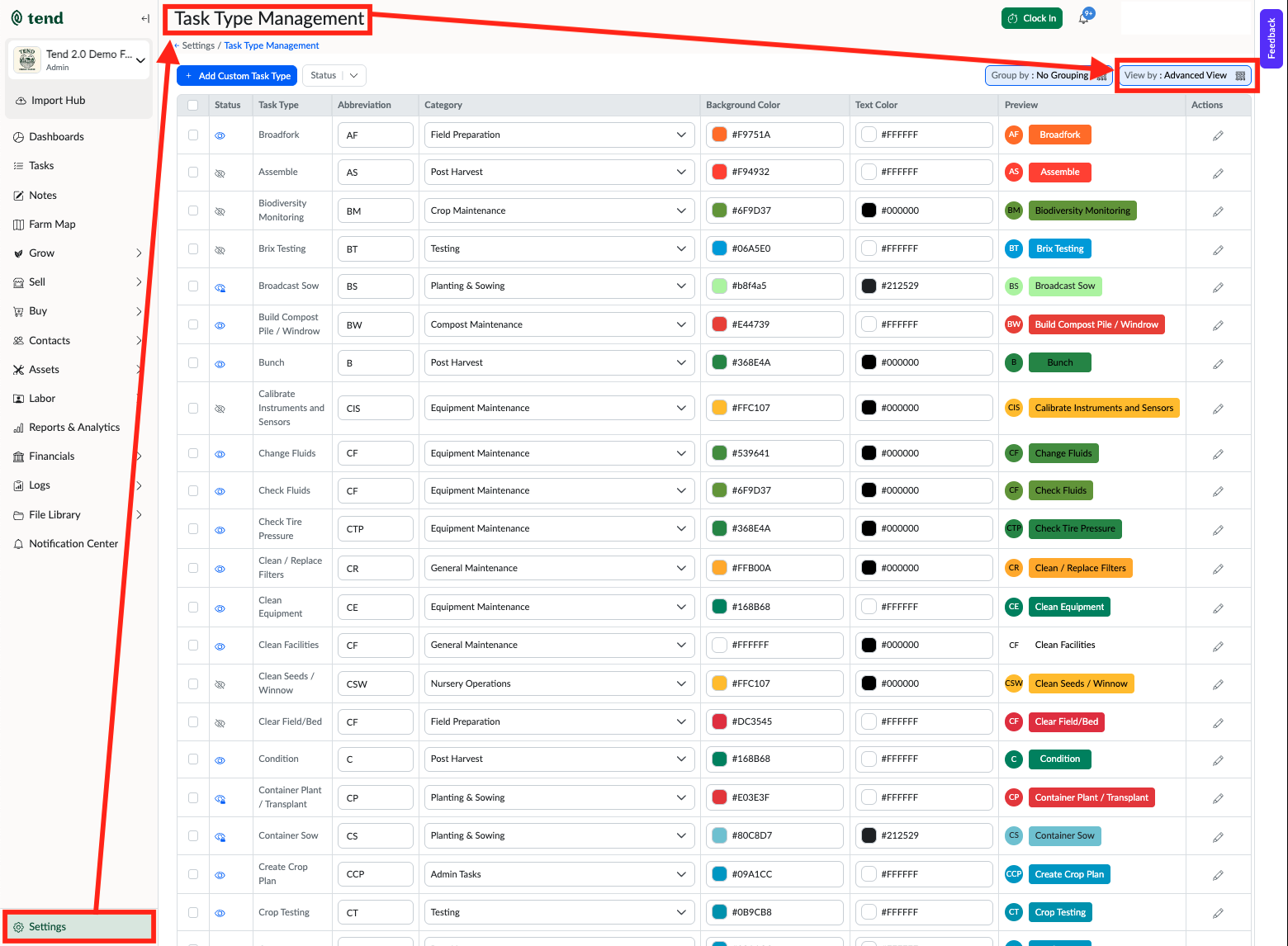
In the Tend Menu, click Settings.
Click Task Type Management.
Select 'View by: Advanced View' in the top right corner.
Here you can edit the Abbreviation, Category, Background Color, and Text Color. You can also choose to 'see' or 'unsee' certain tasks to help declutter your list. Click on the eye symbol to unsee tasks that you do not use on your farm. Make sure you save your changes once you’re done.
Add a Custom Task Type
There are two ways to add a Custom Task Type.
Add from the Task Type Management feature:
In the Tend menu, click Settings
Click Task Type Management
Click the blue '+ Add Custom Task Type' button in the top left corner.
Edit as needed and save your new task.
Add from the Tasks feature:
In the Tend Menu, click Tasks.
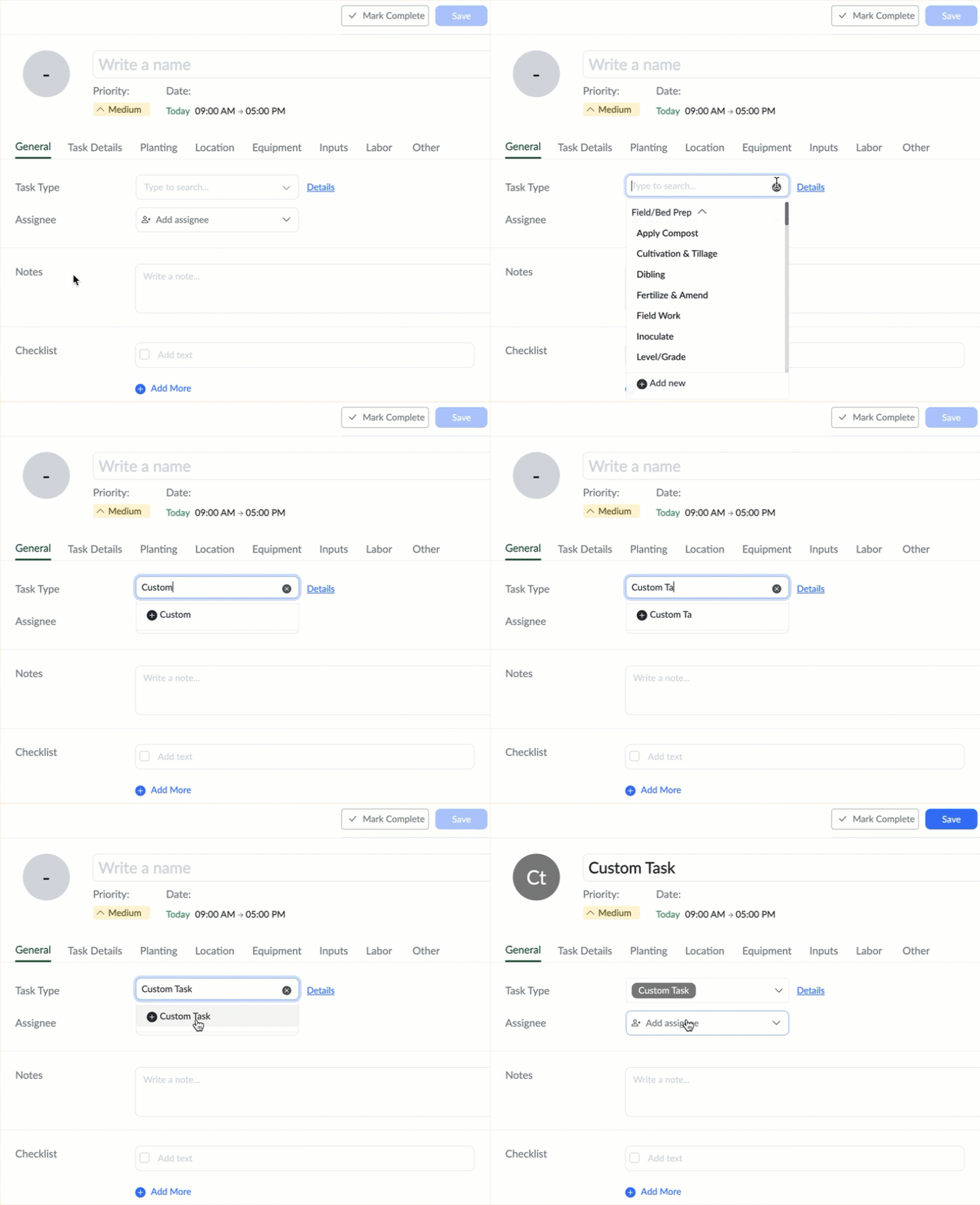
Click on Add New, then click the Task Type drop down and type in the Task Type name you want to add, then click the plus button to save it.
Save the task in order for the new Custom Task Type to be saved.
Deleting a Custom Task Type
To delete a custom task type, select the check box to the left of the task type. Then click the blue 'Actions' button in the top left corner. From here you can delete your custom task.
Certain Tasks cannot be deleted from Tend because they are configured specifically for your Growing Templates and auto-populated when plantings are created. These tasks include items such as Container Sow and Harvest.
You can change the name of Tasks. For example if you use the word Pick instead of Harvest, you can click the pencil edit symbol from your Task Type Management window and update the Default Name to a Custom Name.